Introduction
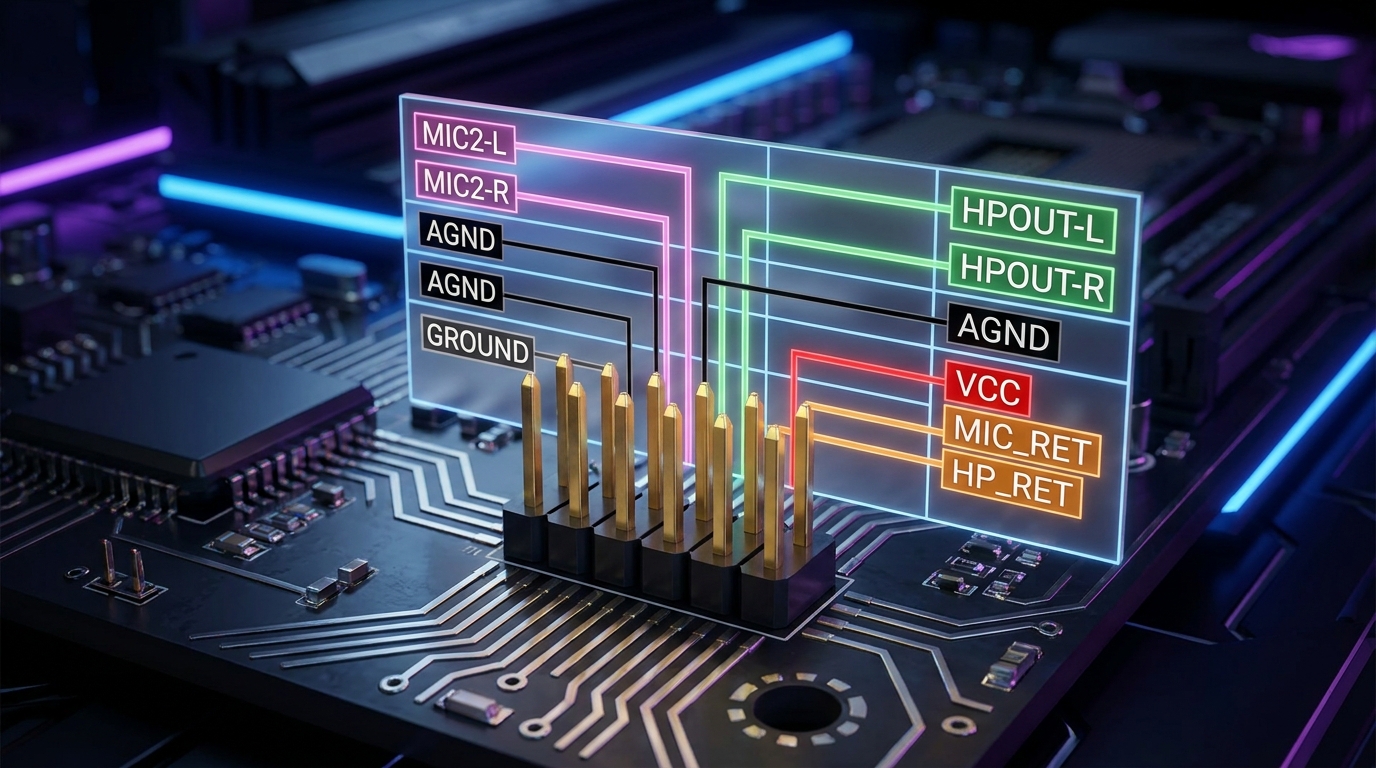
Connecting the front panel audio ports of a computer to the motherboard can often raise questions, particularly regarding the pinout configurations and color codes involved. This article aims to clarify the front panel audio header pinout color codes, an essential aspect when setting up or troubleshooting audio connections in desktop systems. Misunderstanding these connections can lead to malfunctioning audio ports or, at worst, damaged hardware, making it crucial for users, especially DIY builders, to grasp this topic. The most common misconception is that all motherboards utilize the same standard, but there are variations depending on the manufacturer and the audio system in use. In this article, you will learn the specific pin assignments associated with Intel HD Audio and AC’97, color coding conventions, and practical tips for connecting these headers correctly.
Understanding Front Panel Audio Headers
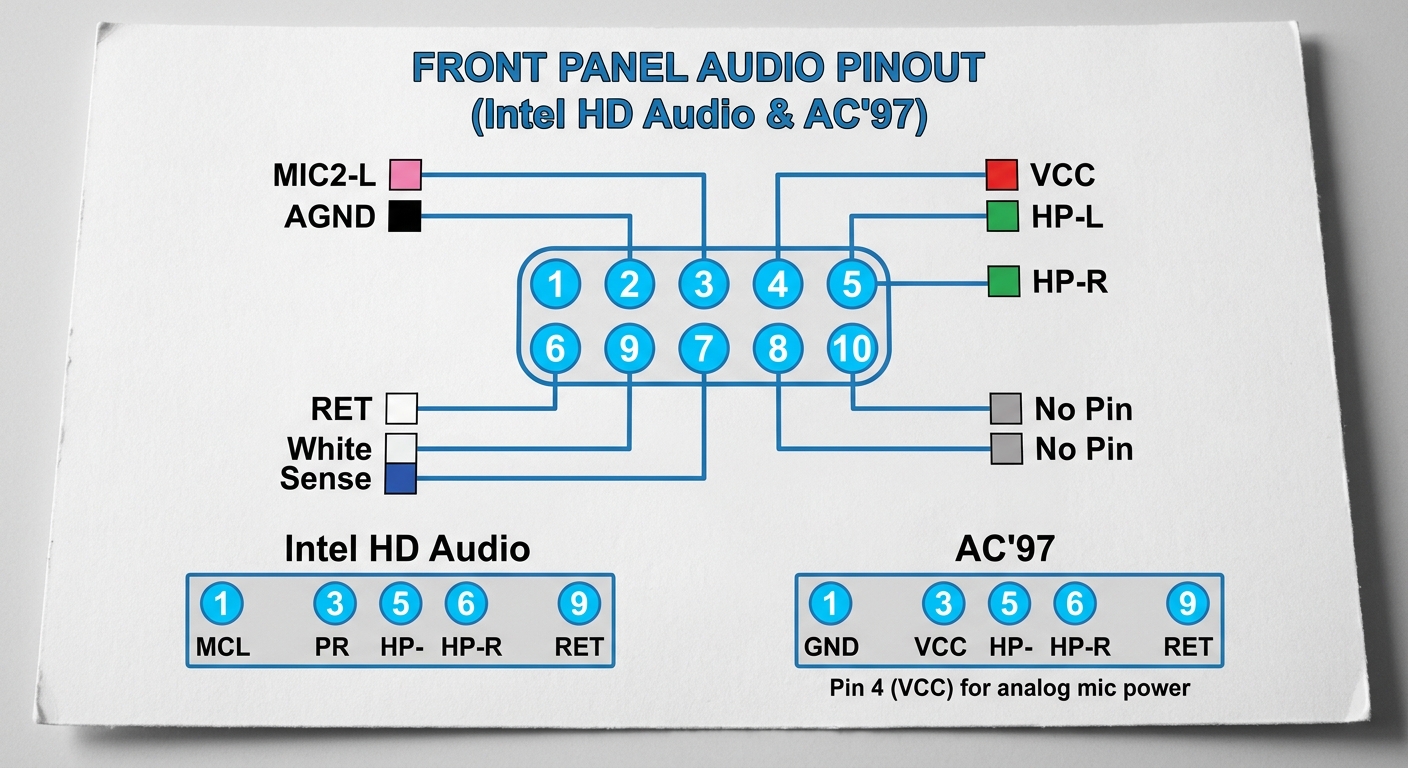
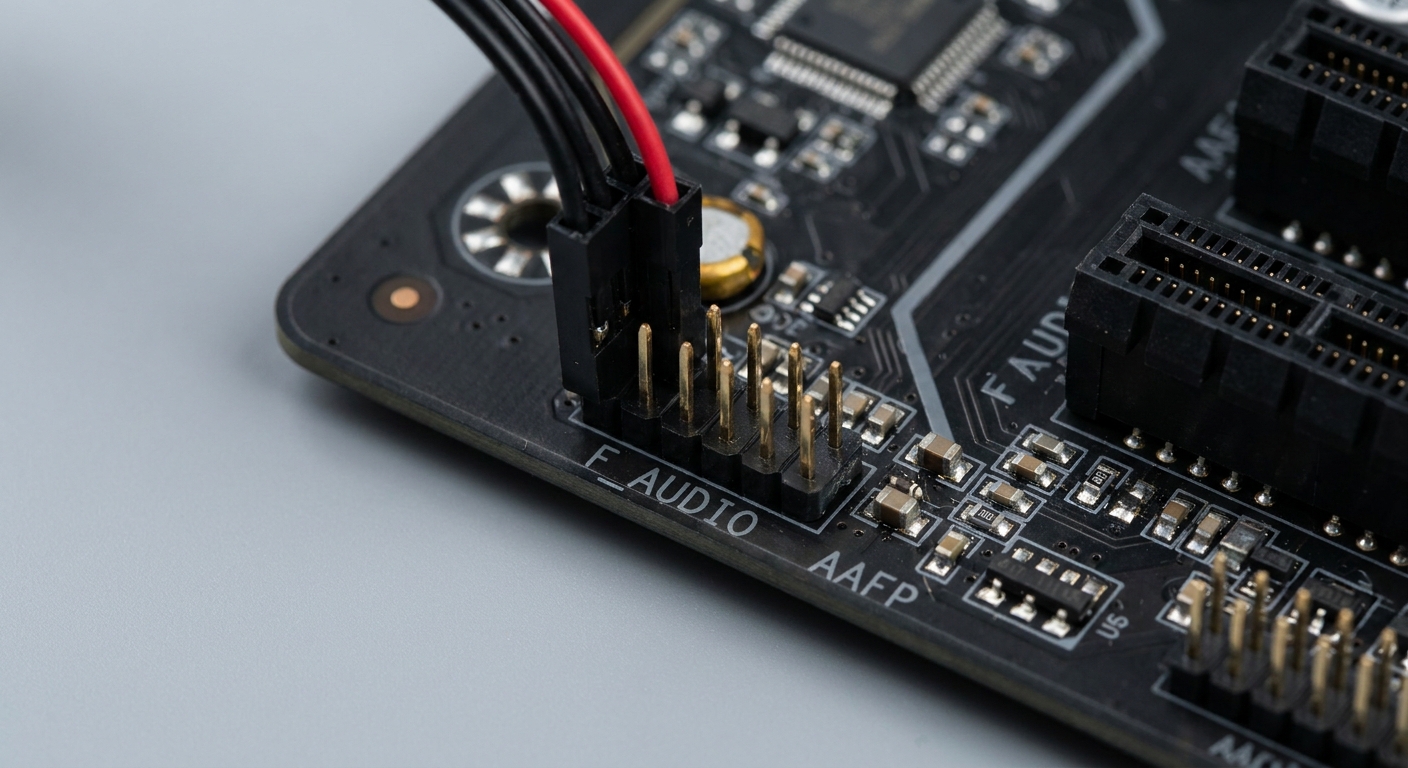
The front panel audio header connects the audio jacks on a computer case to the motherboard, facilitating the use of headphones and microphones directly from the front of the case. There are two main standards for these connections: Intel HD Audio and AC’97.
Intel HD Audio vs. AC’97
The Intel HD Audio interface has largely replaced the older AC’97 standard, offering enhanced capabilities such as support for more audio channels and higher quality sound. Most modern motherboards manufactured in the last decade comply with Intel HD Audio standards.
Pinout Configuration
Generally, the pinout configuration for front panel audio headers can vary based on the motherboard. Here’s a breakdown of the typical pin layout:
You may also like


| Pin Number | Pin Function | Color Code |
|---|---|---|
| 1 | MIC2-L | Pink |
| 2 | AGND | Black |
| 3 | MIC2-R | Pink |
| 4 | VCC | Red |
| 5 | HP-L | Green |
| 6 | GA1 | Omitted |
| 7 | HP-R | Green |
| 8 | GA2 | Omitted |
| 9 | RET | White |
| 10 | KEEP | Omitted |
Common Color Codes
The colors of the wires going from your case’s audio ports to the motherboard can vary by manufacturer, but there are some widely accepted color codes:
- Pink: Microphone (MIC2-L, MIC2-R)
- Black: Ground (AGND)
- Red: Power (VCC)
- Green: Headphone (HP-L, HP-R)
- White: Return (RET)
Troubleshooting Front Panel Audio Connections
Many users may find themselves dealing with non-functional front panel audio ports. Below are diagnostic steps and fixes to troubleshoot the front panel audio header:
- Check Connections: Ensure that all connectors are securely plugged into the correct headers.
- Verify Pinout: Cross-reference your motherboard’s manual for the correct pinout layout.
- Test with Different Devices: Plug in a different set of headphones or a microphone to check if the issue lies with the device itself.
- Check Audio Settings: Go into your computer’s audio settings and ensure the correct playback and recording devices are selected.
- Update Drivers: Ensure that your audio drivers are up to date. Manufacturer support pages often have the latest driver downloads.
Variability in Manufacturing Standards
It’s important to note that while Intel HD Audio is the most common standard today, some manufacturers may still use variations or have unique configurations. For instance, HP and Dell might have custom layouts for their systems. Consequently, referring to the motherboard manual or manufacturer’s tech support documentation can be invaluable. Some common technical support resources can be found through links such as Dell’s Support or HP’s Support.
Frequently Asked Questions
Q1: How do I know which audio standard my motherboard uses?
A1: You can typically find this information in your motherboard’s manual or specifications online, or by checking if your audio driver is labeled as Intel HD Audio or AC’97.
Q2: What do I do if none of the front panel audio ports work?
A2: Follow the troubleshooting steps, ensuring that connections are secure, testing with different devices, and checking audio settings.
Q3: Are color codes for audio headers standardized?
A3: While there are common color codes, variations exist between manufacturers, so always consult your specific motherboard’s manual for accurate information.
Q4: Can I mix and match connectors from different audio systems?
A4: It is not recommended; standardization discrepancies may cause functionality issues or damage the hardware.
Q5: Do I need to connect both microphone and headphone ports?
A5: You only need to connect the ports you intend to use. However, connecting both will provide maximum functionality for audio purposes.
Conclusion
In summary, understanding the front panel audio header pinout color codes is crucial for successfully connecting and troubleshooting your computer’s audio system. Familiarizing yourself with the differences between Intel HD Audio and AC’97 standards, as well as the common color-coding practices, can lead to a smoother setup process and reduce potential issues. For more detailed information about hardware configurations, exploring related topics such as motherboard layouts and audio driver updates can further enhance your DIY experience.
Rotating USB