Understanding Dell OptiPlex Blinking Power Button Color Codes
The Dell OptiPlex series of desktop computers are widely known for their reliability and performance, making them a popular choice for both personal and business use. However, users often encounter issues indicated by the power button’s blinking color codes. This article will address what the blinking power button means, how to interpret the different colors and patterns, and the common hardware issues that can arise as a result. Understanding these indicators is crucial for effectively troubleshooting and resolving any underlying problems, ultimately ensuring that your Dell OptiPlex runs smoothly and efficiently.
Many users mistakenly believe that a simple power button blink indicates a complete power failure when, in fact, it may signal issues such as hardware initialization problems or specific component failures. In this article, you will learn how to decipher the blinking color codes of your Dell OptiPlex power button, understand the associated hardware issues, and discover troubleshooting steps to potentially resolve these problems.
How the Power Button LED Works
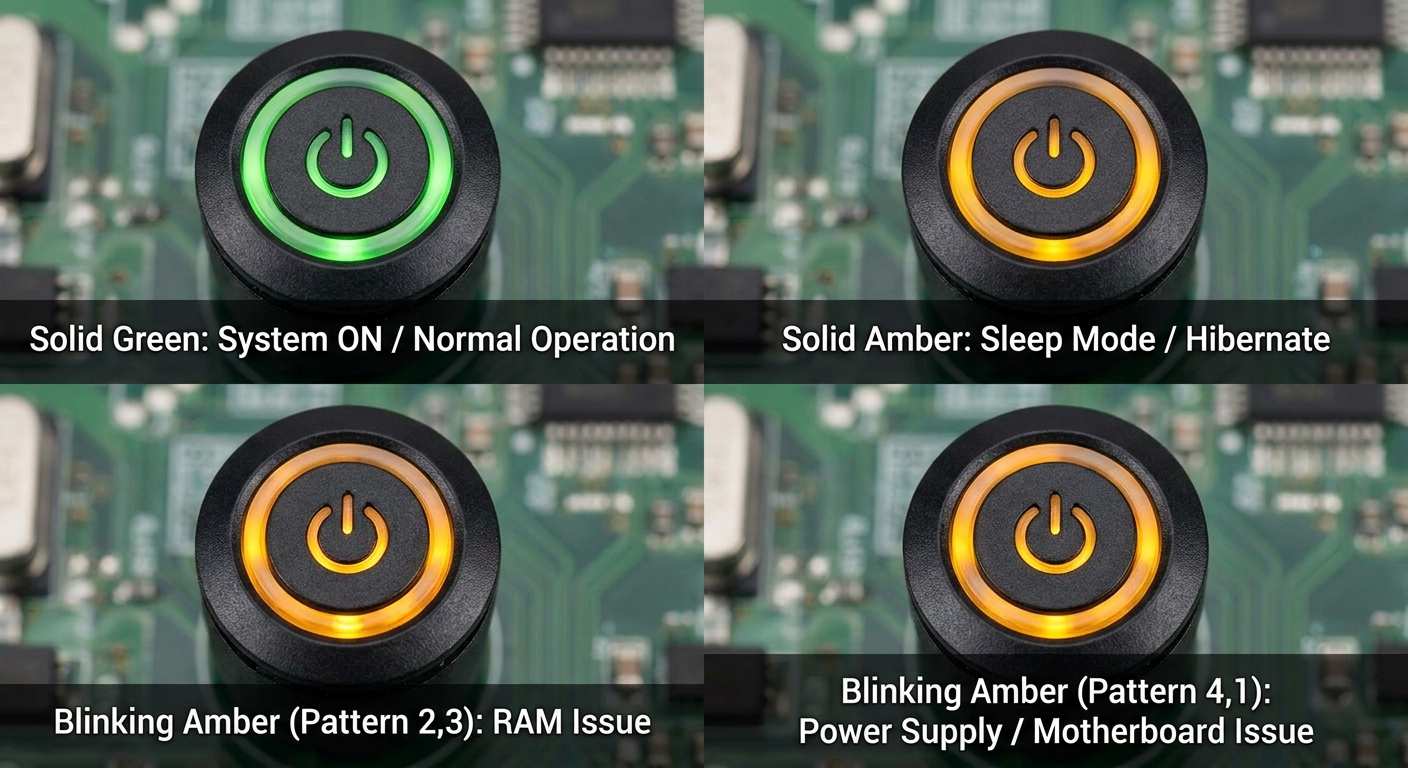
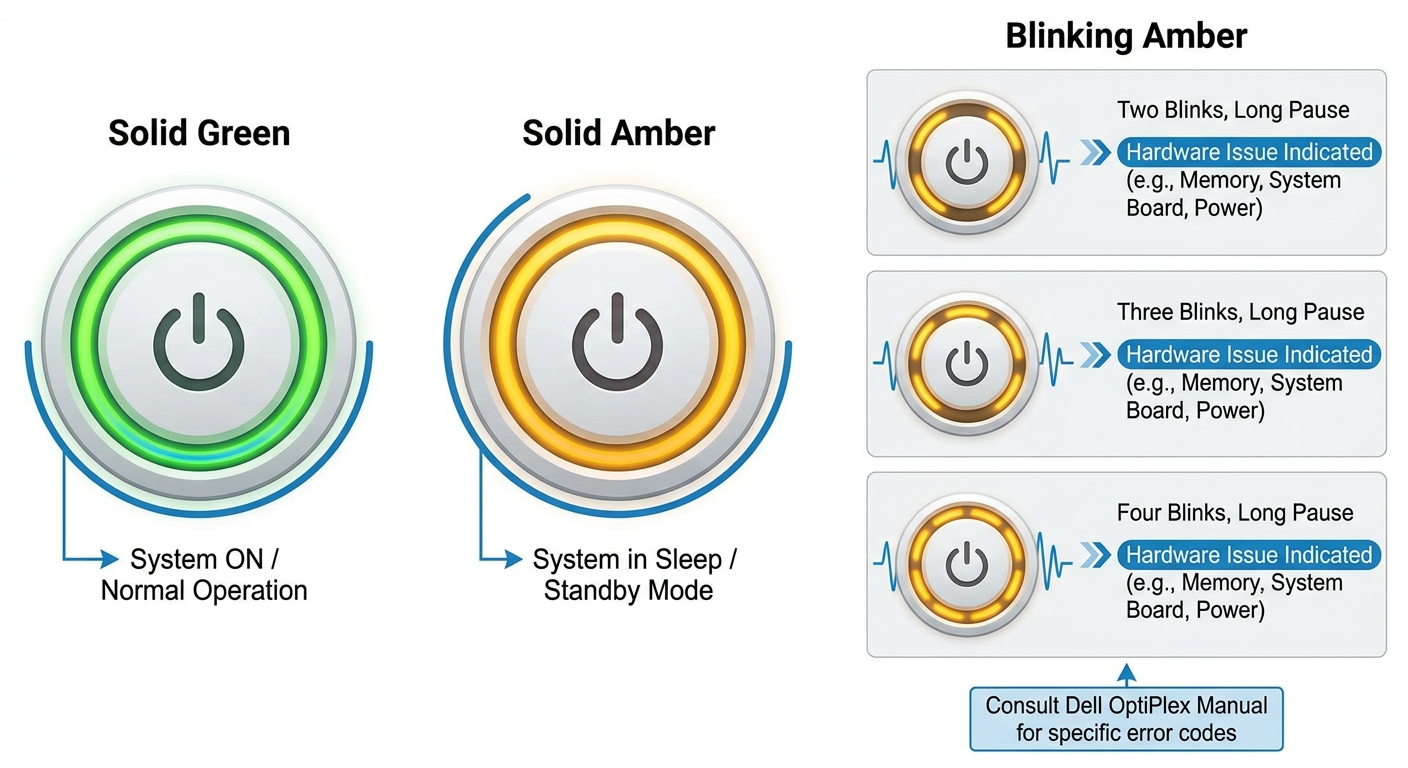
The power button LED on Dell OptiPlex desktops serves as a diagnostic tool providing visual feedback about the state of the computer. It can exhibit different color states—solid green, solid amber, and blinking amber—each of which conveys specific information about the power supply and the operational status of the system.
- Solid Green: Computer is powered on and operating normally.
- Solid Amber: Computer is in a standby or sleep state.
- Blinking Amber: Indicates various issues depending on the blinking pattern.
Interpreting Blinking Amber Codes
When the power button blinks amber, it can denote multiple problems depending on the pattern of the blinks:
You may also like



- 2 Blinks and Long Pause: Could indicate a RAM issue. Specifically, this pattern suggests that memory may not be properly seated or may be faulty.
- 3 Blinks and Long Pause: Similar to the previous pattern, this indicates a problem with the memory subsystem.
- 4 Blinks: Often means there is an issue with the system board.
- 5 Blinks: Indicates a potential issue with the processor, possibly due to overheating or a fault in the processor itself.
- 6 Blinks: Refers to input/output initialization failure, which can sometimes be attributed to a failed power supply unit (PSU).
- 7 Blinks: Denotes a general hardware error, where specific components like the graphics card or disk drive might be causing the boot failure.
Common Causes of Blinking Power Buttons
Several underlying issues can trigger a blinking amber power button on a Dell OptiPlex:
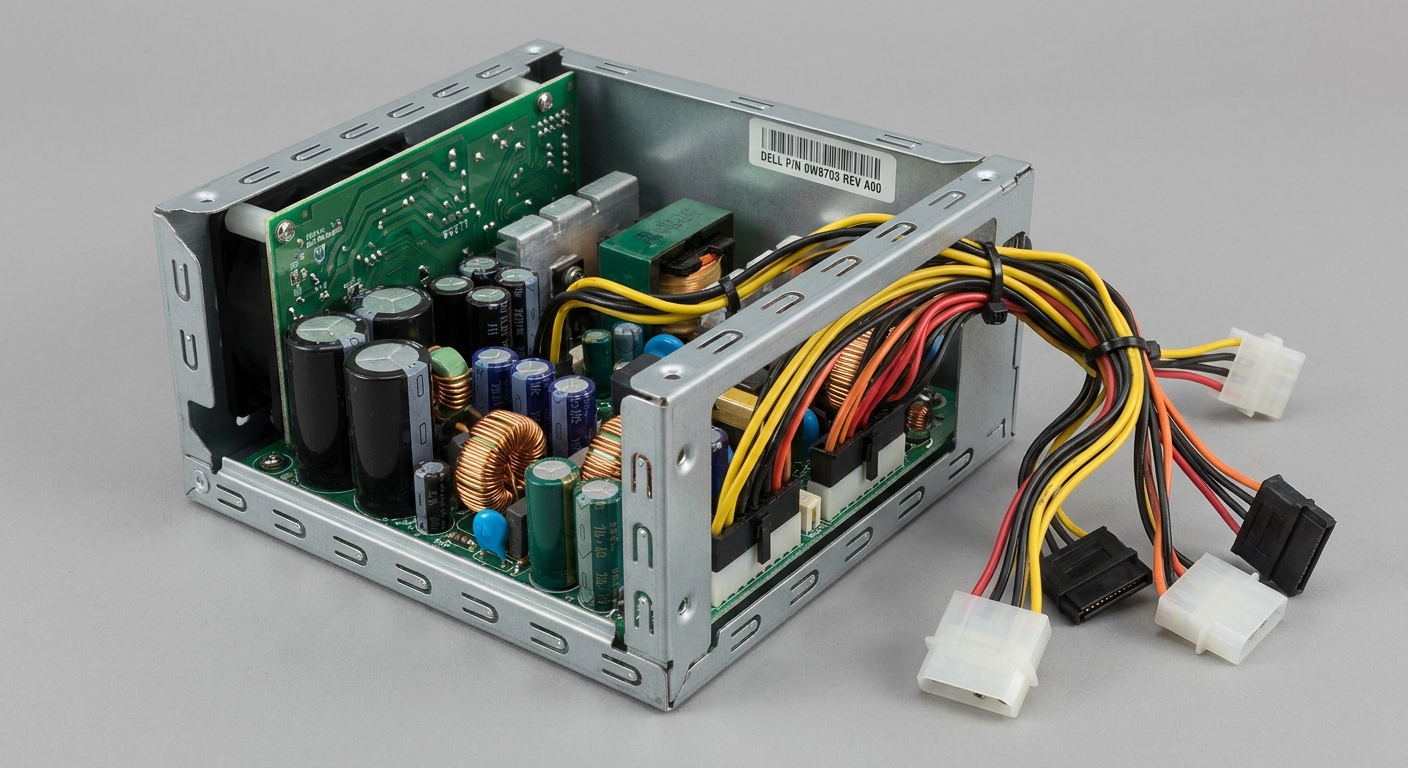
- Power Supply Unit (PSU) Failure: A failing or failed PSU can lead to insufficient power being delivered to the hardware components, causing the amber blinking.
- RAM Issues: Improperly seated or defective RAM modules will trigger the diagnostic lights and the power button blinking pattern.
- System Board Issues: Faults in the motherboard can lead to a failure during system post, symbolized by the amber blinking.
- Peripheral Device Conflicts: Sometimes, external devices connected to the system can cause power-related issues.
Diagnostic Steps to Take When the Power Button Blinks Amber
To troubleshoot the issues indicated by a blinking amber power button on a Dell OptiPlex, follow these steps:
- Check the power source: Ensure that the power cable is securely connected to both the power outlet and the PSU.
- Inspect the Power Supply Unit: If you suspect PSU failure, consider testing it with a multimeter or replacing it.
- Reseat RAM Modules: Open the case and carefully remove and reseat the RAM modules to ensure proper connection.
- Examine Peripheral Devices: Disconnect all external devices and try to power on the system to see if the issue persists.
- Boot into Safe Mode: If the system powers on normally, try booting into safe mode to check for software-related problems.
Additional Blinking Patterns by Model
Different Dell OptiPlex models may exhibit unique blinking patterns. For example, the OptiPlex 780 and 7010 series have specific codes:
- OptiPlex 780: Amber blinking with lights 1 and 3 signifies RAM issues.
- OptiPlex 7010: Amber blinking often involves more complex signals, dividing between 2 to 3 blinks that indicate memory problems, with additional codes for other components.
FAQs
Q: What does a blinking amber power button mean on my Dell OptiPlex?
A: A blinking amber power button indicates potential hardware issues ranging from power supply failure to RAM discrepancies.
Q: How can I troubleshoot a blinking amber light?
A: Begin by checking the power source, reseating the RAM, and disconnecting external peripherals. If the issue persists, test the power supply.
Q: Are all blinking patterns the same across Dell OptiPlex models?
A: No, different models have specific patterns. It’s important to refer to model-specific documentation for accurate diagnostics.
Q: What is the significance of a solid amber power light?
A: A solid amber light usually indicates the computer is in a standby state, while blinking indicates underlying hardware issues.
Q: Can I fix a failed power supply myself?
A: If you are comfortable with hardware, you can replace the power supply. However, seeking professional help is recommended if you are unsure.
Conclusion
In summary, understanding the blinking power button color codes on your Dell OptiPlex is crucial for effective troubleshooting. By interpreting these codes correctly, users can identify and address hardware problems more efficiently. This knowledge not only helps in maintaining system performance but also minimizes downtime and frustration caused by technical issues. For further support on related topics, consider looking into Dell’s extensive troubleshooting resources.
Rotating USB