Introduction
Laptop battery indicator lights serve as critical alerts for users, providing vital information about the charging status and overall health of their devices. Understanding these color codes can help troubleshoot issues effectively and avoid further complications. The specific problem this article addresses is the confusion surrounding the meaning of various battery indicator light colors and blinking patterns across different laptop brands, particularly Dell. Misinterpretations of these signals can lead to unnecessary worry or even the misconception that a laptop needs drastic repairs when it may simply be a battery charging issue. In this article, readers will learn how to decode the common indicators of laptop battery lights, the typical troubleshooting steps to take based on these signals, and how to effectively maintain battery health. By understanding these signals, users can take proactive measures to ensure their laptop remains functional and reliable.
How Laptop Battery Indicator Lights Work
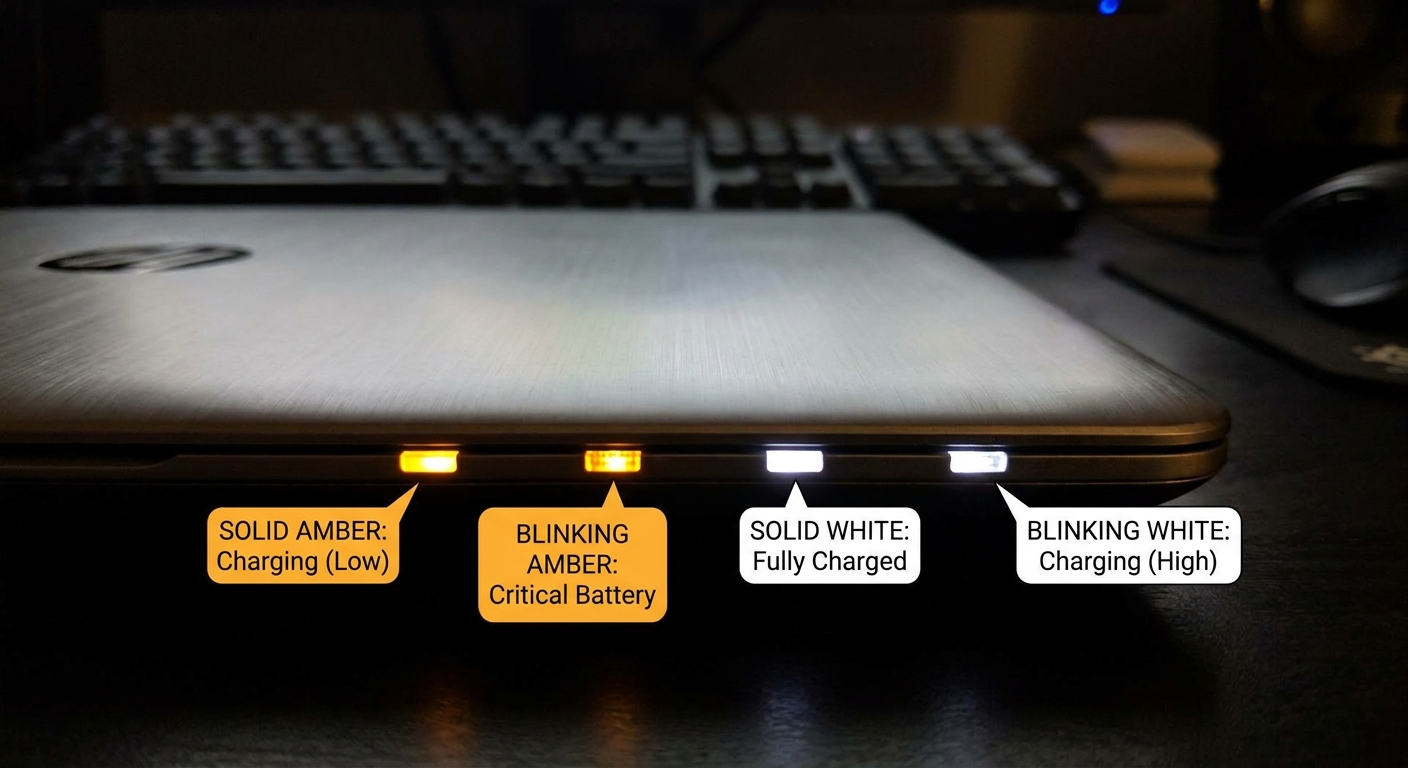
Laptop battery indicator lights are designed to provide visual cues regarding the battery’s status. This includes whether the battery is charging, fully charged, or faced with issues. The lights typically display in various colors, each with specific meanings:
- Amber/Orange: Indicates the battery is charging and may be below a certain threshold, usually less than 95%.
- White/Green: This light appears when the battery is fully charged or is in a good range.
- Blinking Patterns: Any blinking, for instance, an alternating amber and white pattern, often signifies hardware issues or errors—like a RAM failure.
Common Color Codes and Their Meanings
Different manufacturers use slightly varied systems for their battery indicators. Here’s a focused look at what some common light signals may mean specifically for laptop users, particularly Dell users based on referenced sources:
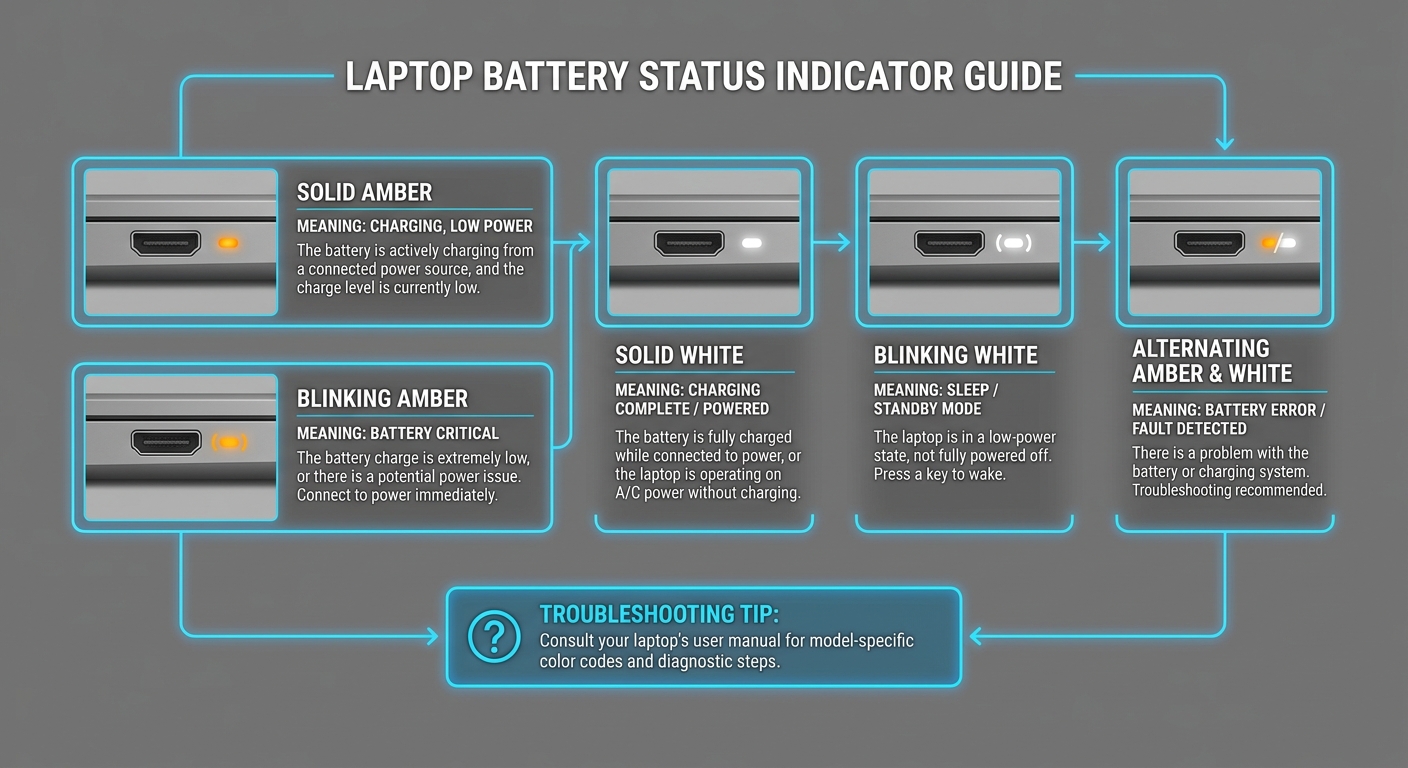
| Light Color/Pattern | Meaning |
|---|---|
| Solid Amber | Battery is charging; power is below 95%. |
| Blinking Amber | Battery is critically low and needs immediate charging. |
| Solid White | Battery is fully charged and operating normally. |
| Blinking White | Possible hardware failure; further diagnostics may be required. |
| Alternating Amber and White | Indicates potential hardware component failure, such as no RAM detected. |
Diagnosing Battery Issues Using Indicator Lights
When encountering unusual battery indicator signals, it is essential to systematically diagnose the problem. Follow these general troubleshooting steps:
You may also like




- Identify the light color and blinking pattern.
- Check if the power adapter is plugged in properly.
- Look for physical damage to the battery or connections.
- Consult the user manual specific to your laptop model.
- If indications suggest further issues (like alternating lights), proceed with more detailed diagnostics or seek tech support.
Common Misconceptions
One common misconception is that an amber light always indicates a malfunction. In many cases, amber lights simply signify that the laptop is in the process of charging. Users should remember that different patterns of blinking or solid colors have distinct meanings and do not necessarily indicate serious issues.
Steps for Maintaining Laptop Battery Health
Maintenance plays a crucial role in prolonging battery life and ensuring consistent performance. Consider the following tips:
- Avoid letting the battery discharge completely before charging.
- Use the laptop on (or switch to) a power adapter whenever possible for heavy tasks.
- Periodically calibrate your battery to help with power reporting accuracy.
- Keep the device in a cool, dry environment as high temperatures can negatively affect battery performance.
When to Seek Professional Help
If your laptop shows persistent warning lights—especially those indicating hardware issues—it may be time to consult with a professional. Common signs that indicate more serious problems include:
- Consistent amber or blinking lights despite proper charging methods.
- Heat generation near the battery area.
- Unexpected shutdowns or restarts that correlate with battery indicators.
For Dell users, additional resources can be found in the Dell knowledge base, which offers extensive troubleshooting support for battery issues.
FAQ
Q1: What does a blinking orange light mean on my laptop?
A blinking orange light typically indicates that the battery is critically low and requires charging.
Q2: Why is my laptop battery not charging?
A laptop battery may not charge due to a faulty power adapter, battery issues, or problems with the charging port.
Q3: What should I do if my laptop battery indicator light is off?
If the light is off, it may mean the laptop is not connected to power, or the battery is malfunctioning and not charging.
Q4: How do I calibrate my laptop battery?
To calibrate, fully charge your battery, then let it discharge completely before charging it back to 100% again.
Q5: Are there ways to reset my battery settings?
Yes, restarting your laptop often helps, but for a full reset, consult your manufacturer guidelines for battery reset procedures.
Conclusion
In summary, laptop battery indicator light colors and patterns are critical signals that inform users of the device’s health and status. Knowing how to interpret these indicators can prevent unnecessary concerns and lead to timely maintenance actions. Regular battery care and a clear understanding of these color codes can extend your laptop’s battery life and optimize its performance. For more information on related troubleshooting topics, consider looking into laptop maintenance tips to keep your device in top shape.
Rotating USB