
Introduction
For system administrators, understanding the status of server hardware is a crucial part of day-to-day operations. A common yet often overlooked indicator of server health is the server heartbeat LED, which employs various color codes and blinking patterns to communicate important information about the server’s status. The problem arises when sysadmins misinterpret these signals, potentially leading to unnecessary service disruptions or misdiagnosed issues. This misconception can stem from the assumption that all LEDs convey the same messages regardless of the hardware manufacturer. In this article, readers will learn how to correctly interpret server heartbeat LED color codes from different manufacturers, their meanings, and the implications for server management and troubleshooting.
Understanding Server Heartbeat LEDs
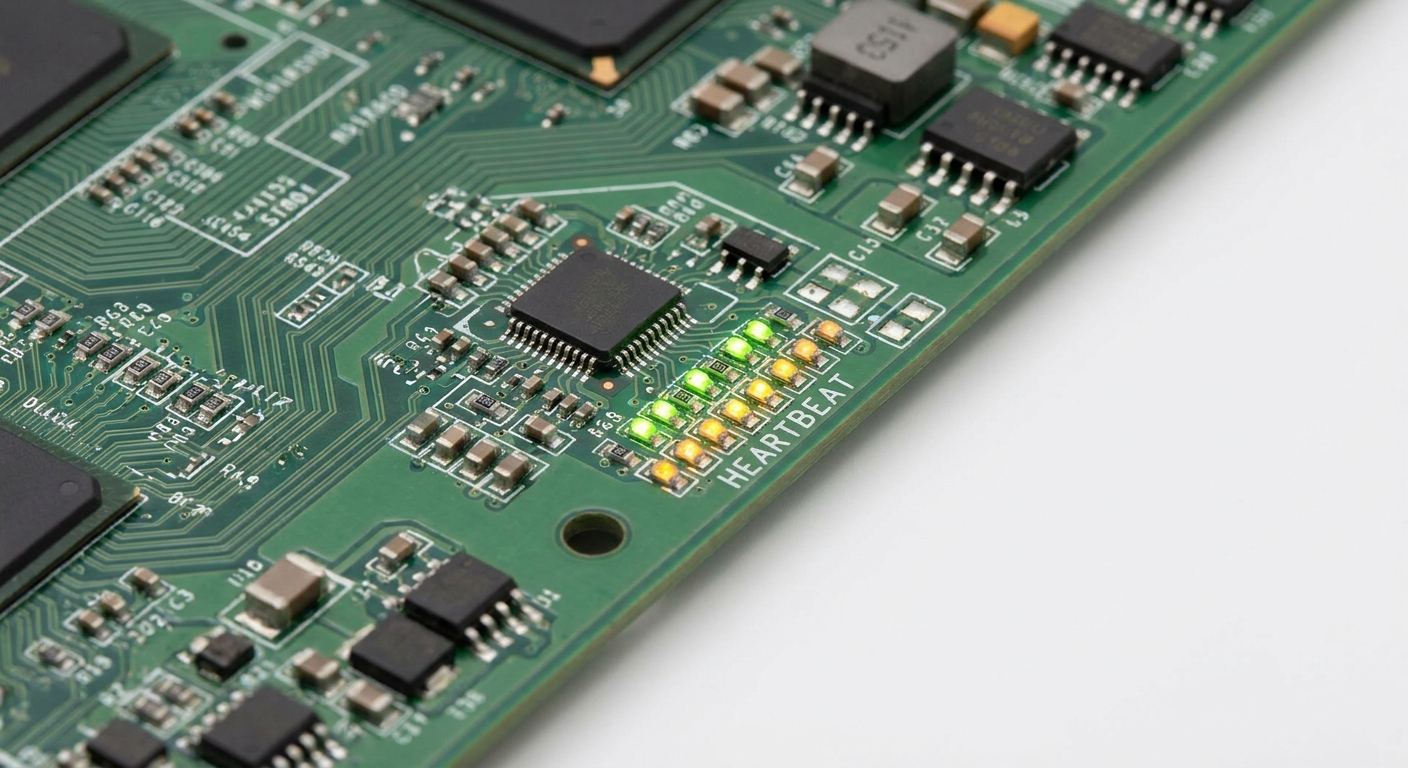
The heartbeat LED is a vital component in modern server architectures. This small light, often found on the system board or at the front of the server chassis, offers real-time feedback about the server’s status and operational health. Understanding its color codes and blinking patterns can quickly help system admins identify whether the server is functioning correctly or if it requires attention.
Common Colors and Their Meanings
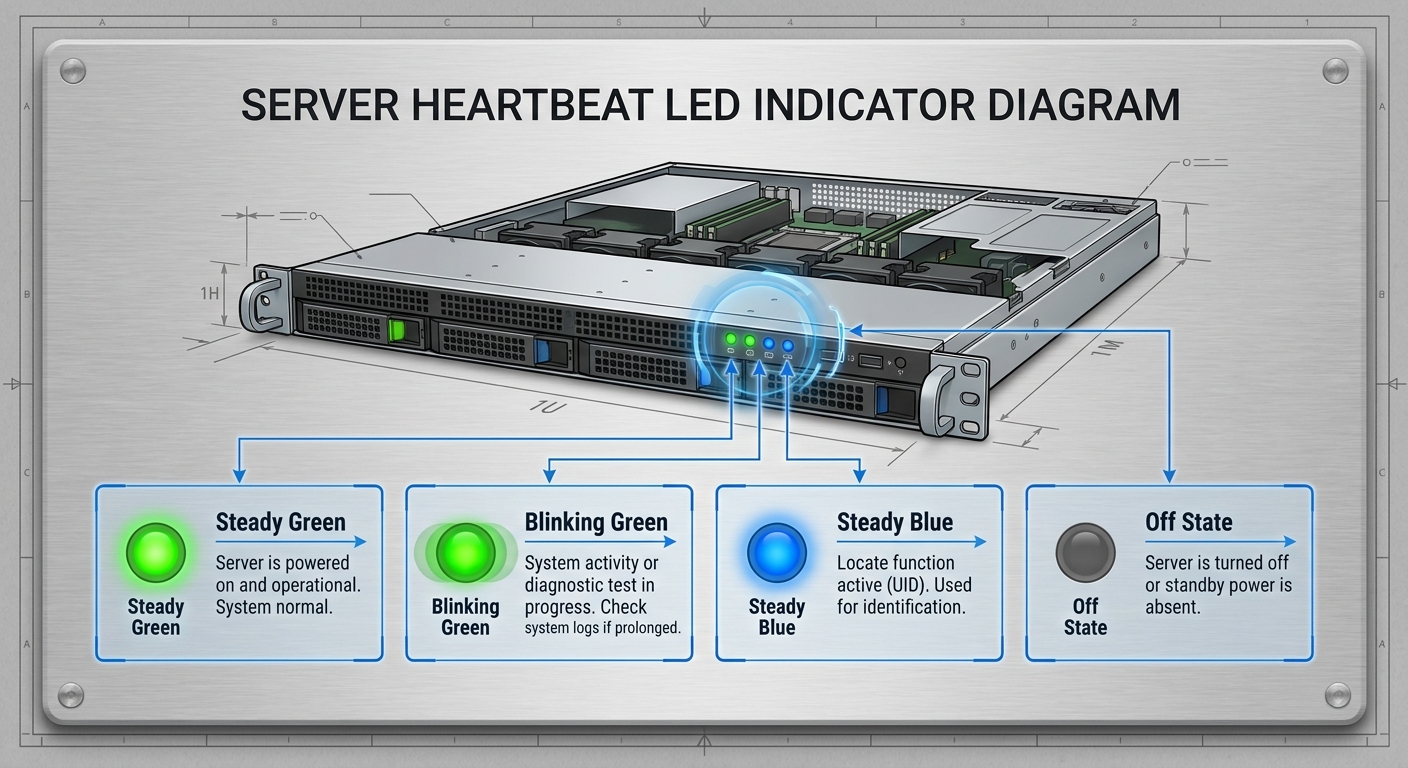
The color and state (steady vs. blinking) of the heartbeat LED can convey varying statuses. Below are common color codes and their meanings across different server vendors:
| Color | State | Meaning |
|---|---|---|
| Green | Steady | Server is powered on and operational. |
| Green | Blinking | Firmware is being uploaded or BMC software is operational. |
| Blue | Steady | Normal operation; everything is functioning as expected. |
| Blue | Blinking | Indicates an irregular condition requiring attention (manufacturer-specific). |
| Off | N/A | Server is turned off; investigate power supply or system issues. |
Manufacturer-Specific Insights
Different manufacturers may have unique designs and indicators, but they all generally adhere to similar color schemes. Notable examples of server heartbeat LED functions include:
You may also like




- Lenovo’s ThinkSystem SR630V2: The Baseboard Management Controller (BMC) heartbeat LED offers specific feedback: a steady green signifies the BMC is operational, while a blinking green could indicate that it is receiving updates.
- HPE Integrity rx2620: This server shows a steady green LED post-initial power-up, confirming the BMC software is functioning properly within a few seconds of being plugged in.
- General Indicators: Many RGB LEDs in server systems will change colors in response to issues such as hardware failures or connectivity drops, allowing admins to quickly identify malfunctioning components.
Diagnosing Server Issues via LED Indicators
Interpreting the status LEDs correctly can significantly streamline troubleshooting processes. When an admin notices a non-standard color or blinking pattern, they can follow these diagnostic steps:
- Check the specific color and state of the LED to determine initial status.
- Refer to the server’s manual or manufacturer documentation for the corresponding meaning of the LED pattern.
- If the LED indicates a problem (e.g., blinking red), conduct hardware checks for potential component failures, such as hard drives or network interface cards (NIC).
- Perform system diagnostics using built-in tools provided by the manufacturer to narrow down potential issues.
- Consult technical support or forums if there is ambiguity in the LED interpretation and indicated problems persist.
Best Practices for Server Management
To effectively utilize heartbeat LED indicators in server management, consider the following best practices:
- Maintain documentation of your servers’ LED color codes and meanings, as outlined by each manufacturer.
- Regularly perform physical checks of server hardware to ensure all components connected properly and functioning.
- Incorporate LED status checks into routine maintenance schedules.
- Utilize monitoring software that logs LED statuses and can alert admins to potential problems before they escalate.
FAQ
Q1: What does a blinking green LED indicate on a server?
A1: A blinking green LED typically indicates that firmware is being uploaded or that the BMC software is operational, depending on the server model.
Q2: What action should I take if the LED is off?
A2: If the LED is off, this typically means the server is turned off or not receiving power. Check the power supply and connections.
Q3: Are the LED color codes the same across all server manufacturers?
A3: No, while many manufacturers use similar color coding, specific meanings may vary. It’s best to consult the manufacturer’s documentation for accurate interpretations.
Q4: How can I troubleshoot if the LED indicates a problem?
A4: Begin by checking the LED color and pattern, refer to the manufacturer’s guide, perform hardware diagnostics, and reach out for technical support if necessary.
Q5: Can a server indicate multiple statuses at once using LEDs?
A5: Typically, a server will show one primary status; however, some models may have multiple LEDs indicating the health of various components simultaneously.
Conclusion
Understanding the server heartbeat LED color codes is essential for effective system monitoring and maintenance. Proper interpretation of these indicators can lead to quicker diagnostics and proactive management of server health. For further information on related topics, consider reading about server monitoring tools that enhance admin efficiency.
Rotating USB