Understanding External GPU (eGPU) Connection Color Codes
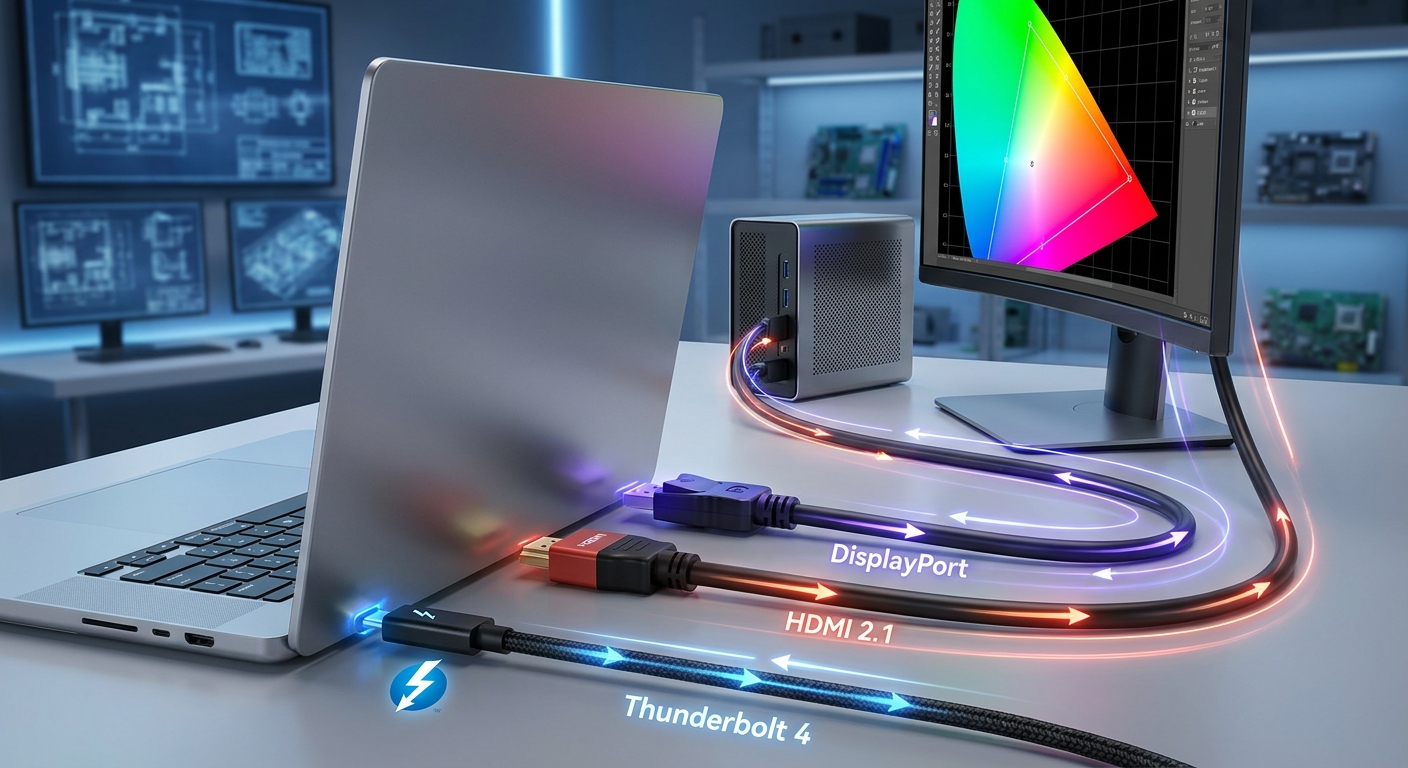
In recent years, the use of external graphics processing units (eGPUs) has become increasingly popular, especially among laptop users seeking to enhance their graphics performance. An eGPU is an external hardware extension that connects to a laptop, typically through Thunderbolt 3 or 4, allowing users to leverage desktop-level graphics capabilities. However, navigating the colorful world of display outputs can become quite confusing, particularly when it comes to understanding connection color codes. This article addresses the common misconceptions around connection color codes and their impact on eGPU performance. Whether you’re encountering limited color ranges or seeking to optimize your setup, this guide will clarify how these color codes work and what you need to know to achieve the best visual performance for your external displays.
The problem stems from the varying interpretations of color depth and the potential limitations imposed by the connection type. Users often find that displays connected through an eGPU may exhibit vibrant colors while those connected through an integrated GPU (iGPU) appear washed out. This article will cover the specifics of eGPU color connections, helping you troubleshoot issues with color representation on external displays and ensuring you utilize your eGPU to its fullest potential.
How eGPU Connections Impact Color Display
eGPUs provide a bridge between the powerful performance associated with desktop graphics cards and the mobility of laptops. To understand the interaction between an eGPU and color output, it’s essential to know about the color range and its implications:
- Color Depth: This refers to the number of bits used to represent the color of a single pixel. Most displays use either an 8-bit or a 10-bit color depth. An 8-bit per channel can display 256 levels per color (red, green, blue), whereas 10-bit can display 1024 levels per color.
- Limited vs. Full Range: Color range can be classified into limited range (16-235) and full range (0-255). Limited range is commonly used in video streaming and broadcasting, whereas full range is standard for computer applications.
Connection Types and Their Color Handling
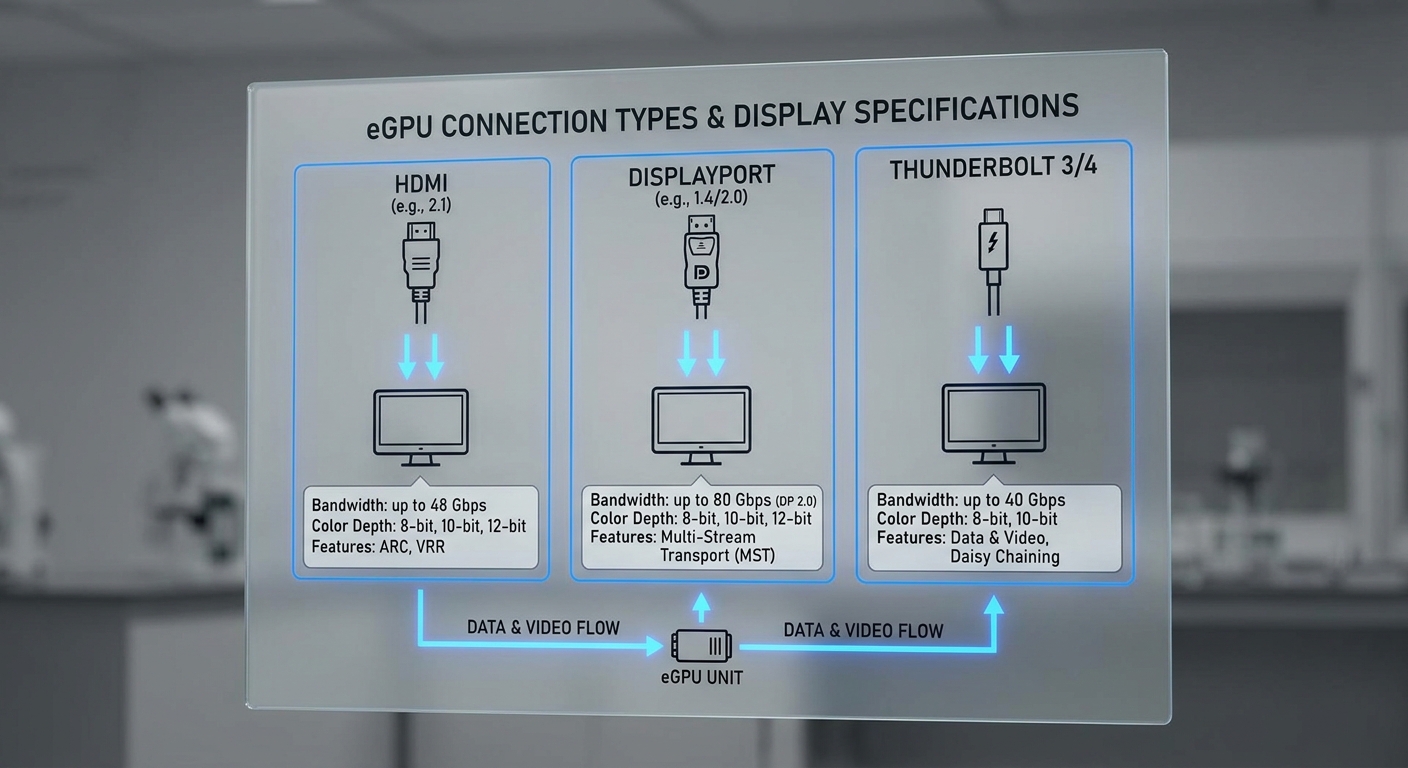
Different connections can lead to varying outcomes in color representation, particularly in how the display interprets the signals received from an eGPU. Here’s a brief overview of popular connection types:
You may also like



- HDMI: Most commonly used for televisions and monitors; it typically supports both limited and full range color formats.
- DisplayPort: Offers higher bandwidth capabilities, which supports higher refresh rates and color depths, making it suitable for gaming and graphics work.
- Thunderbolt 3/4: Utilized for eGPU, it supports high data transfer rates and can handle full range colors efficiently.
Troubleshooting Color Issues with eGPUs
If you are experiencing color discrepancies when using your eGPU, follow these steps for troubleshooting:
- Check Connection: Ensure that the connection between your eGPU and display is secure. Consider switching between HDMI and DisplayPort, if applicable.
- Adjust Graphics Settings: Use the Intel Graphics Command Centre or relevant software to check and adjust color range settings. Look for options related to limited vs. full range output.
- Driver Update: Verify that your graphics drivers are up to date. Sometimes, color issues stem from outdated or incompatible driver versions.
- Monitor Settings: Check your monitor’s settings to ensure it is configured for the correct range. Some monitors allow users to toggle between limited and full settings.
- Operating System Settings: On Windows systems, ensure that the color format selected in display settings correlates with your monitor’s capabilities.
Understanding Misconceptions About eGPU Color Ranges
One common misconception is that the use of an eGPU automatically results in superior color display. In reality, while an eGPU can enhance performance, several factors influence how colors are represented on external displays:
- Integrated vs. Dedicated Graphics: Displays connected through an iGPU may not handle full color range effectively, leading to washed-out colors compared to eGPUs.
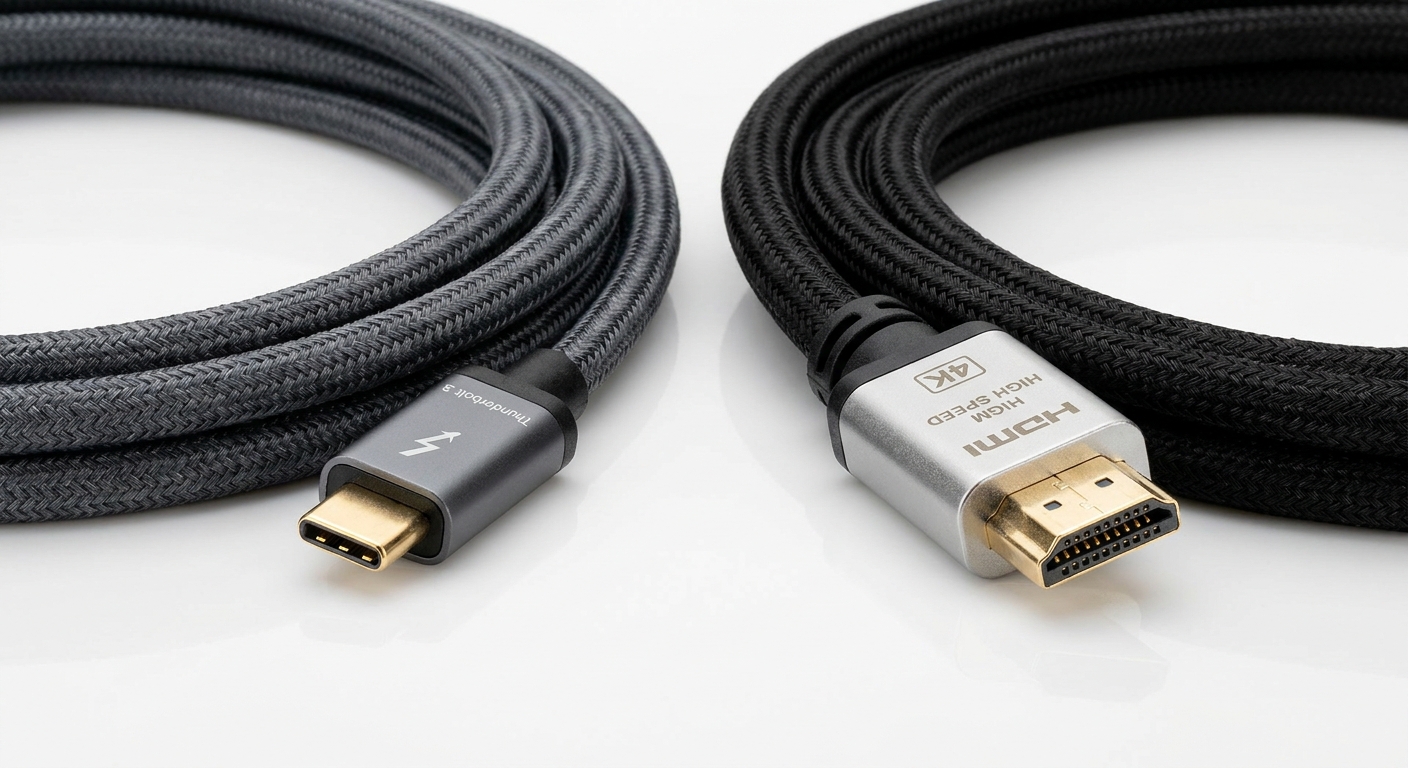
- Type of Cable Used: The type of cable can limit the quality of the signal. Low-quality cables can struggle to pass higher bandwidth without degradation in color and performance.
- Display Characteristics: Not all monitors are capable of displaying the full range of colors. Always check the specifications of your monitor’s color capabilities.
Technical Insights into External GPU Color Outputs
The interaction between your eGPU and the display can be heavily influenced by the operating environment.
Xorg and PRIME Configuration
For users operating in a Linux environment, leveraging Xorg with PRIME can optimize graphics performance. PRIME enables the use of both the integrated GPU and the eGPU, offering flexibility in rendering:
- Rendering on eGPU: Use the eGPU for rendering while offloading display duties to the iGPU, optimizing performance in specific scenarios.
- Compatibility with Drivers: Proprietary NVIDIA drivers may offer optimizations but can encounter issues with hotplugging (connecting while the system is running).
Frequently Asked Questions (FAQ)
Q: What causes my monitor to display limited colors when connected to an eGPU?
A: Usually, this issue arises from incorrect color range settings. Ensure that both your eGPU and monitor support full range colors and that settings are appropriately configured in your graphics control panel.
Q: How can I check if my Thunderbolt port supports eGPUs?
A: Most modern laptops with Thunderbolt 3 or 4 ports should support eGPUs. Check the specifications on your manufacturer’s support page or in your laptop’s documentation.
Q: What cable should I use for connecting my eGPU?
A: A quality Thunderbolt 3 or 4 cable is recommended for optimal performance. Avoid using generic or low-quality cables as they may limit bandwidth and affect color accuracy.
Q: Can I use an eGPU with older monitors?
A: Yes, as long as the monitor has compatible input ports (like HDMI or DisplayPort) that work with your eGPU, though the color display may be limited by the monitor’s own specifications.
Q: What settings should I adjust if I notice color issues after connecting via eGPU?
A: Check your graphics settings for color range options and ensure that your monitor’s settings match the output type being used. Update drivers as necessary.
Conclusion
The connection color codes associated with eGPUs significantly influence the visual output of your external display. By understanding the nuances of these connections and how they interact with your hardware, you can optimize your setup for superior color representation. Addressing common misconceptions and troubleshooting accordingly will ensure you fully utilize the potential of your eGPU.
For more information on external graphics options, consider exploring related topics such as gaming performance on laptops and the benefits of powerful GPU configurations.
Rotating USB