Understanding NAS Drive Tray Status Light Color Codes
The Network Attached Storage (NAS) system has become a staple in both home and enterprise environments, offering centralized data storage and enhanced accessibility. One of the most common issues users encounter is interpreting the meaning behind the status light color codes associated with the NAS drive trays. This article aims to shed light on what these color codes signify, allowing users to diagnose potential issues quickly.
Understanding these color codes is crucial for maintaining the integrity and functionality of your storage solution. A common misconception is that all blinking lights indicate a failure; however, some lights simply indicate ongoing processes. In this article, you will learn the various status light codes across different NAS brands and models, what they mean, and how to respond appropriately.
How NAS Drive Tray Lights Work
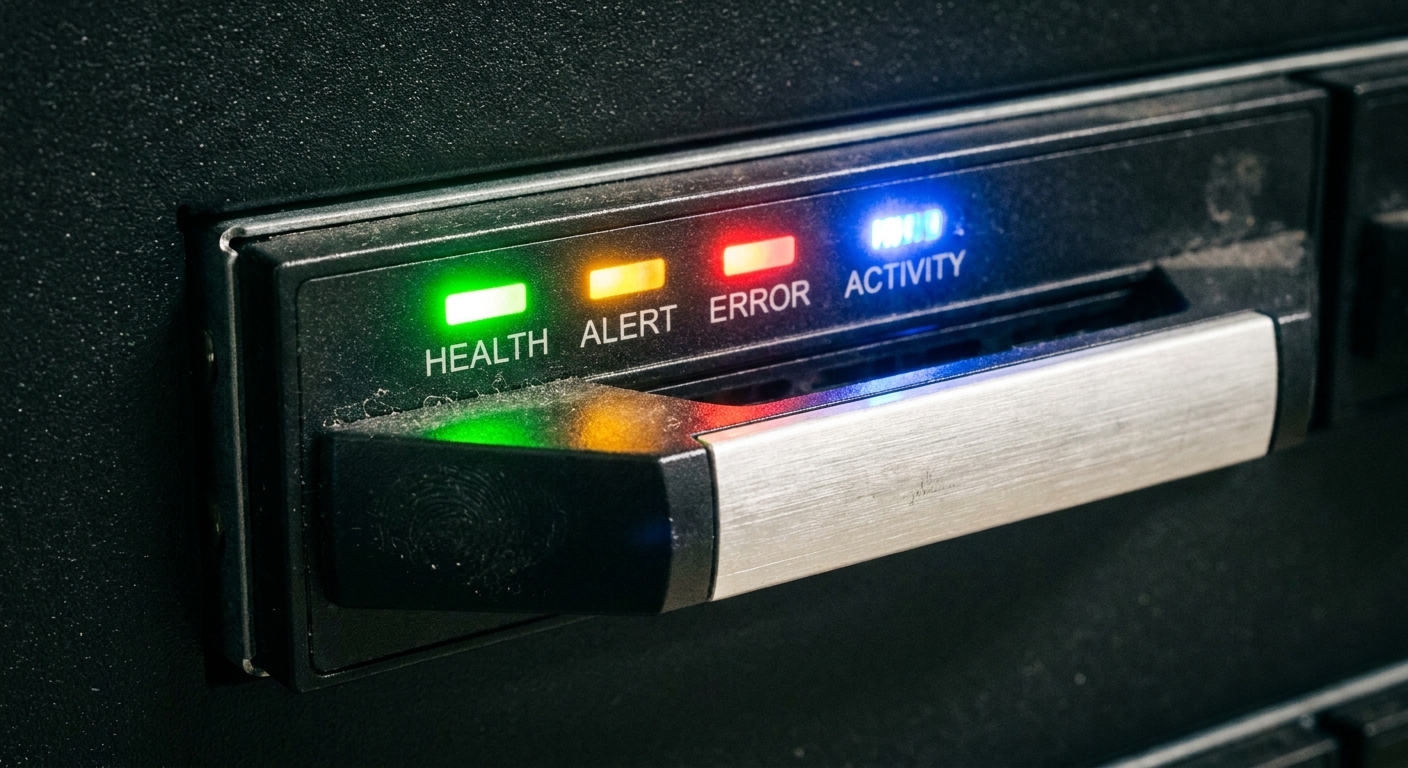
The status lights on NAS drive trays are designed to communicate the operational state of the system and its components. These lights vary in color and flashing patterns, each representing a specific status or alert.
Understanding the Color Codes
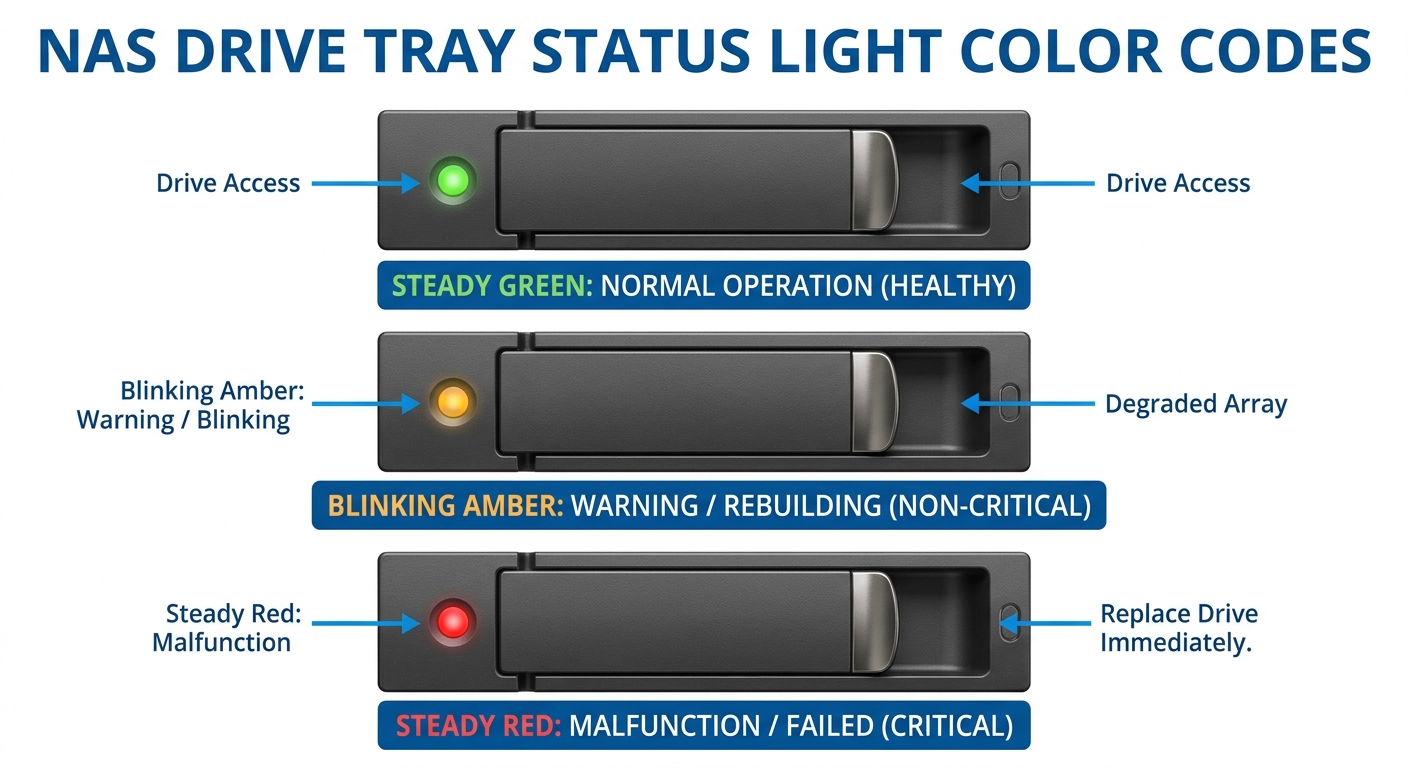
- Green: Typically indicates normal operation. For instance, a steady green light often shows that the NAS is powered on and functioning correctly.
- Amber/Orange: Commonly denotes a warning status, such as when the NAS is preparing for a reboot or executing a critical function. A blinking amber light may indicate that a drive is temporarily unavailable.
- Red: A red light usually signifies a malfunction. This could point to issues like hard drive failures or critical system errors, which require immediate attention.
- Blinks: A flashing status light often indicates that the device is processing data, booting up, or experiencing a repair cycle.
Brand-Specific Color Codes
Synology NAS
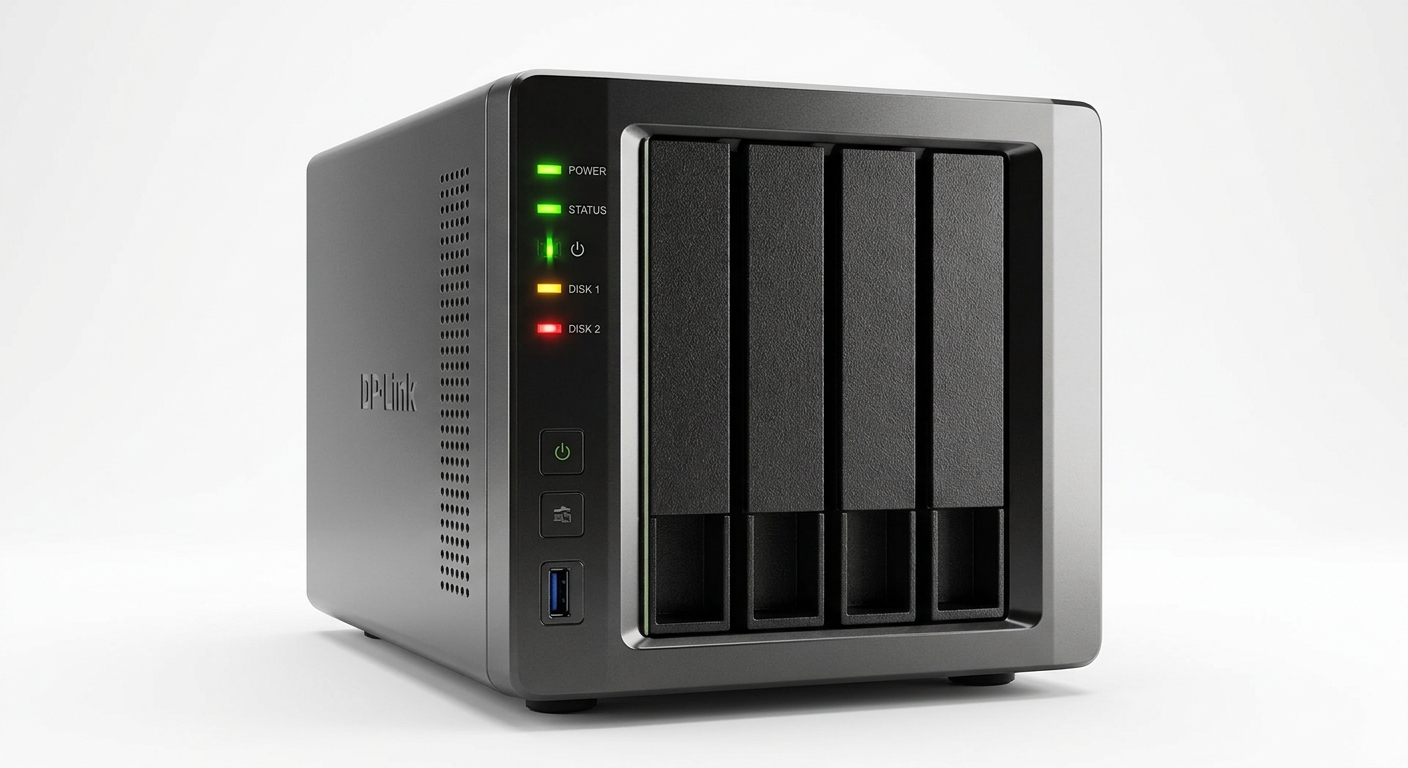
- Status LED:
- Blinking Green: The system is running and accessible.
- Blinking Orange: The system is not yet ready (e.g., no drives installed or still booting).
- Steady Orange: A system error is indicated, often relating to hardware issues like fan failure.
- ALERT LED:
- Off: Generally indicates that there are no problems with the system.
QNAP Turbo NAS
- Power LED:
- Green: Indicates that the NAS is powered on and ready.
- Flashing Green: The system is booting up.
- LAN Activity:
- Orange: Represents LAN activity.
ASUSTOR NAS
- Power LED:
- Blue: The NAS is powered on.
- System LED:
- Green: Flashes when booting; steady indicates normal operation.
- Red: Indicates a malfunction.
Troubleshooting NAS Drive Issues by Light Patterns
When faced with unexpected light signals, it is essential to have a systematic approach to troubleshoot the issues. Here’s a breakdown of steps you can take based on specific light codes:
You may also like



1. Identify the Pattern
Carefully observe the light’s color and flashing pattern. Refer to the manufacturer’s documentation if necessary, as specific patterns may carry different meanings across brands.
2. Power Cycle the NAS
If the light indicates a malfunction, consider performing a power cycle:
- Turn off the NAS by holding the power button.
- Wait for 10-15 seconds.
- Power it back on and observe the status lights again.
3. Check Disk and System Status
If the issue persists, check individual drives and system status through the NAS dashboard or management software. Look for any alerts or error messages that may provide insight into the problem.
4. Consult Manufacturer Support
If all else fails, reaching out to your NAS manufacturer’s support can provide additional assistance. For example, QNAP offers a comprehensive troubleshooting guide here.
5. Replace Malfunctioning Components
If a specific drive or component is identified as faulty, follow the manufacturer’s instructions to replace it.
Frequently Asked Questions
Q: What does a flashing green light mean?
A: A flashing green light generally indicates that the NAS is functioning normally and processing data.
Q: Is an amber light always a cause for concern?
A: Not always; amber lights can show normal processes like booting or operational routines but can also indicate warnings.
Q: What should I do if the red light stays on?
A: A steady red light usually suggests a malfunction. Check the equipment and consult the manufacturer’s documentation for troubleshooting advice.
Q: Can NAS lights vary by model?
A: Yes, different manufacturers and models can use unique color codes and blinking patterns. Refer to your unit’s manual for specifics.
Q: Where can I find additional support for my NAS?
A: Most manufacturers provide extensive online resources, including FAQ sections and troubleshooting guides.
Conclusion
The color codes and light patterns on your NAS drive trays serve as vital indicators of the system’s health and operational status. By familiarizing yourself with these signals and following proper troubleshooting protocols, you can maintain a reliable storage solution. For further reading, consider exploring related topics such as NAS performance optimization and network configuration.
Rotating USB