Introduction
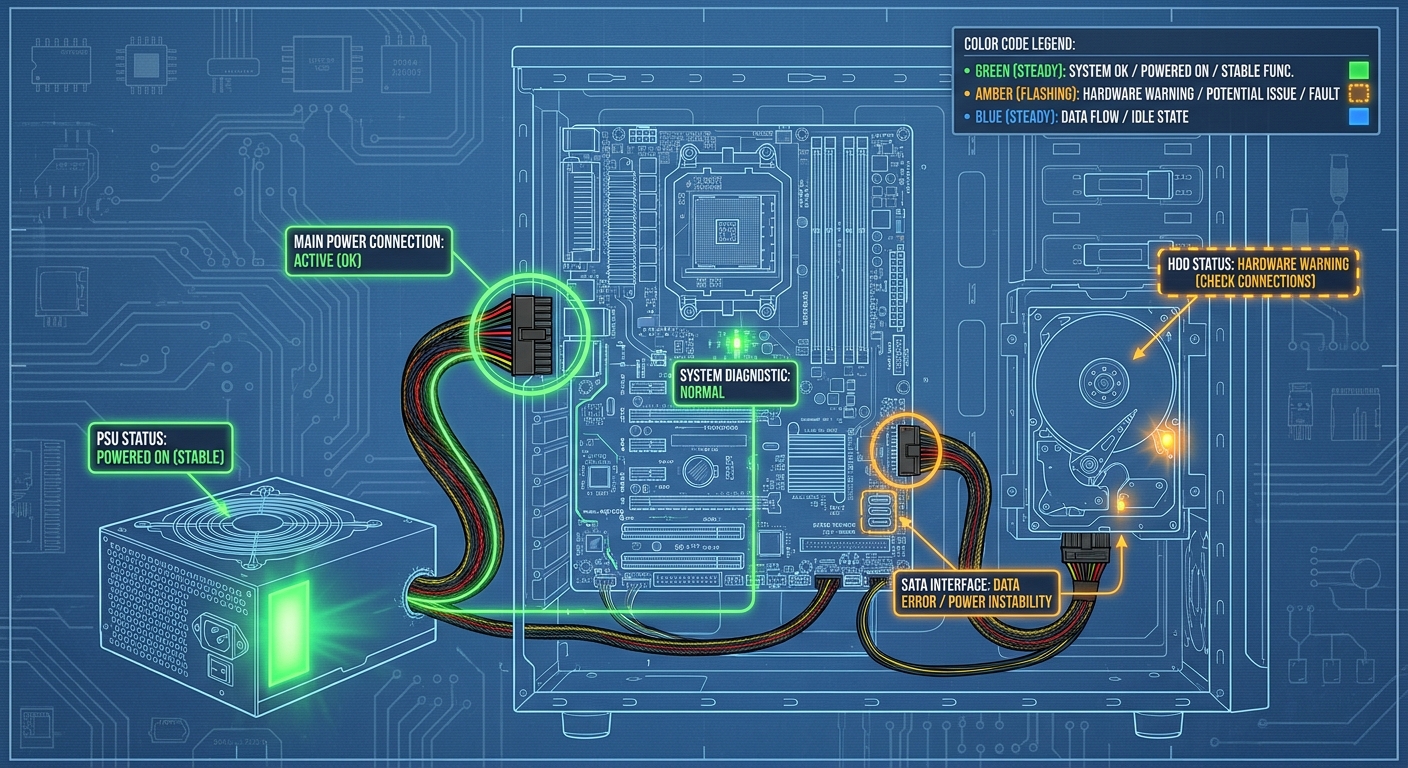
Troubleshooting a PC that exhibits clicking noises, especially when attempting to power it on, can be a frustrating experience for users. This article aims to address the specific problem of diagnosing and resolving issues related to clicks and associated status color codes on PCs. Understanding why your computer might be clicking not only helps in mitigating potential hardware failures but also ensures you can maintain system integrity and longevity. A common misconception is that these clicks always indicate a complete failure of the components; however, they may arise from a variety of lesser issues, such as power supply anomalies or minor system faults. In this article, you will learn how to interpret various clicking sounds, the meaning of power status color codes, and effective troubleshooting steps to resolve these issues.
Understanding the Mechanisms Behind PC Clicking Sounds
When a computer emits clicking noises, it generally indicates a problem that could be related to hardware, particularly the power supply unit (PSU), hard drives, or motherboard connections. Let’s explore how these components can lead to such symptoms.
The Role of the Power Supply Unit (PSU)
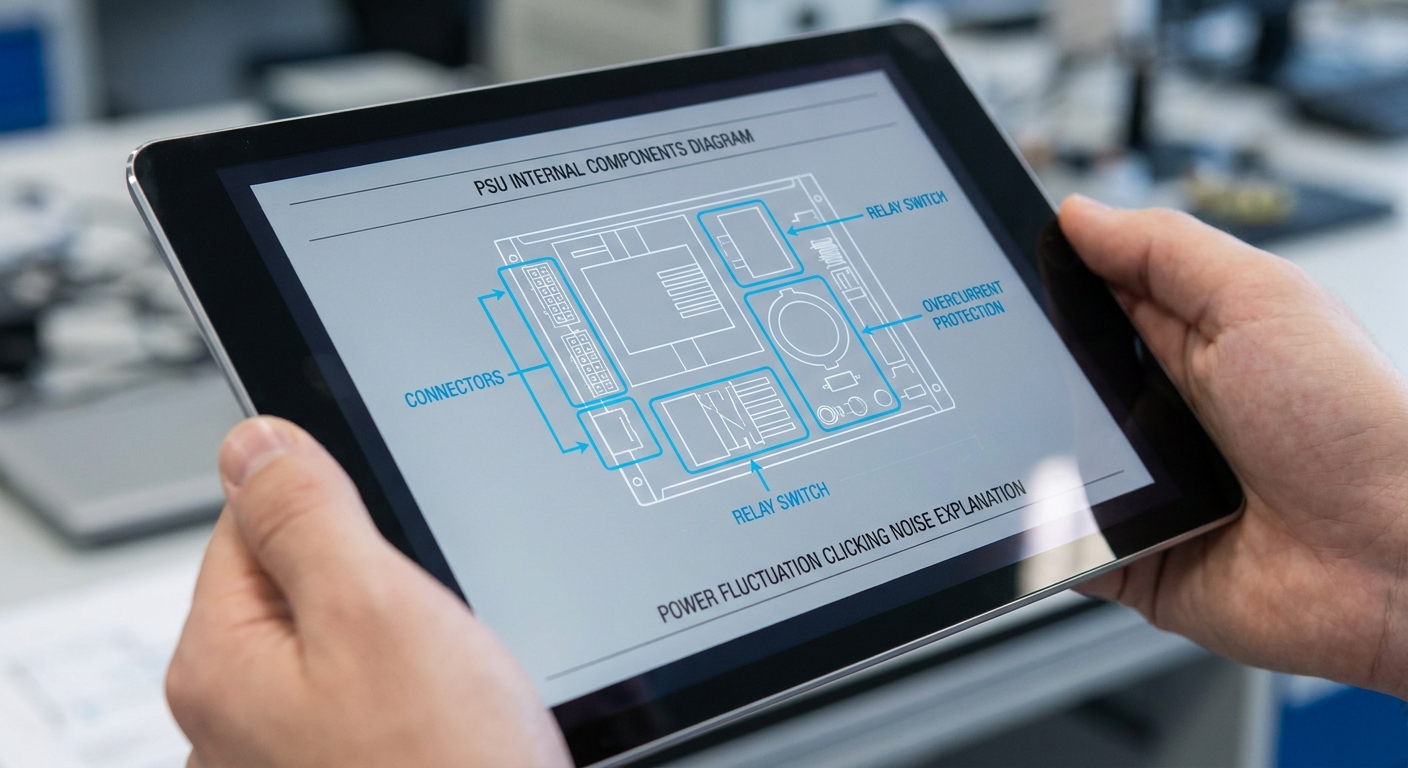
The PSU is critical in supplying power to all components of your PC. A clicking sound, often related to a relay switch within the PSU, can occur when the device detects a power draw fluctuation. This may cause the relay to trip, activating an overcurrent protection feature that prevents the system from booting to avoid damage.
Hard Drive and Motherboard Sounds
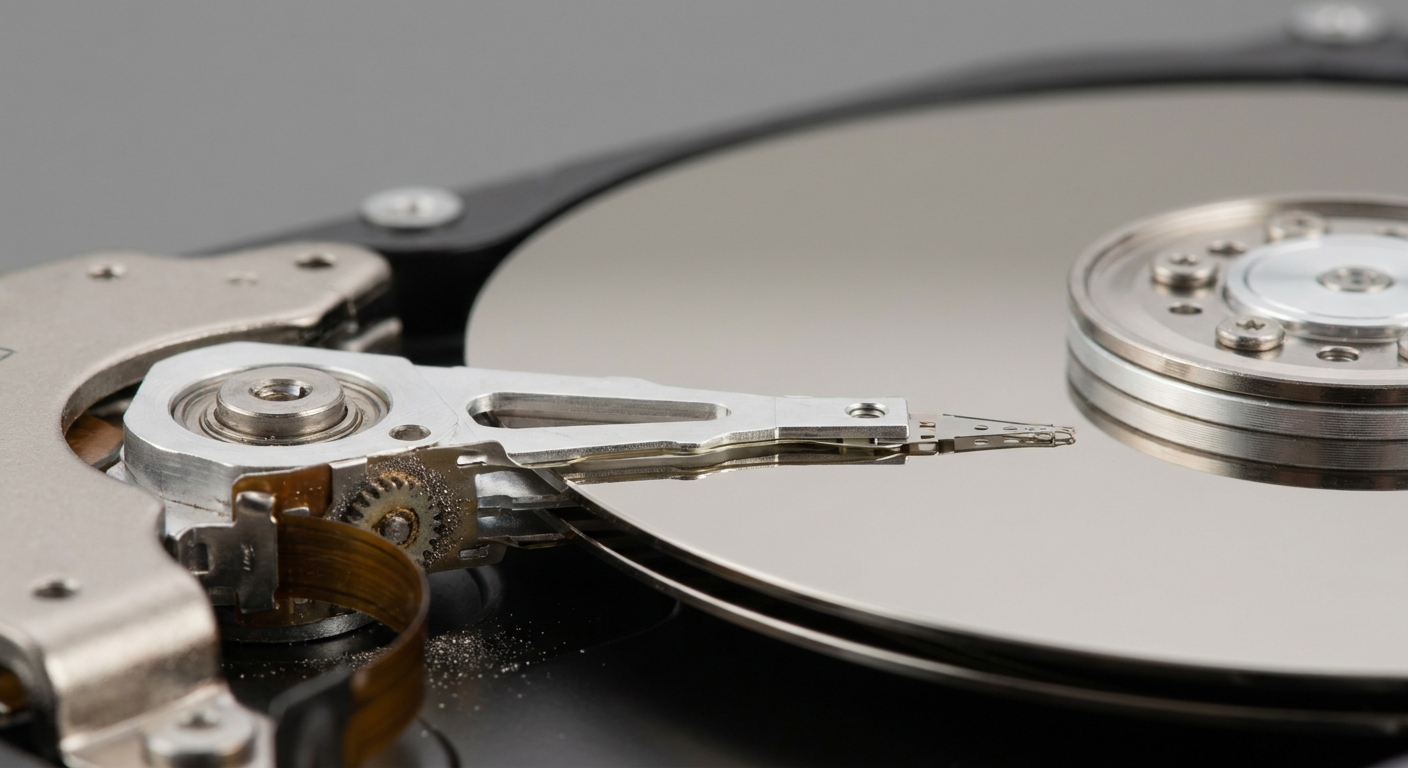
Additionally, clicking noises can stem from hard drive failures. If a hard drive’s read/write arm fails, it can produce repetitive clicks, commonly referred to as the “click of death.” Motherboard issues can also result in irregular sounds, often accompanied by status indicator light changes.
You may also like


Interpreting Power Status Color Codes
Power button indicators and error codes are essential tools for diagnosing system issues. Different computer manufacturers use various color codes to denote different power states and errors. For example:
- Steady Green: Computer is powered on.
- Amber or Flashing: Indicates potential hardware issues or that the computer is in a low-power state.
- Flashing Codes: Multiple flashes can indicate specific error conditions, which vary by manufacturer. Notably, Dell’s documentation highlights the importance of noting blink patterns for troubleshooting.
Troubleshooting Steps for Clicking Sounds
Follow these diagnostic steps to troubleshoot and resolve clicking sounds effectively:
- Initial Power Check: Ensure that the power supply is securely connected to the computer and walls. Disconnection and re-connection may resolve minor issues.
- Listen Carefully: Identify the source of the clicking noise. Use the chassis of the PC to isolate sounds from the PSU, hard drives, or motherboard.
- Power Supply Test: If comfortable, you can manually test the PSU using a jumper on the motherboard. If it clicks even when tested outside the computer, the PSU may need replacement.
- Check Hard Drives: If clicking originates from the hard drive, back up any data you can access. Consider running diagnostic tools to identify any rising issues.
- Inspect Motherboard Connections: Look for any loose connections or hardware components. Reseat RAM sticks and graphics cards if necessary.
Common User Experiences and Misconceptions
Many users assume that repeated clicking always means an extensive hardware failure requiring complete replacements. For instance, one user reported that the PC clicks multiple times when trying to power on, ultimately determined to be a PSU relay issue rather than a dead system.
Others have noted that discrepancies in LED light colors during operation do not always indicate issues if the system seems to function normally otherwise. Restarting the machine or changing RGB settings may address these cosmetic concerns without indicating underlying problems.
When to Seek Professional Help
If you have gone through basic troubleshooting steps without resolution, seeking professional help is advisable. Complex electrical issues or potential motherboard failures may need specialized tools and knowledge to diagnose accurately.
Frequently Asked Questions
Q: What do different power button colors mean?
A: Power button colors typically indicate the power state—steady green usually means the computer is on, while blinking may indicate errors.
Q: What causes a computer to click when starting up?
A: Clicking sounds can come from the power supply unit or hard drives, indicating potential faults or protective features activating due to power draw issues.
Q: How can I tell if my hard drive is failing?
A: Repetitive clicking sounds, especially if accompanied by system instability or data access issues, are common indicators of hard drive failure.
Q: Why do my computer indicator lights change colors?
A: Color changes can denote status updates or errors; understanding these signals helps identify underlying issues.
Q: When should I consider replacing my power supply?
A: If the PSU is clicking consistently during tests or fails to power components reliably, replacement is recommended.
Conclusion
Understanding the causes behind PC clicking noises and power status color codes can significantly aid in troubleshooting and maintaining system reliability. Remember that while some clicking may be innocuous, others can indicate potential failures, justifying careful diagnosis. It’s crucial to keep an eye on related topics, such as hardware maintenance and diagnostic tools, to ensure long-term computer health.
Rotating USB