Understanding AMD Radeon Status LED Color Codes
Graphics cards are integral components of modern computing, particularly for gamers and professionals requiring high-performance graphics rendering. Among popular manufacturers, AMD stands out with its Radeon line, known not only for performance but also for providing visual feedback via status LEDs. These LEDs help users identify the operational status and potential issues of the GPU. This article will delve into the various color codes used by AMD Radeon graphics cards, explaining what each color signifies and addressing common misconceptions. Users often confuse LED signals with simple aesthetic features, neglecting their crucial diagnostic function. By the end of this article, readers will gain a clearer understanding of how these LEDs work and what to make of their different colors.
How AMD Radeon Status LEDs Work
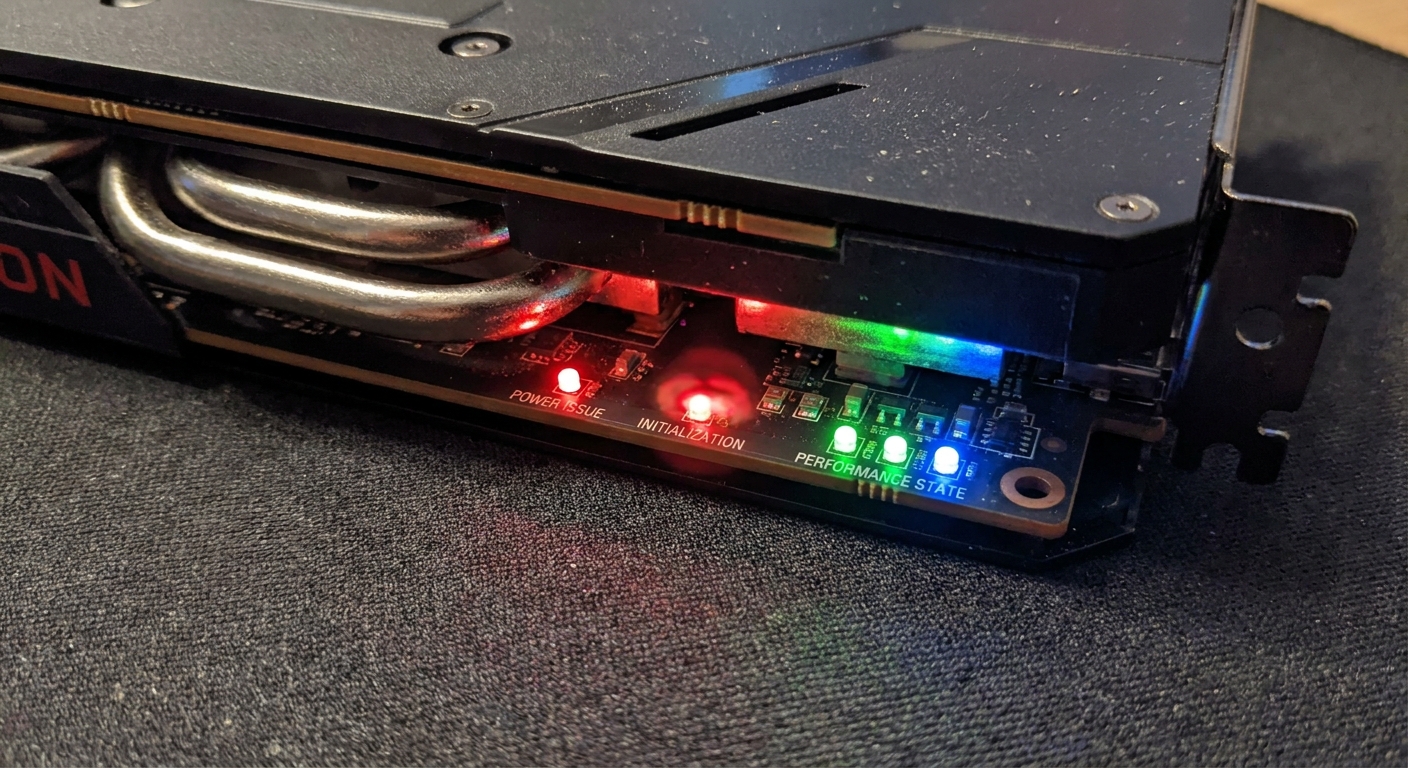
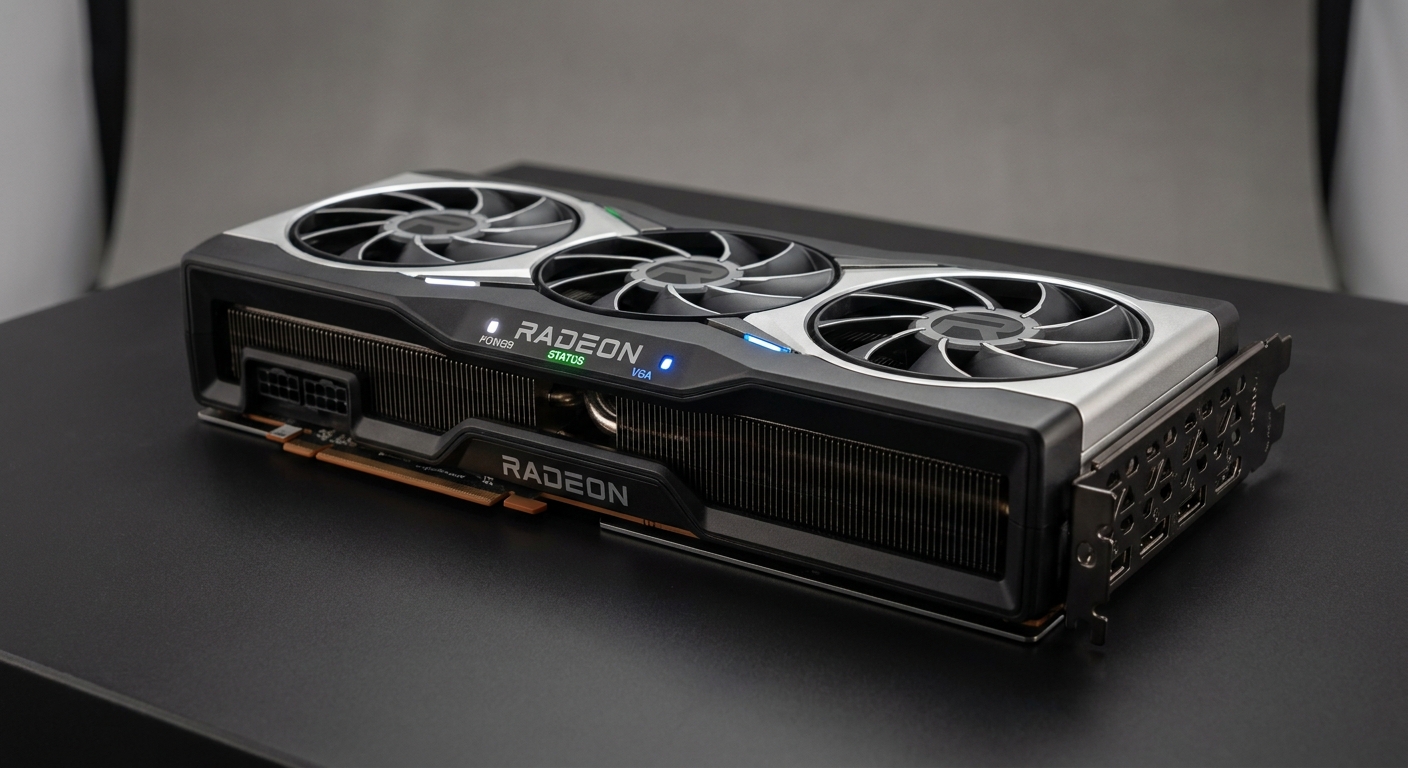
Status LEDs on AMD Radeon graphics cards serve a critical role in monitoring the health and power status of the GPU. They are typically located near the back of the card, away from the input/output bracket. Each LED serves as an indicator of specific conditions related to power delivery and performance states.
Power Status Indicators
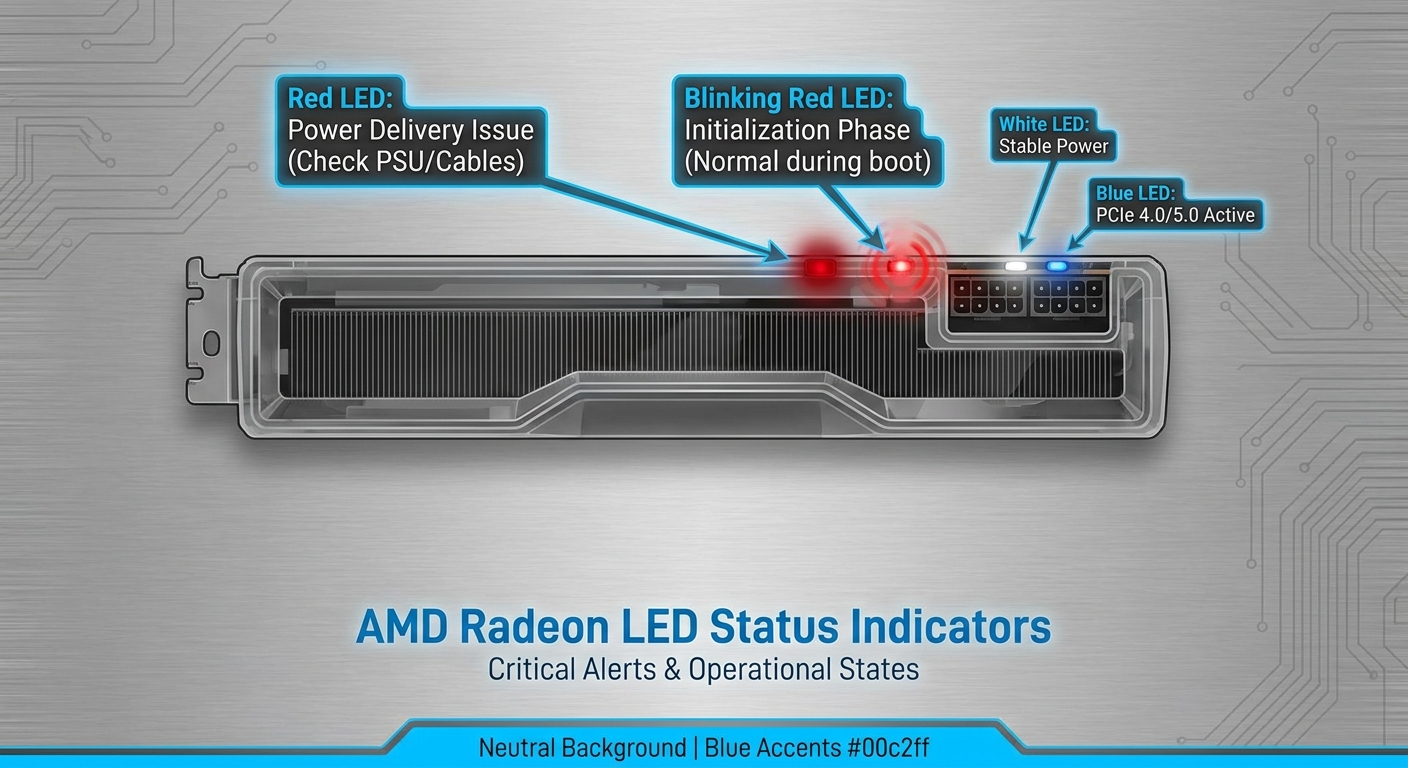
One of the primary functions of the status LEDs is to indicate power delivery functionality. For instance:
- Red LED: If the LED is illuminated solid red, it indicates problems with power delivery or that the power supplied to the card is not within the required specifications. This is commonly due to the power supply unit (PSU) not delivering adequate voltage or amperage.
- Blinking Red LED: During the power-on process, a blinking red light is normal, signifying that the card is in the initialization phase.
Performance State Indicators
In addition to power status, the LEDs provide feedback on the GPU’s performance state (P-state). This direct feedback is crucial for users monitoring their GPU performance during resource-intensive tasks such as gaming or rendering. For example:
You may also like



- The number of illuminated lights often represents the current P-state. Ideally, the LEDs should max out at levels 6 or 7 under normal circumstances, especially when running demanding applications.
- If the LEDs do not display this maximum range, it could suggest that the game or application is not fully utilizing the GPU, often due to power-saving features being activated or thermal throttling affecting performance.
Common LED Issues and Troubleshooting Steps
Users may encounter various issues indicated by the LED colors. Here are some troubleshooting steps and diagnostic considerations:
Identifying Power Delivery Issues
- Check the PSU connections: Ensure that the power connectors are securely attached to the GPU.
- Inspect your power supply: Ensure that the PSU is capable of supporting the required wattage for your graphics card.
- Look for any physical damage: Check for damaged connectors or burnt components that could impede power supply.
Understanding Performance Levels
If the performance state indicator LEDs do not max out during high-demand situations, consider the following:
- Check if the GPU is being properly utilized by the application, as some might not demand full power.
- Examine the cooling system: Overheating can cause the GPU to throttle its performance, resulting in lower P-state levels.
- Ensure that the GPU drivers are up-to-date, as outdated software can cause inefficiencies in performance.
Importance of LED Status Feedback
The status LED color codes and their meanings serve a vital function in maintaining the health and performance of your AMD graphics card. By proactively monitoring these indicators, users can prevent potential issues from escalating into significant problems. Understanding what these colors reveal about power delivery and performance states is essential for optimal GPU function.
Frequently Asked Questions
Q: What does a solid red LED indicate on my AMD Radeon graphics card?
A: A solid red LED means there is a power delivery issue, indicating that the power supplied is not within specifications.
Q: Is it normal for the LED to blink during startup?
A: Yes, a blinking red LED during the power-on process is expected as the card initializes.
Q: Why are my LED indicators not maxing out under load?
A: If the LEDs aren’t maxing out, it may mean your GPU isn’t fully utilized, potentially due to power-saving features or thermal throttling.
Q: How can I troubleshoot power issues indicated by the LED?
A: Make sure all power connections are secure, inspect your PSU for damage, and verify it meets the wattage requirements of your GPU.
Q: What should I do if my LED status doesn’t change during performance-intensive tasks?
A: Check for proper application utilization, inspect your cooling systems, and ensure your drivers are updated for best performance.
Conclusion
In summary, understanding the color codes and meanings of the status LEDs on AMD Radeon graphics cards is essential for effective performance monitoring and troubleshooting. By paying attention to these indicators, users can ensure their graphics cards are functioning optimally and address any problems before they escalate. For further related topics, consider looking into how to optimize your GPU settings for better performance.
Rotating USB