Understanding GPU Fan Header Wire Color Codes for Replacement
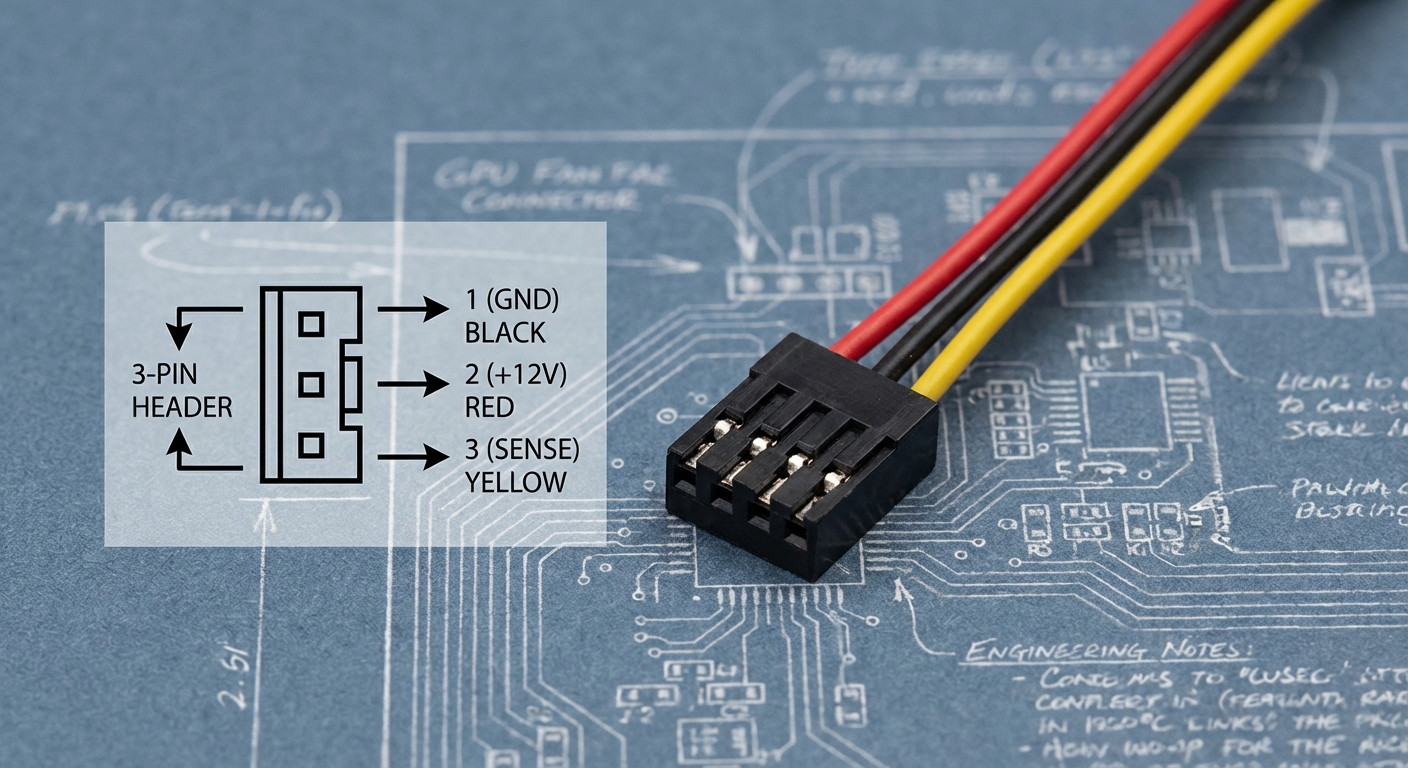
When it comes to maintaining or upgrading your graphics card, understanding the wire color codes for GPU fan headers is essential. The challenge many users face is how to properly replace or reconnect GPU fans without damaging their equipment. This article will clarify the wire colors typically used in GPU fan connectors, addressing misconceptions that can lead to operational issues. Misunderstanding these wire connections can not only hinder proper fan operation but may also damage the GPU and fan if incorrectly wired. By the end of this article, you’ll have a clear understanding of the wire color codes associated with GPU fan headers, enabling safe and effective replacement or repairs.
How GPU Fans Work
GPU fans play a crucial role in maintaining optimal temperatures within the graphics card. They are typically powered by a 3-pin or 4-pin header on the GPU, allowing for different control mechanisms. The fans use power and ground connections to operate and utilize an RPM signal wire to communicate fan speed back to the GPU. Understanding the wiring is essential for proper installation and replacement.
Common Wire Color Codes
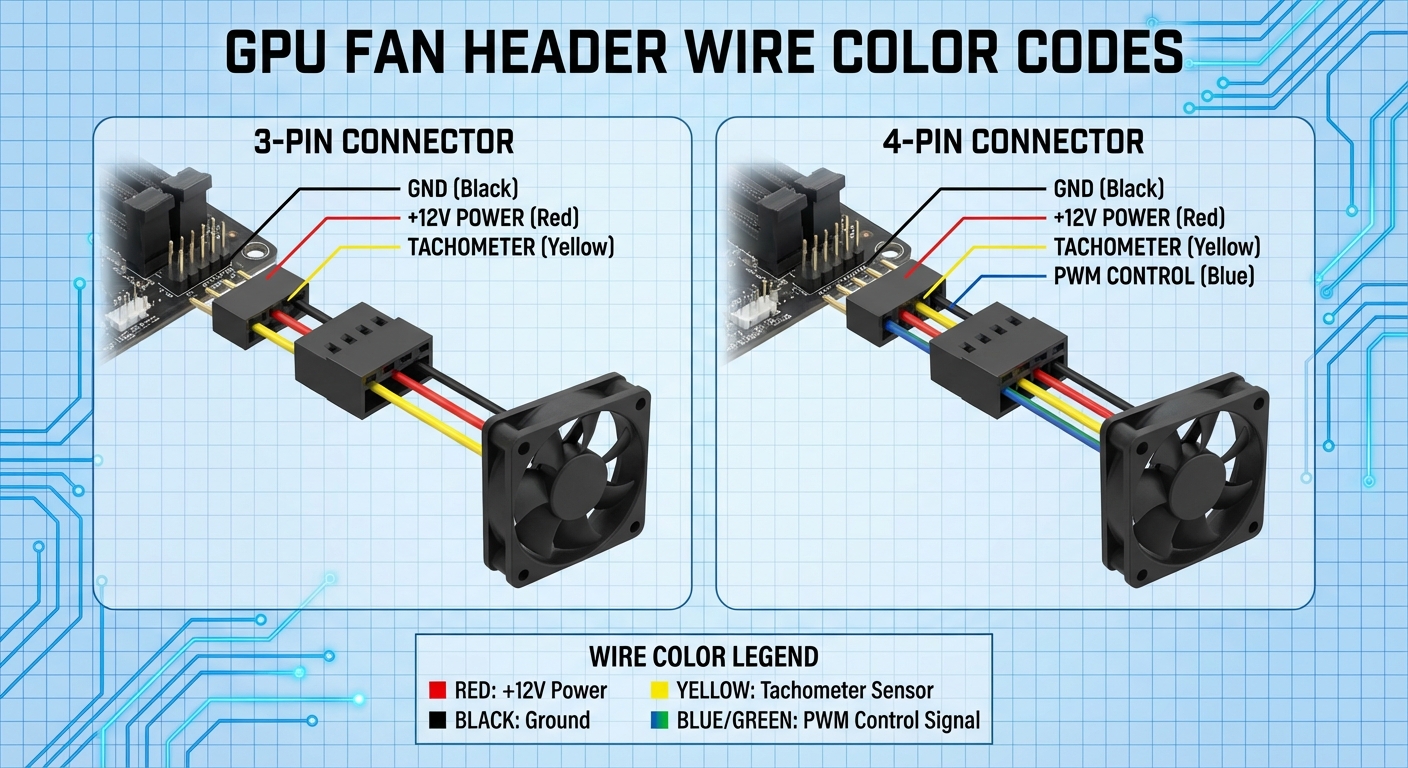
While there can be variations in wire colors depending on the manufacturer, the following general color codes are found in most GPU fan headers:
- 3-Pin Fans:
- Red: Power (+)
- Black: Ground (-)
- Yellow: Tachometer (RPM signal)
- 4-Pin PWM Fans:
- Black: Ground (-)
- Red: Power (+)
- Yellow: Tachometer (RPM signal)
- Blue or Green: PWM Control
As indicated in discussions from users on forums like Tom’s Hardware and TechPowerUp, the majority of fans follow this general coding, though some specific brands or models may utilize different schemes.
You may also like




Pinout Configurations
Different GPUs can have unique configurations for their fan headers. For instance:
- 6-Pin Headers:
- Some GPU models, like certain ASUS cards, utilize a 6-pin fan header, primarily for proprietary fan designs.
- Pinout information for these connectors is often found in the manufacturer’s documentation or through user forums.
- Mini Fan Headers:
- 4-pin mini fan headers are used similarly to standard 4-pin PWM fans, allowing for enhanced control.
- Users have reported success in adapting standard 4-pin fans to these headers without issues, as noted in the discussions on forums such as [H]ard|Forum.
Identifying Wire Colors on Your GPU
If you’re unsure of the wire color codes for your specific GPU, here are some steps to identify them:
- Check your GPU’s manual or manufacturer website for wiring diagrams.
- Inspect the existing fan’s wiring closely, noting the color arrangement.
- Refer to forums for your specific brand/model of GPU if the paperwork isn’t available.
When replacing a fan, always ensure you match wires carefully to prevent damage.
Replacing GPU Fans: A Step-by-Step Guide
Replacing your GPU fan can be a straightforward process if done correctly. Here’s a basic guide:
- Preparation: Ensure your PC is powered off and unplugged.
- Remove the GPU: Unscrew and gently pull the card out of the PCIe slot.
- Identify the Header: Locate the fan header on the GPU and identify the wire colors based on the discussion above.
- Disconnect the Fan: Carefully disconnect the original fan’s wiring.
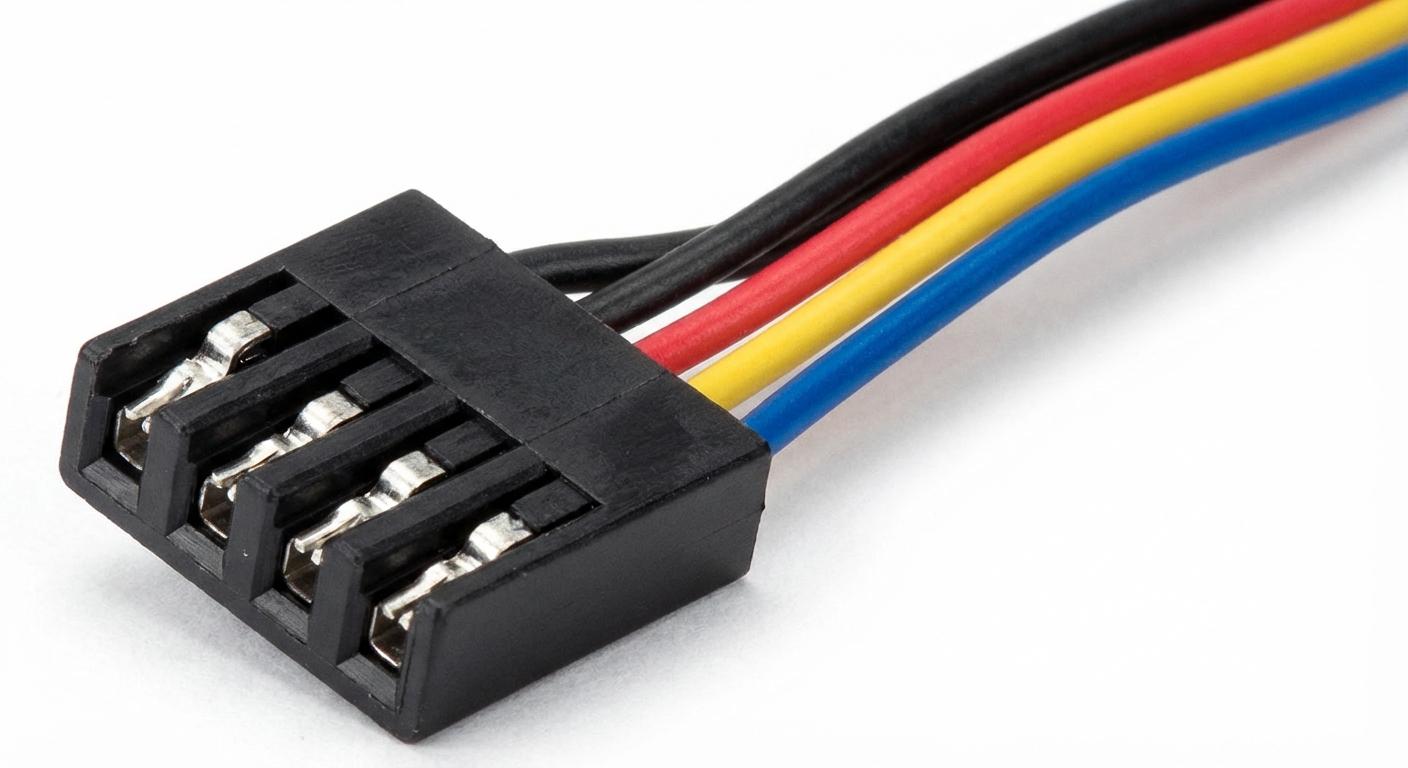
- Attach the New Fan: Ensure the new fan’s wires are connected correctly—red to power, black to ground, and yellow to the RPM signal (if applicable).
- Reinsert the GPU: Place the GPU back into its slot and secure it.
- Test Functionality: Power on your PC and check that the new fan operates correctly.
Always reference your GPU’s manual to ensure proper connections.
Troubleshooting Common Issues
If your GPU fan fails to operate after replacement, consider the following troubleshooting steps:
- Check Connections: Ensure all wire connections are secure and correctly matched.
- Inspect for Damage: Look for any visible damages on the wires or fan itself.
- Test with a Multimeter: Use a multimeter to check for continuity in the wires.
- Refer to Forums: Seek advice from user forums if the problem persists.
Frequently Asked Questions
Q1: What are the most common wire colors for GPU fans?
A1: Typically, red is for power, black for ground, and yellow for the RPM signal in 3-wire GPU fans.
Q2: Can I replace a 3-pin GPU fan with a 4-pin fan?
A2: Yes, a 4-pin fan can work, but ensure proper wiring to the fan header, especially if PWM functionality is required.
Q3: How do I find the correct pinout for my specific GPU?
A3: Consult your GPU’s manual or look for pinout diagrams in gaming and PC hardware forums.
Q4: What if my new GPU fan has different colored wires?
A4: Refer to manufacturer guidelines, and always ensure that the connections for power and ground are correct.
Q5: Is it safe to use a non-standard GPU fan?
A5: Yes, but check compatibility with your GPU’s power and control specifications to avoid damage.
Conclusion
Understanding GPU fan header wire color codes is crucial when planning to replace or repair fans. Matching the correct wire colors ensures that fans operate effectively and helps avoid potential damage to your GPU. For continued learning, consider reading about graphics processing units and their components.
Rotating USB