Understanding the White VGA Light on Motherboards
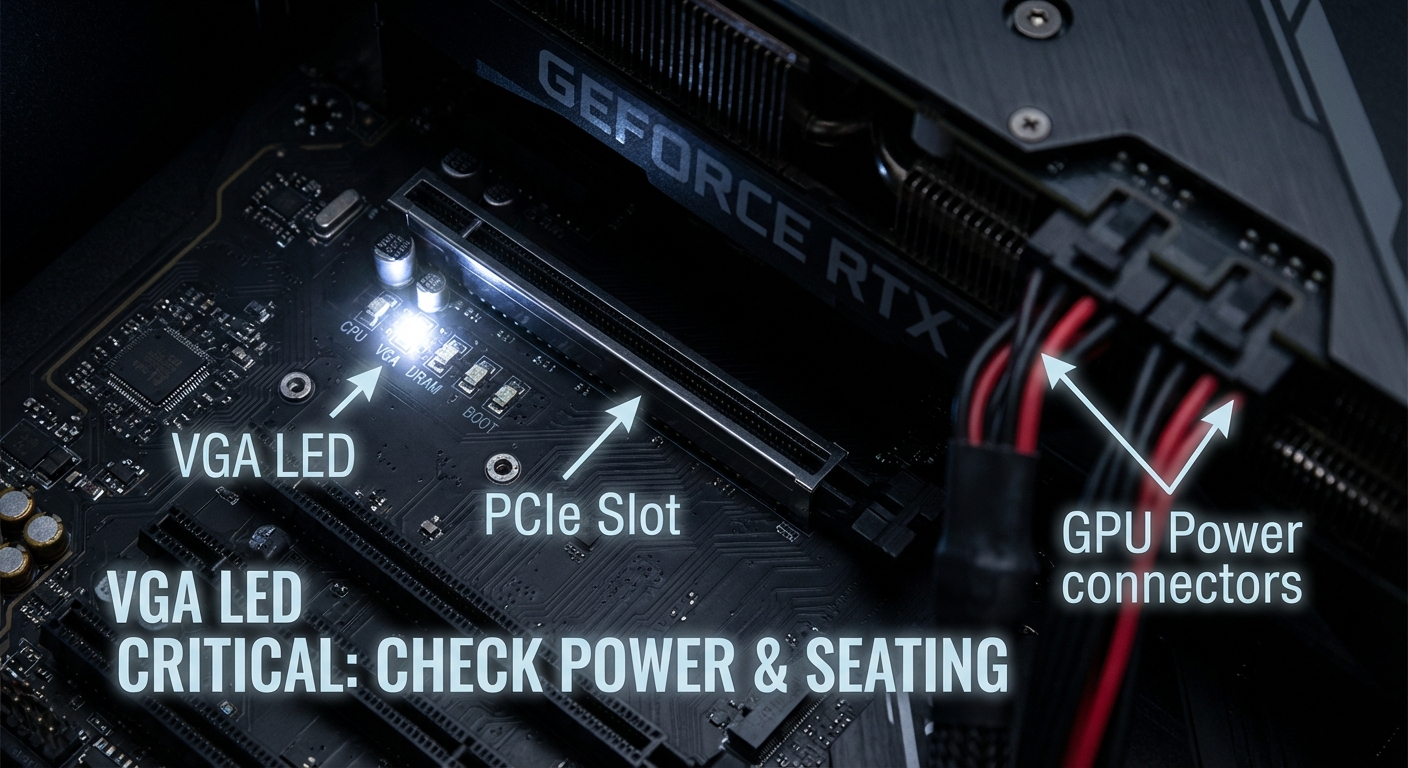
The white VGA light indicator on a motherboard is a critical diagnostic tool for PC builders and users alike. When this light illuminates, it signifies that the motherboard is encountering issues with the video output, often related to the graphics processing unit (GPU). This issue warrants attention because a non-functioning GPU means no display, rendering the computer unusable. A common misconception is that the white VGA light could also signal problems related to the CPU or other components, but it usually indicates an isolated graphics card issue. In this article, readers will learn about the implications of the white VGA light, possible causes behind it, and detailed troubleshooting steps to resolve the issue.
What Does the White VGA Light Indicate?
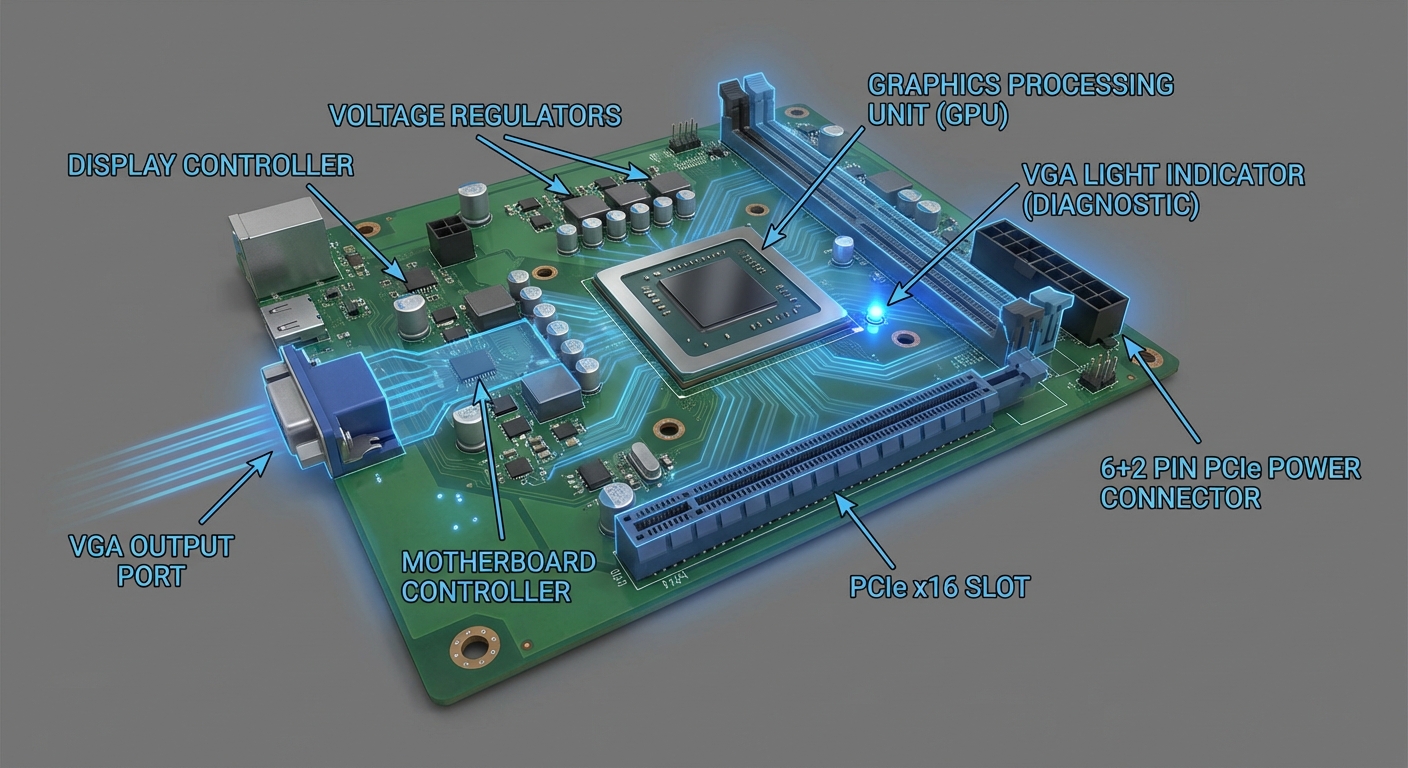
The white VGA light on a motherboard typically represents a VGA error as described in various user manuals for motherboards. The underlying cause often relates to the GPU failing to communicate properly with the motherboard. This can occur due to several reasons, including improper installation, hardware failure, compatibility issues, or insufficient power supply to the graphics card.
Common Causes of the White VGA Light
- Improper Installation: Sometimes, the graphics card may not be seated correctly in the PCIe slot. This can prevent the motherboard from detecting it properly.
- Faulty Graphics Card: A malfunctioning GPU may cause the motherboard to trigger the white VGA light as it fails to initialize during the boot process.
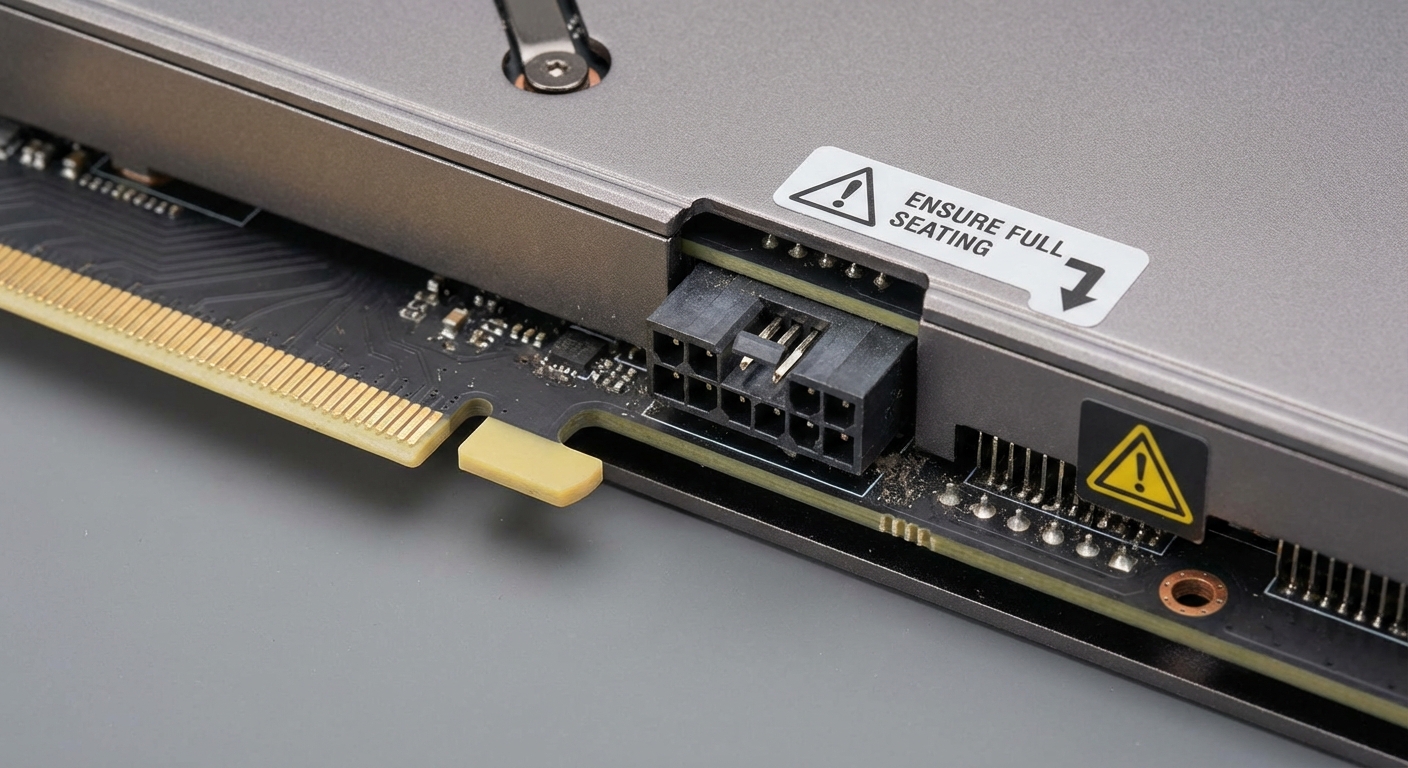
- Power Supply Issues: If the GPU does not receive adequate power, it may not function correctly. It’s crucial to ensure that the power supply unit (PSU) has sufficient wattage and that the required power connectors are plugged in.
- Motherboard Issues: Rarely, the issue could also stem from the motherboard itself, such as damaged PCIe slots or firmware problems.
- Compatibility Problems: Older GPUs might not work with newer motherboards or vice versa, leading to recognition issues.
Troubleshooting Steps for the White VGA Light
Identifying the root cause of the white VGA light involves a series of diagnostic steps. Here are key troubleshooting methods:
- Check Connections: Ensure that all cables are connected properly, especially the GPU’s power connectors and the display cable.
- Reseat the GPU: Remove the graphics card from the PCIe slot and reinsert it securely. This can often resolve issues related to loose connections.
- Test with Another GPU: If available, test with a different graphics card to determine if the problem lies with the original GPU.
- Inspect the PCIe Slot: Check for any physical damage to the PCIe slot or motherboard. Dust or debris should also be cleaned out.
- Update BIOS: An outdated BIOS can lead to compatibility problems. Check the motherboard manufacturer’s website for any available updates.
- Check the Power Supply: Verify that the PSU provides adequate power and that it is functioning correctly. Consider checking voltage outputs if necessary.
- Reset CMOS: Resetting the motherboard settings to factory defaults can correct potential configuration issues.
Examples of User Experiences
Many PC users have reported encountering the white VGA light, often after assembling a new build. For instance, users on forums such as Linus Tech Tips and MSI’s community have shared their frustrations when their systems halted at the VGA light during initial power-up. Commonly, the resolutions involved reseating the graphics card or addressing power supply issues. Users noted how iterative testing and ensuring a compatible component selection significantly improved the boot process.
You may also like


When to Seek Professional Help
If the troubleshooting steps do not resolve the issue, it may be time to consult a professional or contact the manufacturer’s support team. Persistent problems indicated by the white VGA light could signify more serious hardware failures, and getting expert assistance may save time and prevent further complications.
FAQ
Q1: What does a continuous white VGA light mean on my motherboard?
A1: A continuous white VGA light usually indicates that the motherboard does not recognize the graphics card, possibly due to an installation issue or hardware malfunction.
Q2: Can a bad power supply cause a white VGA light?
A2: Yes, insufficient power supply to the GPU can lead to a white VGA light. Ensure that the PSU meets the power requirements of your graphics card.
Q3: How do I know if my graphics card is faulty?
A3: If reseating the card and trying it in different slots doesn’t work, testing with another GPU on the same motherboard can help isolate the issue.
Q4: Can software issues trigger a white VGA light?
A4: Typically, the white VGA light is hardware-related, but sometimes firmware or BIOS issues can cause failures that lead to this indicator.
Q5: Is the white VGA light the same as a component failure light?
A5: Yes, the white VGA light specifically signals issues related to the GPU. Other lights, like CPU or RAM indicators, address different components.
Conclusion
In summary, the white VGA light on a motherboard primarily points to issues with the graphics card’s functionality or recognition. By understanding the causes and following the troubleshooting steps outlined above, most users can address and resolve this problem effectively. For related topics, consider exploring hardware compatibility or the significance of other diagnostic lights on motherboards.
Rotating USB