How to Identify USB 3.0 vs USB 2.0 Ports by Color (Blue, Red, Yellow)
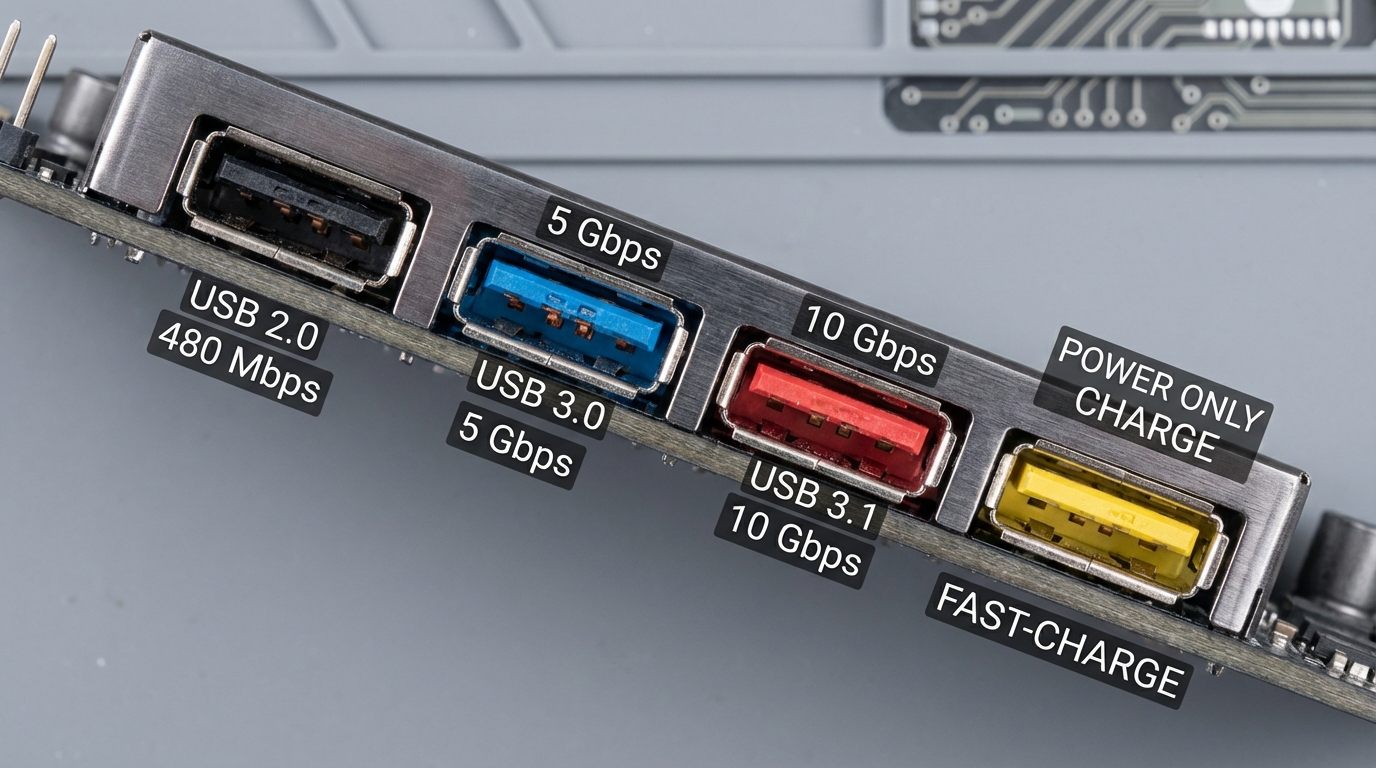
In today’s digital age, understanding the distinctions between USB ports is crucial for maximizing the performance of devices and peripherals. With the increasing prevalence of different USB standards, users often find themselves questioning how to identify whether their USB ports are 2.0 or 3.0. The specific colors of the ports often provide hints, but misconceptions abound regarding what these colors signify. This article delves into the color coding of USB ports and will help you easily identify USB 3.0 versus USB 2.0 ports by color. You’ll learn about the various USB standards, their speeds, and what the colors blue, red, and yellow actually indicate.
Understanding USB Standards
USB (Universal Serial Bus) technology has evolved significantly since its inception, introducing several standards that govern data transfer speeds, power delivery, and compatibility. To identify USB ports by color, it’s essential first to comprehend what each standard offers:
USB 2.0
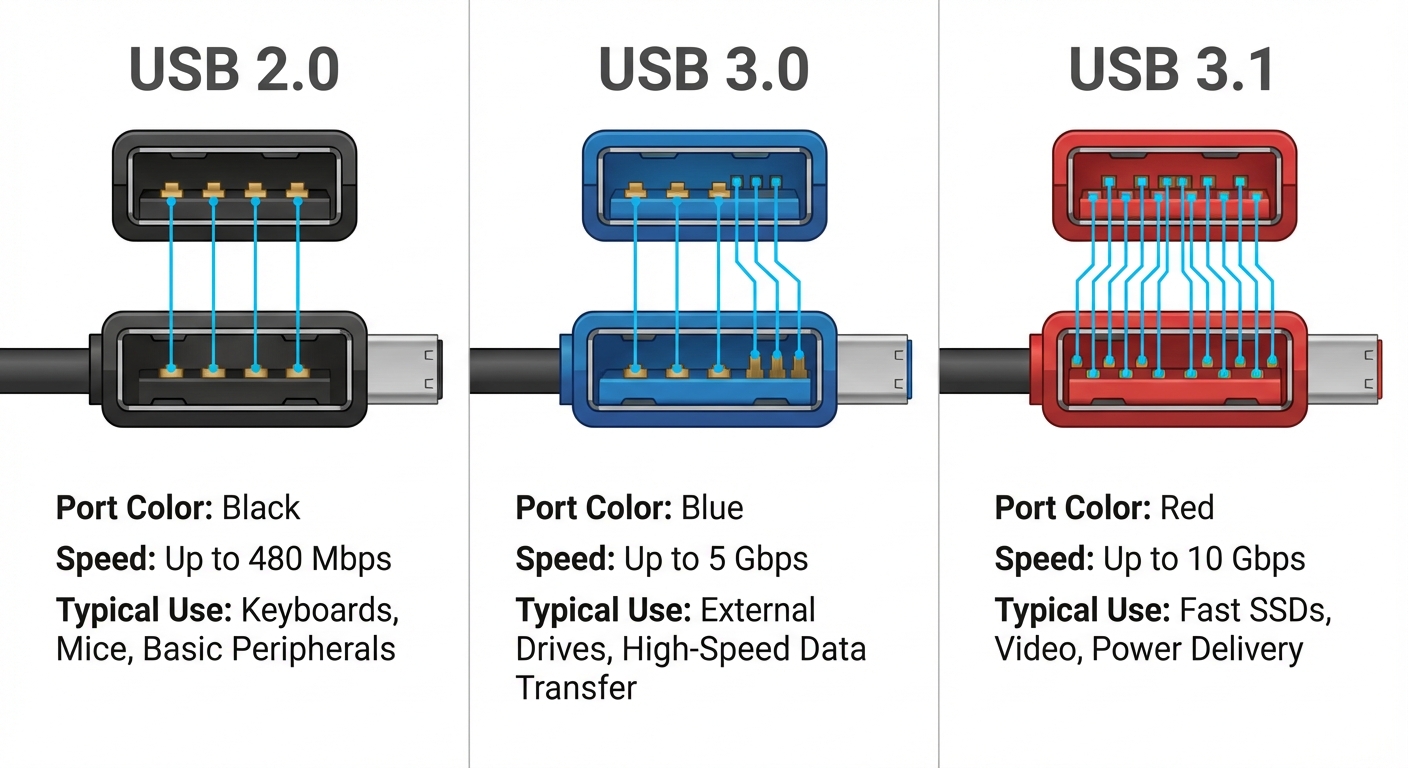
- Data Transfer Speed: Up to 480 Mbps
- Typical Port Color: Black or white internally
- Compatibility: Backward-compatible with USB 1.1 devices
USB 3.0
- Data Transfer Speed: Up to 5 Gbps (approximately 10 times faster than USB 2.0)
- Typical Port Color: Blue internally (most common indicator)
- Additional Feature: Backward-compatible with USB 2.0 devices, though performance is limited to 2.0 speeds
- Design: Typically has five pins, compared to four in USB 2.0
USB 3.1 and Beyond
USB 3.1 and 3.2 introduced even faster data transfer rates and additional color coding (e.g., red, yellow, and teal). For instance:
- Red Port: Generally used for USB 3.1 and can provide up to 10 Gbps. These ports may also support power delivery features.
- Yellow Port: Typically found on some USB chargers, these ports can deliver power more efficiently, often supporting features like power delivery, which is essential for charging devices faster.
Comparing USB Port Colors
| USB Color | Standard | Data Transfer Speed | Common Uses |
|---|---|---|---|
| Black | USB 2.0 | Up to 480 Mbps | Standard peripherals like keyboards and mice |
| Blue | USB 3.0 | Up to 5 Gbps | External hard drives, high-speed flash drives |
| Red | USB 3.1 | Up to 10 Gbps | Modern external storage, high-speed devices |
| Yellow | USB Charging | Varies | Fast charging for phones and tablets |
Common Misconceptions
Many users mistakenly believe that all USB ports of the same color perform identically. While color coding provides a general guideline, it’s not foolproof. For example, a blue USB port might be labeled as USB 3.0, but if the device it’s connected to only supports USB 2.0, the data transfer will be limited to that standard’s speed.
You may also like

Additionally, many modern devices feature mixed standards, which can confuse users unfamiliar with USB technology. While knowing the port’s color can help, it’s essential to check the specifications of both the port and the device to ascertain compatibility and performance potential.
Identifying Your USB Ports
To determine which USB ports you have on a device, visually inspect their colors. Implement the following steps for clarity:
- Open your device and locate the USB ports.
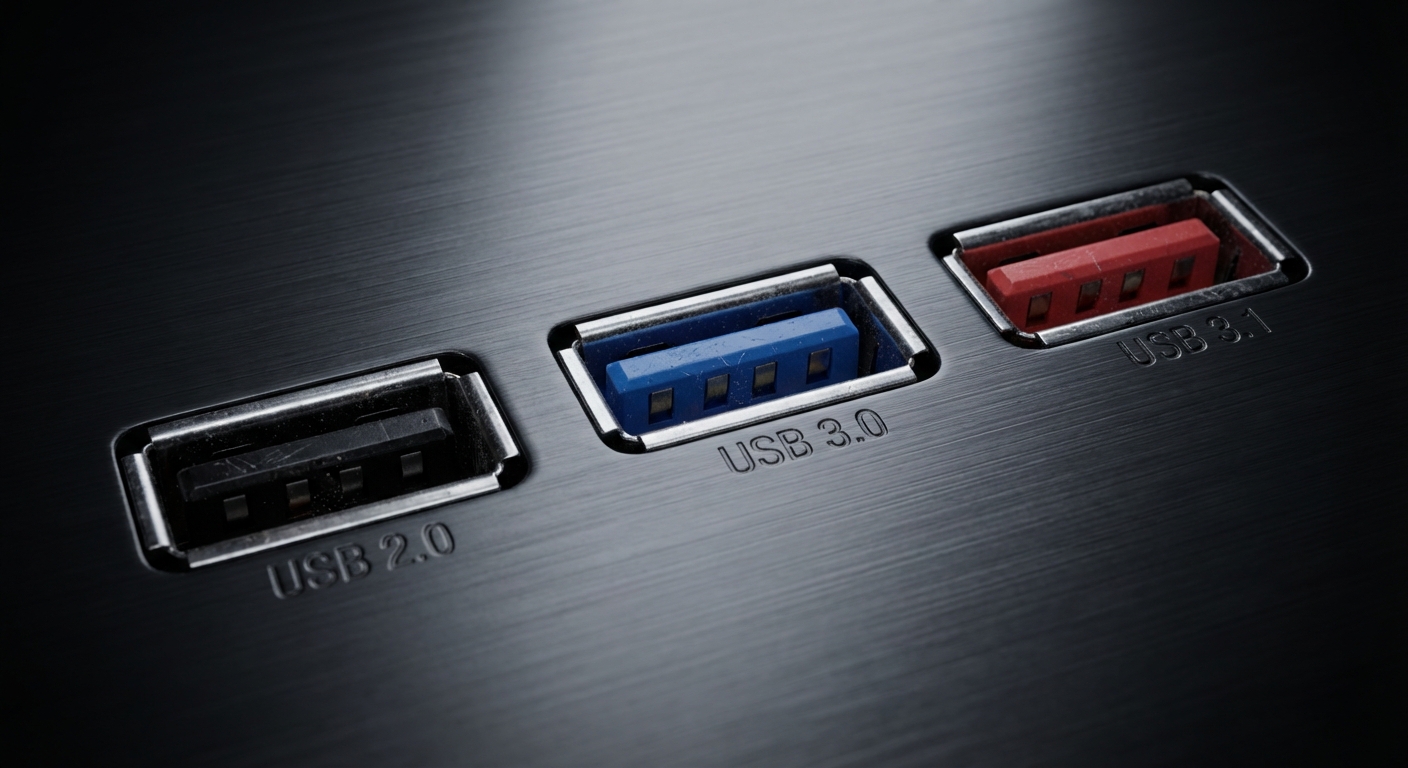
- Check the plastic insert color inside the ports:
- Black or White: USB 2.0
- Blue: USB 3.0
- Red: USB 3.1 or USB 3.2
- Yellow: Fast charging ports
- If you’re unsure, refer to the device manual or manufacturer’s website for product specifications.
Use Cases and Packing the Right Gear
When packing for travel or setting up your workspace, ensuring the correct USB cables and devices are included is vital. Here are considerations based on the USB standard:
- For USB 2.0 Devices: Ensure you have compatible cables that won’t exceed the 480 Mbps speed limit.
- For USB 3.0 and 3.1 Devices: Use newer cables designed for increased speeds to maximize performance and capabilities.
- If Charging: Look for yellow ports to utilize fast charging features.
Helpful Resources
If you’re interested in further details on USB specifications, you can find more information on the official Wikipedia page for USB or visit Microsoft’s support page for troubleshooting common issues.
FAQ
Q1: Can I use a USB 3.0 device in a USB 2.0 port?
A1: Yes, USB 3.0 devices are backward-compatible and will work in USB 2.0 ports, but the transfer speed will be limited to 2.0 speeds (up to 480 Mbps).
Q2: What color indicates a fast-charging USB port?
A2: Yellow USB ports are often used for fast charging and can provide more power to devices, typically used on chargers.
Q3: What should I do if I can’t identify my USB ports by color?
A3: Check the device’s manual or the manufacturer’s website for specifications regarding the USB port types and speeds.
Q4: Is there a significant speed difference between USB 3.0 and USB 3.1?
A4: Yes, USB 3.0 has a maximum transfer speed of up to 5 Gbps, while USB 3.1 can reach speeds up to 10 Gbps, making it faster and more efficient for data transfers.
Q5: How do I ensure I am using the correct cables for my USB ports?
A5: Always use cables marked for USB 3.0 or higher for devices requiring high speeds; lower-standard cables may reduce performance.
Conclusion
Identifying USB ports by color is an effective way to understand their capabilities and ensure you’re utilizing the right cables and devices for optimal performance. Understanding these distinctions is crucial for anyone using modern electronic devices. For further insights, consider exploring related topics such as USB-C technologies and their advantages over older standards.