Understanding USB 3.0 Internal Header Pinout Color Codes
USB 3.0 technology has transformed the landscape of data transfer and peripheral connectivity. However, as with any evolving technology, there are complexities that can lead to confusion among users, especially when it comes to wiring and connections. The specific problem this article addresses is the understanding of the USB 3.0 internal header pinout, along with its associated color codes. This knowledge is crucial for anyone looking to connect components such as front panel USB ports to a computer’s motherboard properly. A common misconception is that all USB cables and ports follow a universal standard in terms of colors and pin arrangements, leading to potential accidents like short-circuits or malfunctioning devices. In this article, readers will learn about the pin configurations, color coding for wires, and practical insights for correct installation and troubleshooting.
How USB 3.0 Works
USB 3.0, also known as SuperSpeed USB, is designed to enable faster data transfer rates up to 5 Gbps, significantly improving upon its predecessor, USB 2.0. Its internal header includes several pins that are crucial for power and data transmission. Understanding the color codes associated with these pins is key for proper installation and troubleshooting.
USB 3.0 Header Pin Configuration
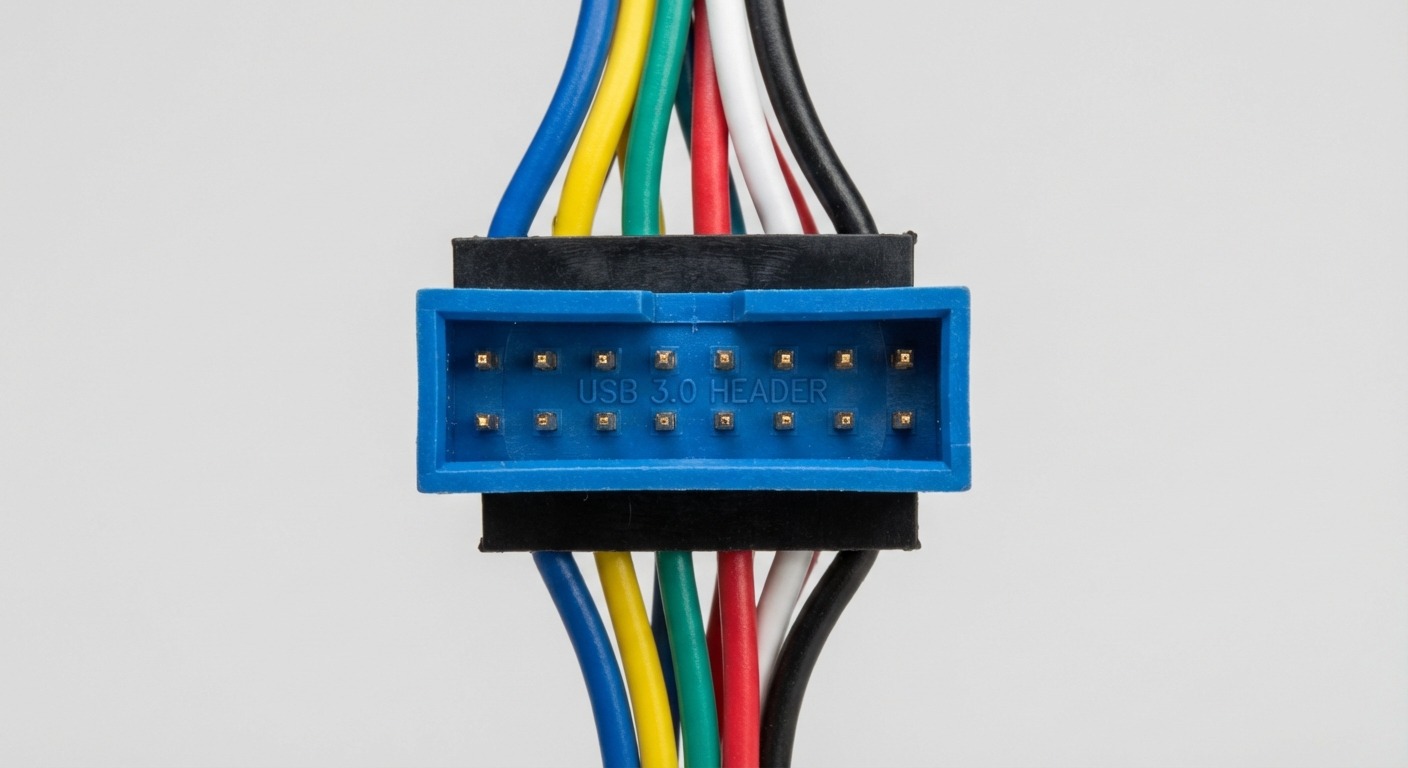
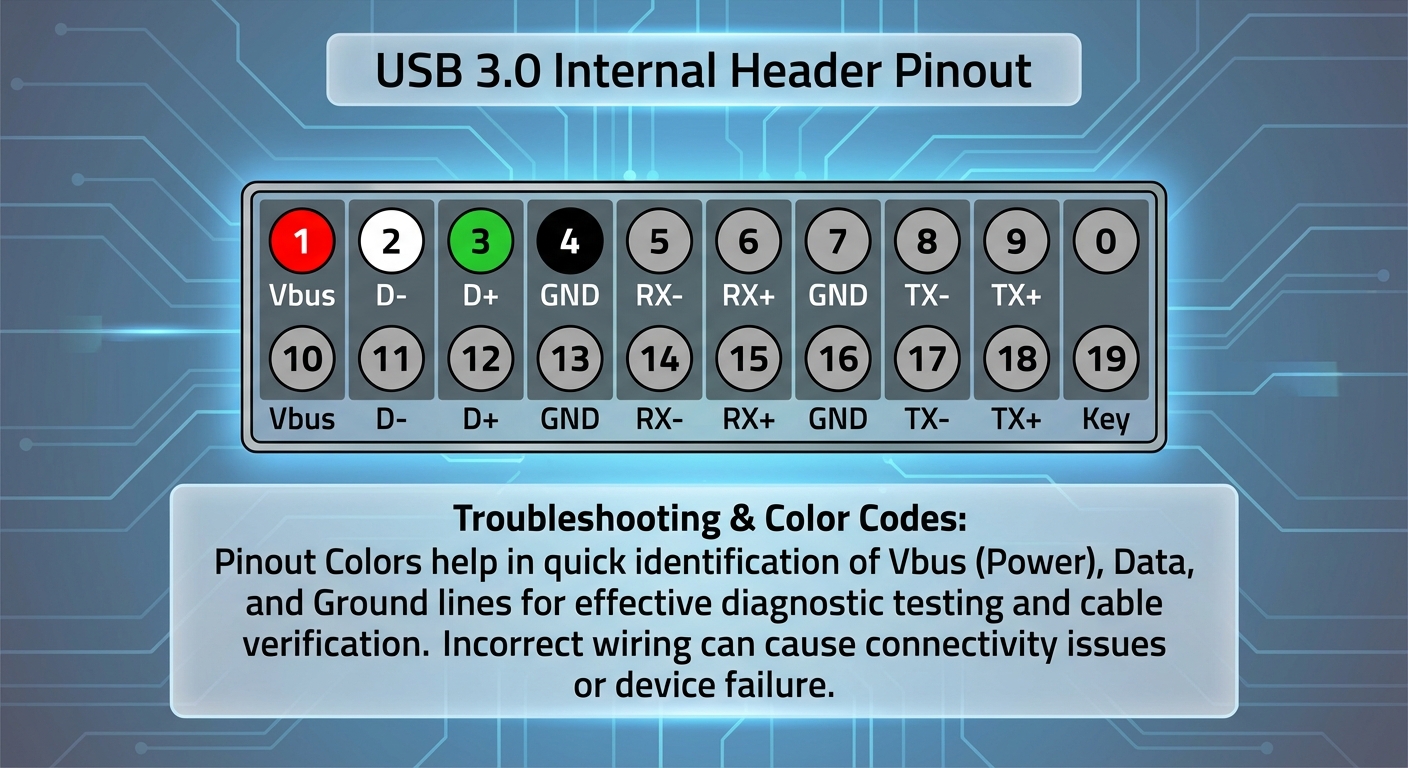
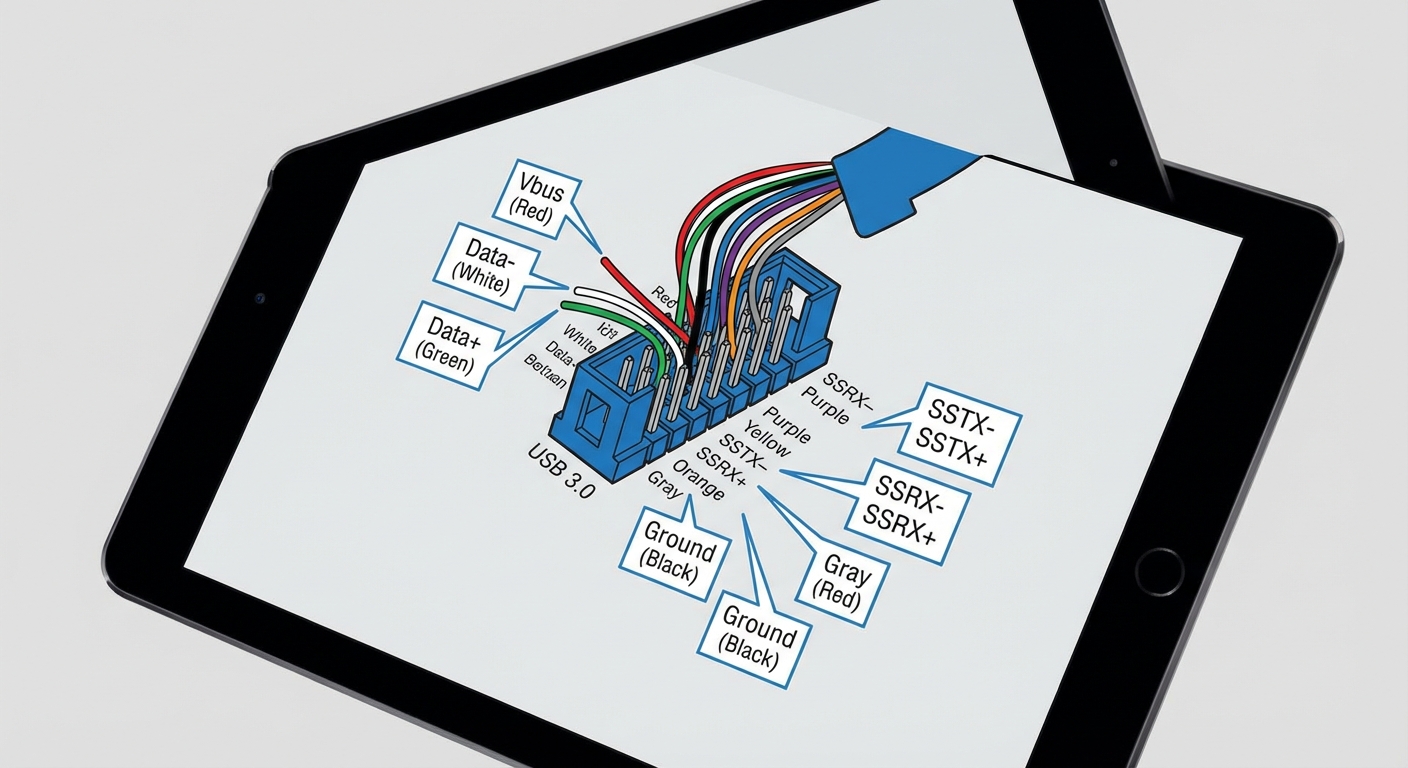
The USB 3.0 internal header typically consists of 19 pins arranged in a specific manner. Each pin has a designated function:
- Pin 1 (Vbus) – Red, provides +5V power.
- Pin 2 (Data-) – White, transmits the negative data signal.
- Pin 3 (Data+) – Green, transmits the positive data signal.
- Pin 4 (Ground) – Black, serves as the electrical ground connection.
It’s important to note that these pin colors are generally consistent, but variations may exist depending on cable manufacturers.
You may also like

Pinout Color Codes Explained
| Pin Number | Function | Color Code |
|---|---|---|
| 1 | Power (Vbus) | Red |
| 2 | Data Negative (D-) | White |
| 3 | Data Positive (D+) | Green |
| 4 | Ground | Black |
These color conventions are not merely decorative; they facilitate the identification of wires and connections, especially when working with poorly marked cables. This becomes essential for DIY projects that involve building or modifying PCs.
Common USB Port Color Codes
Understanding the different colors used for USB ports can help clarify their purpose:
- White – Typically indicates USB 1.0/2.0.
- Black – Usually associated with USB 2.0.
- Blue – Designates USB 3.0 (SuperSpeed).
- Teal, Red, and Yellow – Often meant for charging devices, regardless of the version.
It is crucial to remember that colors like red, yellow, and orange primarily indicate extra functionality such as charging capabilities rather than data transfer speeds.
The Importance of Correct Color Coding
Utilizing the right color codes not only ensures effective data transfer but also prevents mistakes during hardware installation. Incorrect connections can lead to hardware damage or data loss. For instance, mistakenly connecting a Data+ wire to a Data- terminal could render the devices inoperative. Thus, color codes serve as a quick reference guide, enabling users to minimize these risks.
Common Misconceptions about USB Connections
Many individuals believe that USB connectors are universally compatible and follow similar wiring standards, but this is a significant misconception. Here are a few points of confusion:
- USB 3.0 utilizes additional pins and shielding compared to previous versions, which is often overlooked.
- Not all USB ports will support the highest speeds available; functionality varies based on the version and design of each port.
- Misinterpretation of port colors often leads to incorrect assumptions about charging capabilities or data transfer speeds.
Troubleshooting USB Connection Issues
If you’re experiencing issues with your USB connections, here are a few diagnostic steps to consider:
- Verify that the cable is properly connected, referring to the pinout color codes.
- Check the motherboard and ensure that it supports USB 3.0 connection.
- Inspect for physical damage to the connectors or wires that might result in faulty connections.
- Test the USB ports with different devices to determine if the issue is cable or port-specific.
- Update motherboard drivers, as outdated drivers can lead to compatibility issues.
These troubleshooting steps can help you isolate and resolve connection problems effectively.
Frequently Asked Questions
Q1: What are the color codes used in USB 3.0 connections?
A1: The standard color coding for USB 3.0 connections is red for Vbus (+5V), white for Data- (negative signal), green for Data+ (positive signal), and black for ground.
Q2: How can I identify USB 3.0 ports by color?
A2: USB 3.0 ports are usually indicated by blue inserts compared to black for USB 2.0 ports.
Q3: What does it mean if a USB port has a red or yellow color?
A3: Red or yellow ports often indicate a dedicated charging function, supporting power delivery rather than high-speed data transfer.
Q4: Can I mix USB 2.0 cables with USB 3.0 devices?
A4: Yes, USB 3.0 is backward compatible with USB 2.0 devices, although the data transfer speeds will default to the slower standard.
Q5: Why is it important to correctly match USB pinout colors?
A5: Correctly matching USB pinout colors ensures proper functionality and prevents damage to devices due to incorrect wiring.
Conclusion
In summary, recognizing the USB 3.0 internal header pinout color codes is vital for anyone interested in PC building or troubleshooting USB connections. Understanding these color codes will help mitigate errors during installation and ensure efficient data transfer. Related topics include the various types of USB connectors and the evolution of USB standards over the years.