Introduction
The motherboard serves as the backbone of your computer, housing key components like the CPU, RAM, and other peripherals. When you encounter a red light illumination on your motherboard, it can signal critical issues, particularly with the CPU. This article focuses specifically on troubleshooting the red light color codes associated with the CPU, providing a comprehensive approach to addressing this common problem. Understanding the meaning behind these alerts is crucial for any computer user, as a lit red CPU light often indicates hardware detection errors that can lead to system instability or failure to boot. A common misconception is that red lights are indicative of irreversible damage; however, these signals often point to straightforward fixes. In this guide, you’ll learn how to diagnose the issue effectively and apply corrective measures to restore your system’s functionality.
Understanding CPU Red Light Signals
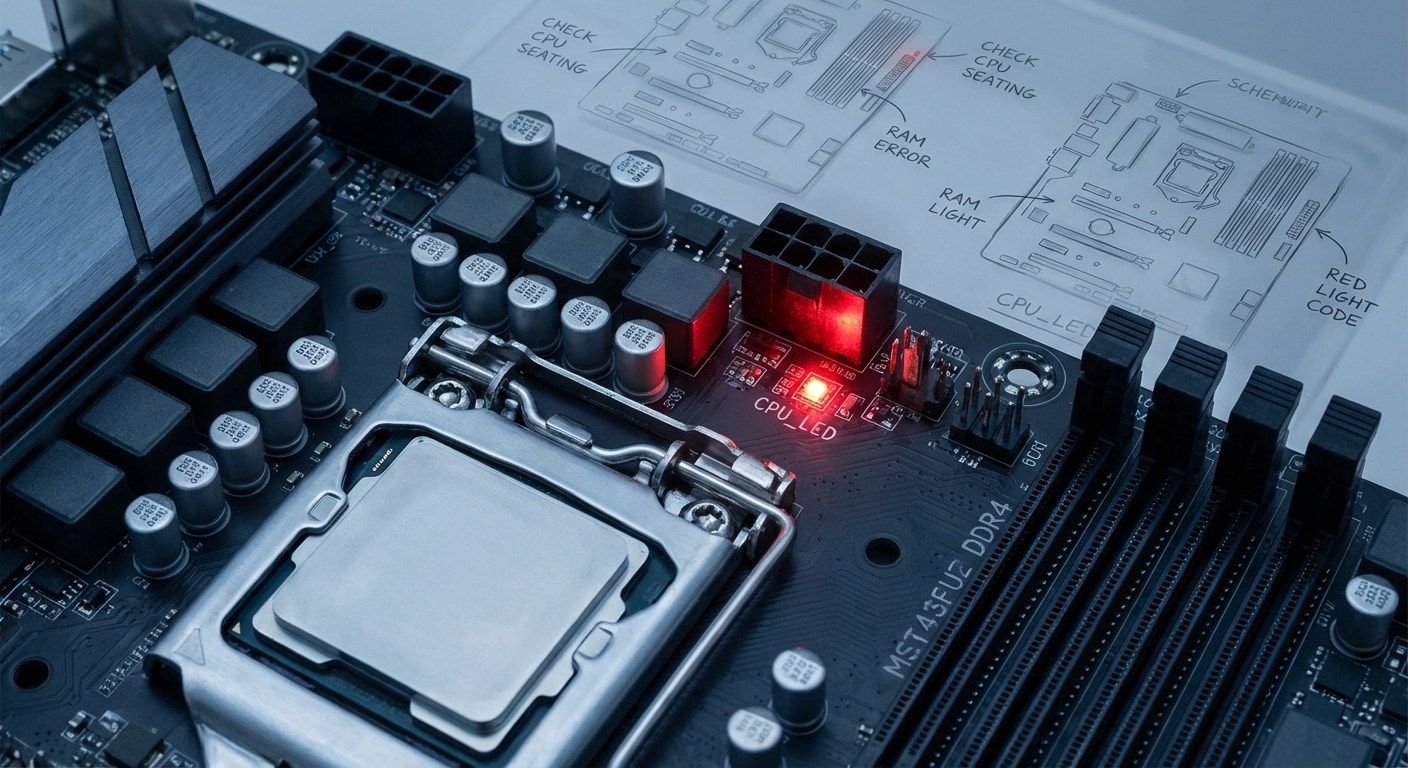
The red light on a motherboard typically corresponds to the CPU status. When illuminated, this light usually indicates that there is a problem with the CPU, such as improper installation or power issues.
It’s essential to differentiate between various conditions that might trigger this warning:
- Incorrectly seated CPU
- Power supply issues
- Faulty RAM
- Overheating
- Defective motherboard components
Common Causes of CPU Red Light Illumination
Several factors can cause the CPU red light on your motherboard to illuminate. Here are some of the most common issues to consider:
You may also like


- Improper Installation: If the CPU is not seated correctly in its socket, it can prevent the motherboard from recognizing it, triggering a red light.
- Power Connections: Inadequate power supply connections, particularly the CPU power connectors, can lead to detection issues. Ensure that the 2×4 connector is fully plugged into both the PSU and the motherboard.
- RAM Issues: Malfunctions or misplacements of RAM can also reflect as a CPU error. If RAM is improperly seated, the motherboard may hint at this with a red light.
- Voltage Irregularities: High CPU or RAM voltages might also trigger red lights in many motherboards. It’s crucial to check voltage levels in the BIOS.
- Defective Components: A failing CPU or motherboard may cause persistent red lights. In such cases, a thorough hardware diagnostics check is necessary.
Troubleshooting Steps for CPU Red Light
Follow these steps to diagnose and potentially resolve the CPU red light issue on your motherboard:
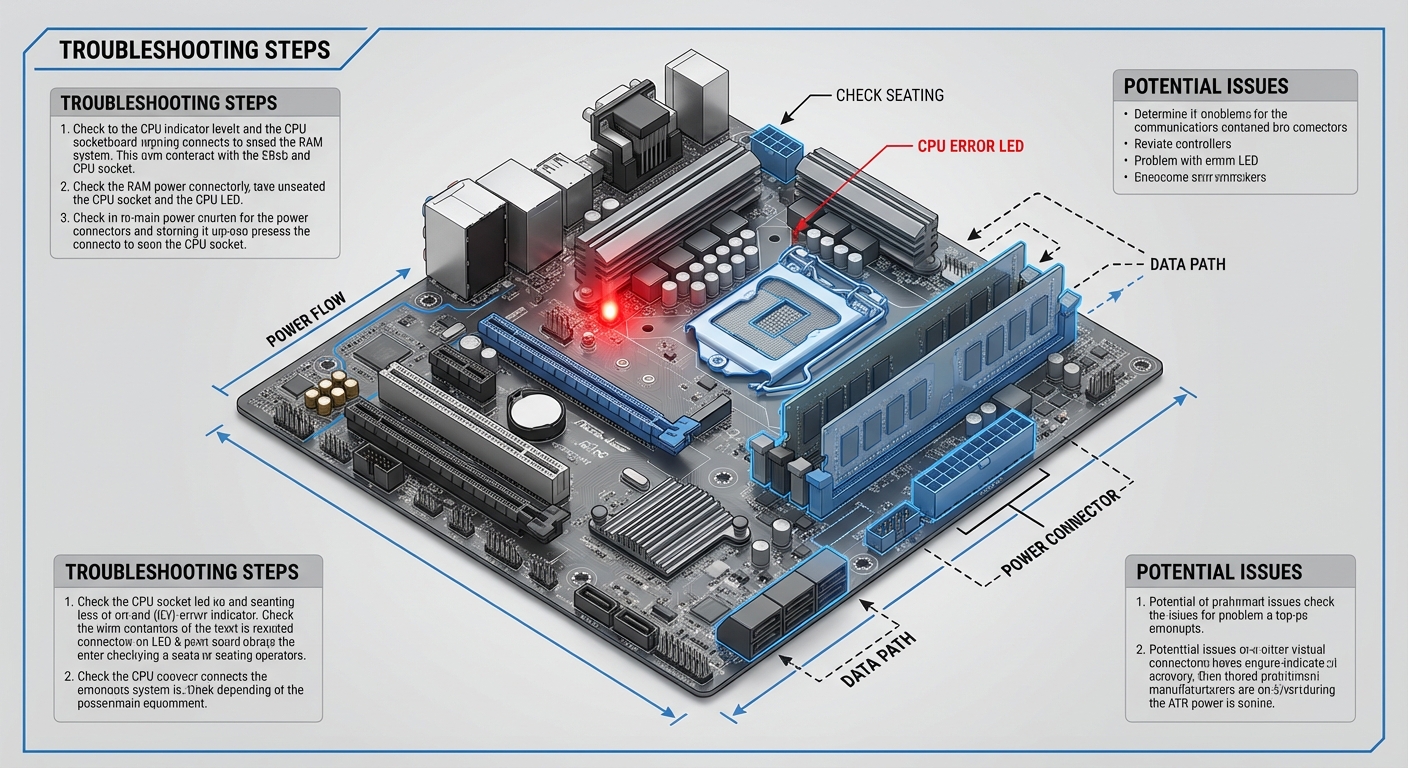
- Check Physical Connections:
- Inspect the CPU power connectors, ensuring they are fully seated.
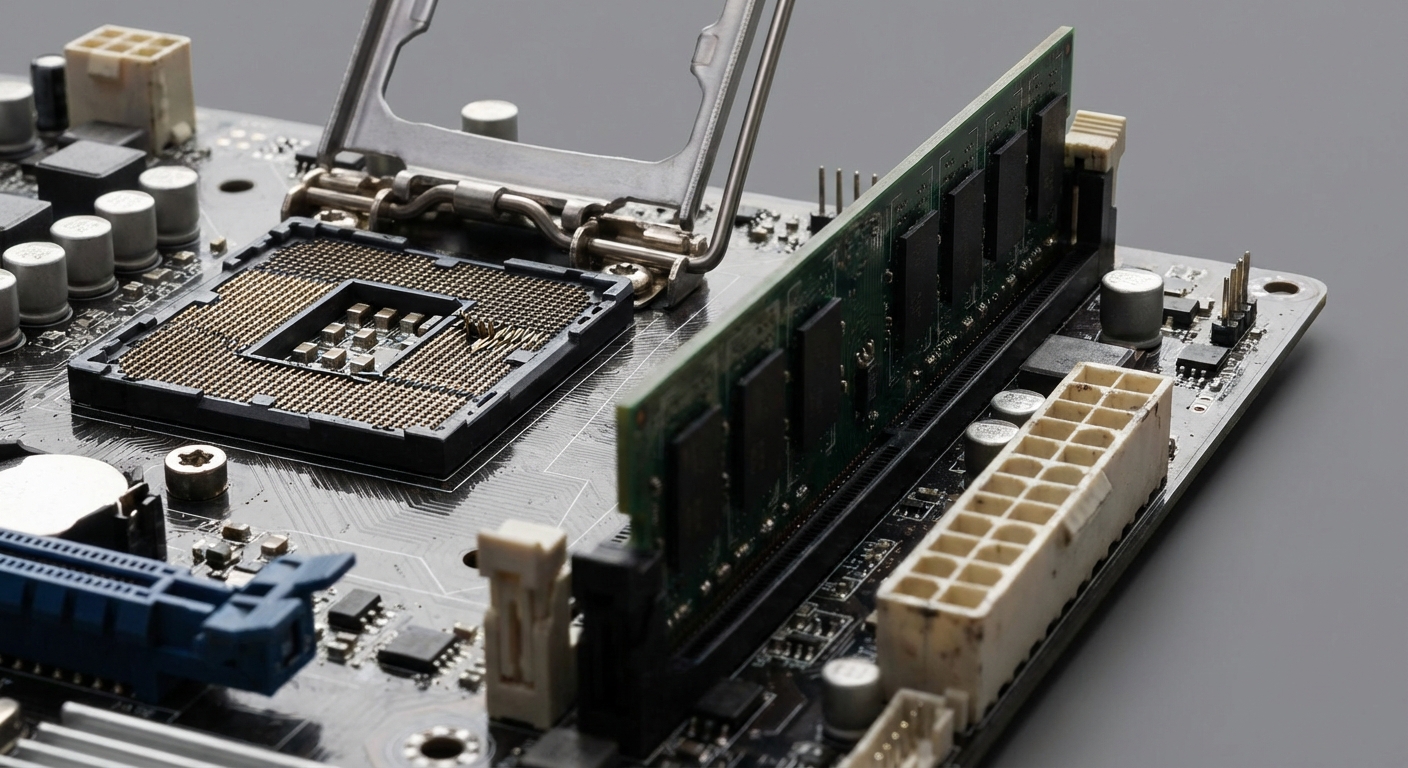
- Re-seat the CPU if necessary, verifies the alignment of notches, and ensure no pins are bent.
- Reset CMOS:
- Power down the machine and disconnect it from the power source.
- Locate the CMOS battery on the motherboard and remove it for several minutes before reinserting it.
- Inspect RAM Modules:
- Reseat the RAM chips. Remove the RAM, clean the contacts, and reinsert carefully.
- If multiple RAM sticks are present, test them one at a time in each slot to identify faulty components.
- Check BIOS Settings:
- Enter the BIOS upon startup and review voltage readings for the CPU and RAM.
- Ensure that voltage levels are within manufacturer’s specifications.
- Monitor Temperatures:
- Use software tools to check CPU temperature readings to avoid overheating issues.
When to Seek Professional Help
If the red light persists despite attempts at troubleshooting, it may indicate deeper hardware issues. In these scenarios, seeking professional assistance is advisable:
- Persistent errors after verifying all connections and reseating components.
- Presence of physical damage or unusual noises from the PSU or motherboard.
- Unsuccessful power-on even after following all troubleshooting steps.
Consulting with a certified technician can save time and prevent further damage to your system. Additionally, manufacturers such as MSI provide support that can be invaluable during troubleshooting.
FAQ
Q: What does a solid red CPU light on my motherboard indicate?
A: A solid red CPU light typically indicates a problem with CPU detection, which could be due to improper installation, power supply issues, or faulty components.
Q: How can I reset the CMOS to fix the red CPU light?
A: Power down the computer, disconnect it from power, remove the CMOS battery for a few minutes, and then reinstall it. This action resets BIOS settings.
Q: Are there any voltage readings I should check in the BIOS?
A: Yes, check CPU and RAM voltage levels in the BIOS. If any readings appear in red, this indicates they might be too high or out of specification.
Q: If reseating the CPU doesn’t help, what should I do next?
A: If reseating the CPU does not resolve the issue, consider testing with another CPU if possible, or consult a technician for further diagnostics.
Q: How can I tell if my motherboard is defective?
A: Signs of a defective motherboard can include persistent red lights despite troubleshooting, unusual electrical noise, and failures for the system to power on correctly.
Conclusion
The illumination of a red light on your motherboard can be concerning, particularly when associated with the CPU. By methodically troubleshooting the hardware components, often you can find a simple solution to the problem. Remember, when facing persistent issues, don’t hesitate to seek help from professionals or refer to manufacturer resources. This troubleshooting guide can also be applied to related components, such as RAM and PSU issues, broadening your understanding of computer hardware diagnostics.
Rotating USB