Introduction
In today’s technology-driven world, laptops have become an essential tool for both personal and professional tasks. One of the most versatile ports your laptop may feature is the USB-C port, which is capable of connecting various devices, charging, and transferring data. However, it can be frustrating when a USB-C port stops working unexpectedly. This article addresses the critical question: Is the malfunction due to software or hardware failure? Understanding this issue is vital for users, as the approach to resolving it can vary significantly depending on the underlying cause. A common misconception is that USB-C port failures are predominantly hardware-related, while many issues stem from software conflicts or driver problems. Readers will learn diagnostic steps to identify the issue, possible fixes, and when to seek professional repair services.
Understanding USB-C Technology
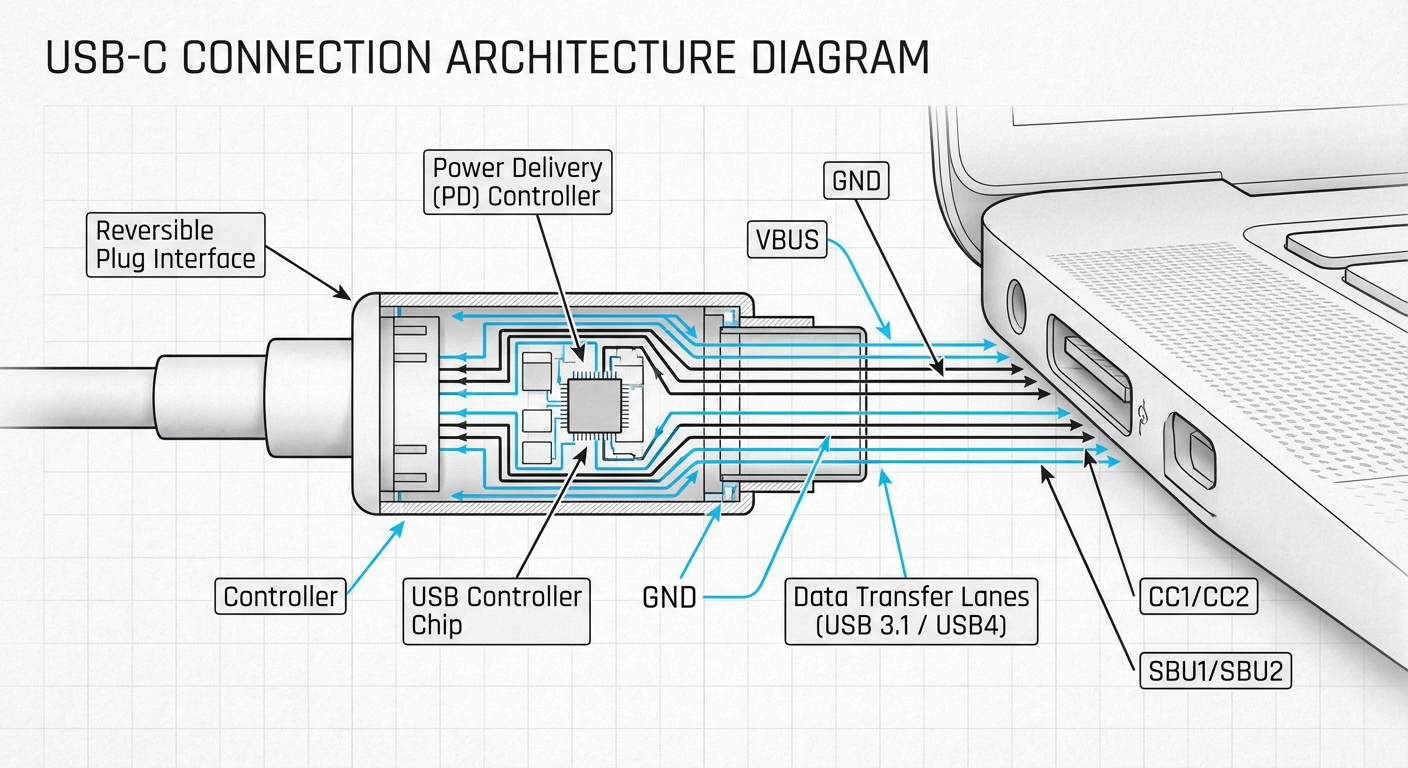
USB-C, or Universal Serial Bus Type-C, is a new standard that has been widely adopted due to its numerous benefits:
- Reversible Design: Unlike previous USB types, USB-C connectors can be plugged in either way, making it user-friendly.
- High Data Transfer Rates: Depending on the specification, USB-C supports data transfer speeds of up to 40 Gbps.
- Power Delivery: USB-C can also deliver power up to 100 watts, enabling fast charging for devices.
This versatility also means more opportunities for something to go wrong, whether through an internal system conflict or a physical connection failure.
Common Causes of USB-C Port Failures
When a USB-C port suddenly stops working, users face two main potential sources of the problem: software issues and hardware failures. Here’s a closer look:
You may also like


Software Issues
Software problems can often cause USB-C ports to malfunction. A few common software-related causes include:
- Driver Problems: Updates or conflicts with USB drivers can lead devices to be unrecognized by the port. Some users have reported issues after specific Microsoft driver updates, for instance.
- Operating System Bugs: Operating systems, particularly Windows, can sometimes have glitches that disrupt USB function. Restarting the computer may temporarily resolve the issue.
- BIOS Settings: Sometimes, incorrect BIOS settings can affect hardware functionality. Updating the BIOS can potentially resolve USB issues.
Hardware Failures
If tests reveal that the software isn’t the problem, the next step is to investigate possible hardware failures. Hardware-related issues can include:
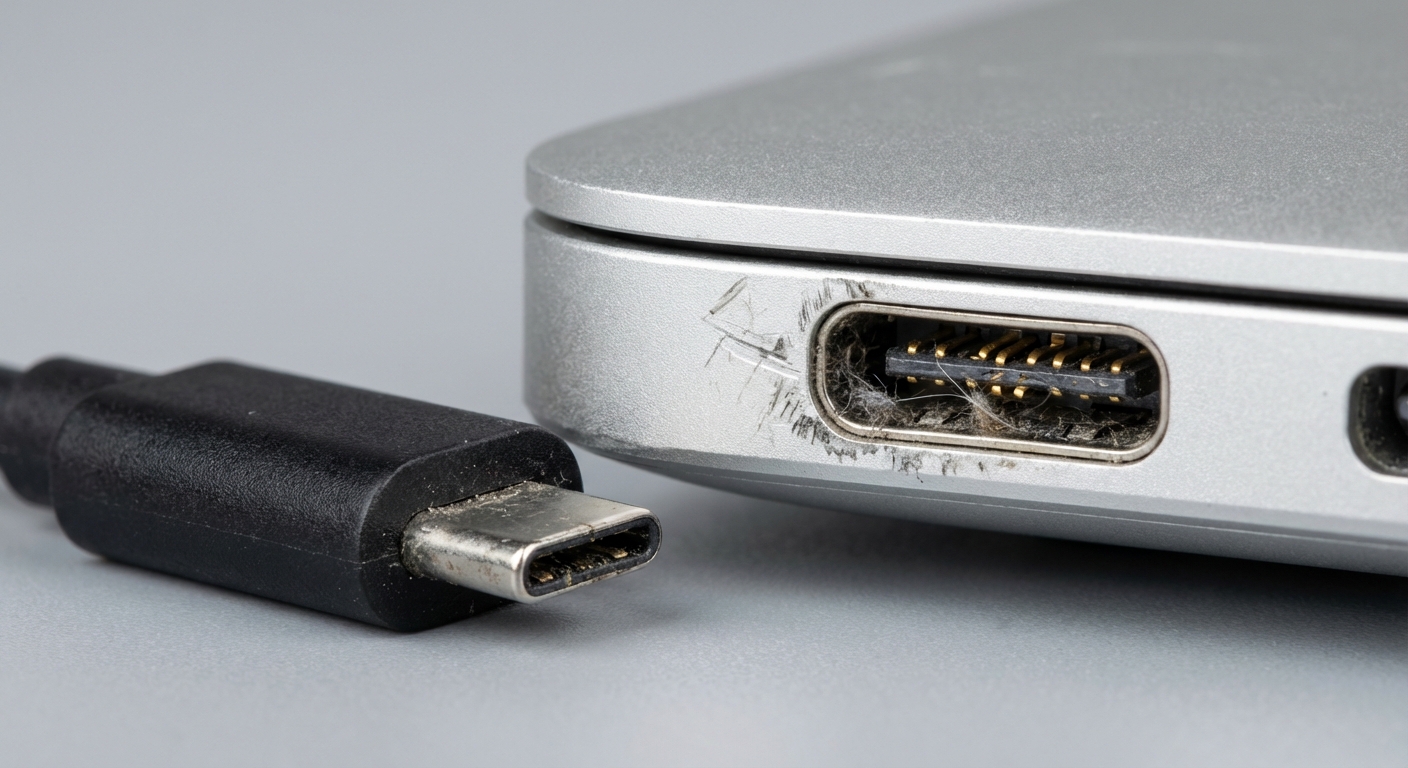
- Physical Damage: Broken pins, wear and tear, or physical damage to the port can prevent effective connection.
- Poor Connections: Dust, debris, or corrosion in the port might disrupt the electrical connections.
- Motherboard Issues: USB-C ports are connected to the motherboard; a malfunction here can cause all ports to fail.
Identifying the Problem
To determine the nature of the failure, users can perform several diagnostic steps:
- Test with Different Devices: Connect various USB devices to the port. If only specific devices fail, it might not be the port.
- Check System Settings: Open the Device Manager (on Windows) and inspect the USB controllers for errors.
- Use Windows Event Viewer: This tool can help identify if there were any error messages or warnings related to USB issues.
- Perform BIOS Update: Keeping the BIOS updated can resolve underlying hardware issues.
Troubleshooting Steps for USB-C Ports
Here are some potential fixes for software-related issues:
- Restart Your Laptop: A simple reboot can resolve temporary glitches.
- Update USB Drivers: Visit the manufacturer’s website for driver updates or use the Device Manager to search for updates.
- Rollback Drivers: If a recent update caused issues, rolling back to a previous driver version might help (note that this is sometimes disabled).
- Reset BIOS Settings: Ensure that your BIOS settings are correctly configured.
For hardware-related problems, the approach differs:
- Inspect for Visible Damage: Look closely at the USB-C port for any signs of damage or debris.
- Professional Repair: If physical damage is suspected or if the motherboard is at fault, consider consulting a repair service.
User experiences suggest that engaging with a professional repair technician for extensive hardware issues usually yields the best results. For instance, simple repair jobs can range from £30 to £120 based on the complexity of the issue.
When to Seek Professional Help
If the port remains unresponsive despite all troubleshooting, it might be time to consult with a technician. Signs indicating that professional help is necessary include:
- Persistent malfunction across multiple devices
- Visible damage to the port
- Motherboard issues suspected based on diagnostic tests
When seeking repairs, it’s often advisable to diagnose the issue fully. In some cases, especially for older devices, a complete replacement of the laptop may be more cost-effective than repair.
FAQ
Q1: What should I do if my USB-C port is not recognizing devices?
Try connecting different devices, restarting your laptop, and checking the Device Manager for driver issues.
Q2: How can I determine if the problem is software-related?
You might suspect a software issue if the USB-C port functions after a system restart but fails again later, or if recent updates coincide with the failure.
Q3: My laptop doesn’t have a warranty. Should I attempt to repair it myself?
Attempting a DIY repair can be risky. If you are comfortable with hardware, look for guides specific to your laptop model, but seeking professional help is a safer bet.
Q4: Are USB-C ports more prone to failure than other USB types?
Not necessarily; while they are more complex due to their multifunctionality, failures are usually linked to usage patterns and physical damage rather than inherent design flaws.
Q5: How can I prevent USB-C port issues in the future?
Regularly update drivers, keep ports clean, avoid excessive force when connecting devices, and use quality cables to enhance longevity.
Conclusion
USB-C ports are remarkably versatile but can encounter issues due to both software and hardware failures. Diagnosing the cause of the problem is crucial for effective resolution—whether through software fixes or seeking professional repairs. Understanding the signs and following the necessary diagnostic steps can help users navigate these frustrations, leading to smoother technology interactions in the future. Additionally, related topics such as device compatibility and USB-C standards may also be worth exploring.
Learn more about USB-C technology on Wikipedia.