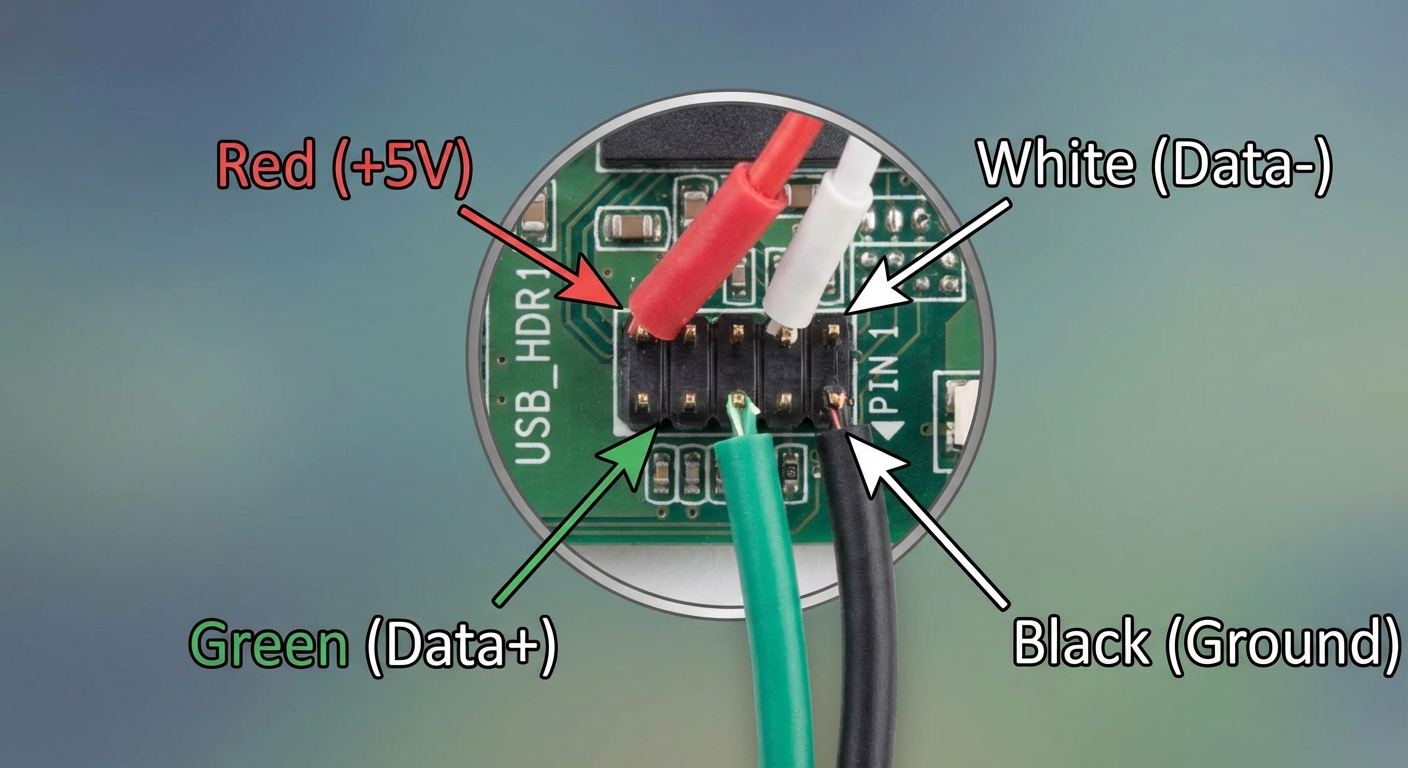
Understanding Internal USB 2.0 Header Wire Color Codes
As technology continues to evolve, staying informed about the intricate aspects of computer hardware becomes imperative. One often overlooked detail is the color coding of internal USB 2.0 header wires. Misidentifying these connections can lead to improper installations or malfunctioning devices, making this knowledge essential for both enthusiasts and professionals alike. The question that arises is whether internal USB wires are universally color-coded and how users can identify the respective functionalities associated with each color. This article aims to demystify the common misconceptions regarding USB wire color codes, providing clarity on wire functionalities and the proper connections needed for optimal device performance.
Throughout this article, readers will learn about the specific meanings behind the color codes associated with internal USB 2.0 headers, common pitfalls encountered during installations, and tips for troubleshooting issues related to USB connections. Understanding these details not only aids in enhancing the performance of devices but also equips users with the knowledge to navigate complications that may arise in DIY setups or repairs.
The Basics of USB 2.0 Connections
The Universal Serial Bus (USB) standard was established to facilitate communication between devices, simplifying connectivity and enhancing data transfer capabilities. USB 2.0, introduced in 2000, supports data rates of up to 480 Mbps, catering to various devices such as keyboards, mice, and external drives. The internal USB 2.0 headers are essential for linking the motherboard to peripherals, and understanding the color codes associated with these headers is crucial for proper configuration.
USB 2.0 Header Pinout and Wire Color Codes
Consistency in wiring is vital across many electronics, and while there may be inconsistencies for different manufacturers, there is a widely accepted set of color codes for USB 2.0 headers:
You may also like

| Color | Function |
|---|---|
| Red | +5V |
| White | Data- (D-) |
| Green | Data+ (D+) |
| Black | Ground (GND) |
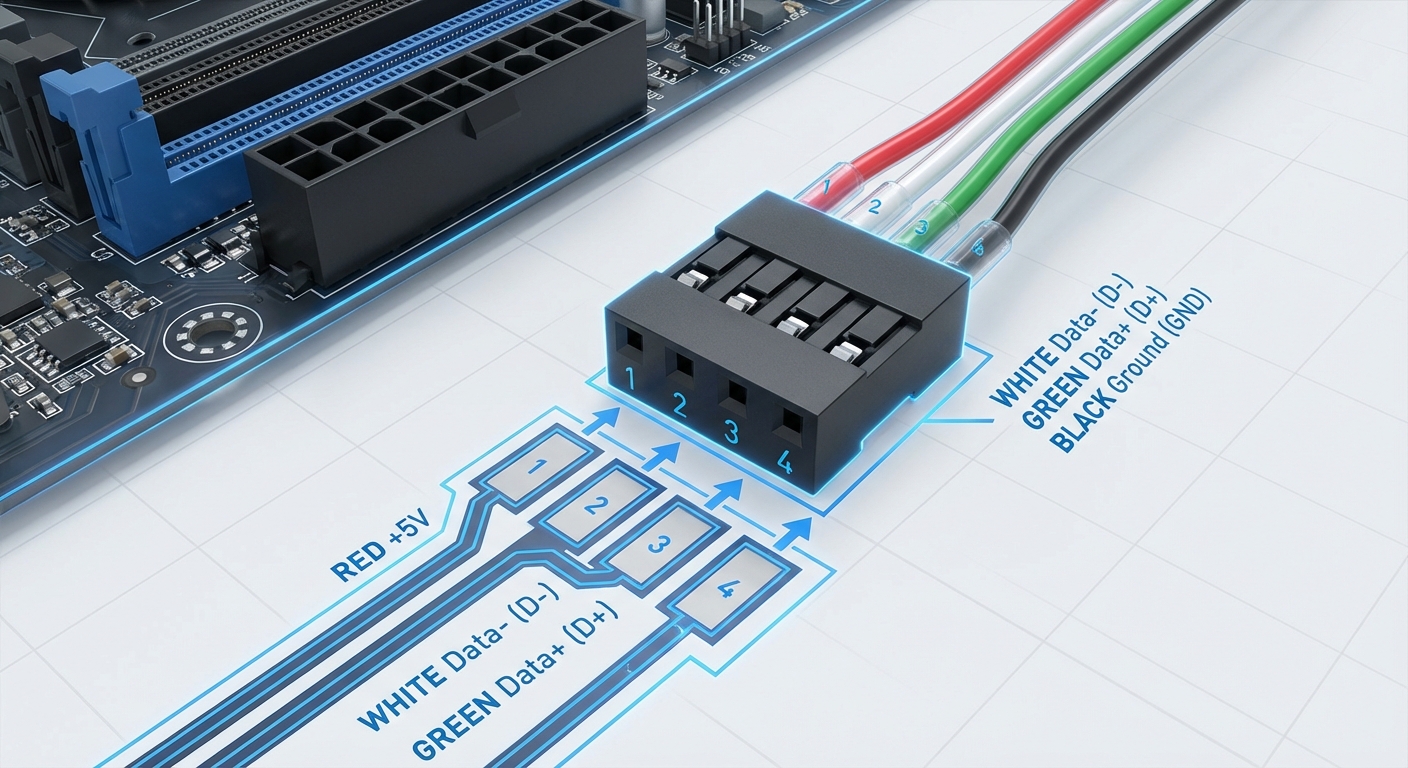
Each of these colors serves a specific purpose in ensuring that devices communicate efficiently with minimal interference. For instance, the red wire, which supplies +5 volts, must be connected accurately to power the USB device. Misplacing even one wire can result in malfunctioning ports or devices failing to power on.
Common Misconceptions about USB Wire Colors
A prevalent misunderstanding lies in the expectation that all USB wiring is consistently colored across different manufacturers. While the aforementioned color codes are standard, deviations may exist particularly in non-standard or low-quality cables. Users may encounter variations like Yellow, which may not conform to the standard USB wiring and can indicate different functionalities or errors.
Moreover, some users may confuse the ports for other specifications, such as USB 3.x, which may feature different colors for additional functions or faster data transfer speeds. For example, USB 3.0 often utilizes blue connectors, which can mislead individuals into believing they are working with USB 2.0 specifications when that may not be the case.
Proper Installation Tips
Installing a USB 2.0 header correctly is critical to achieving seamless operation. Here are key steps to follow:
- Identify the USB header on the motherboard. This is usually labeled as “USB1” or “USB2.”
- Refer to the motherboard manual for pin configuration. Ensure that you understand the layout before connecting.
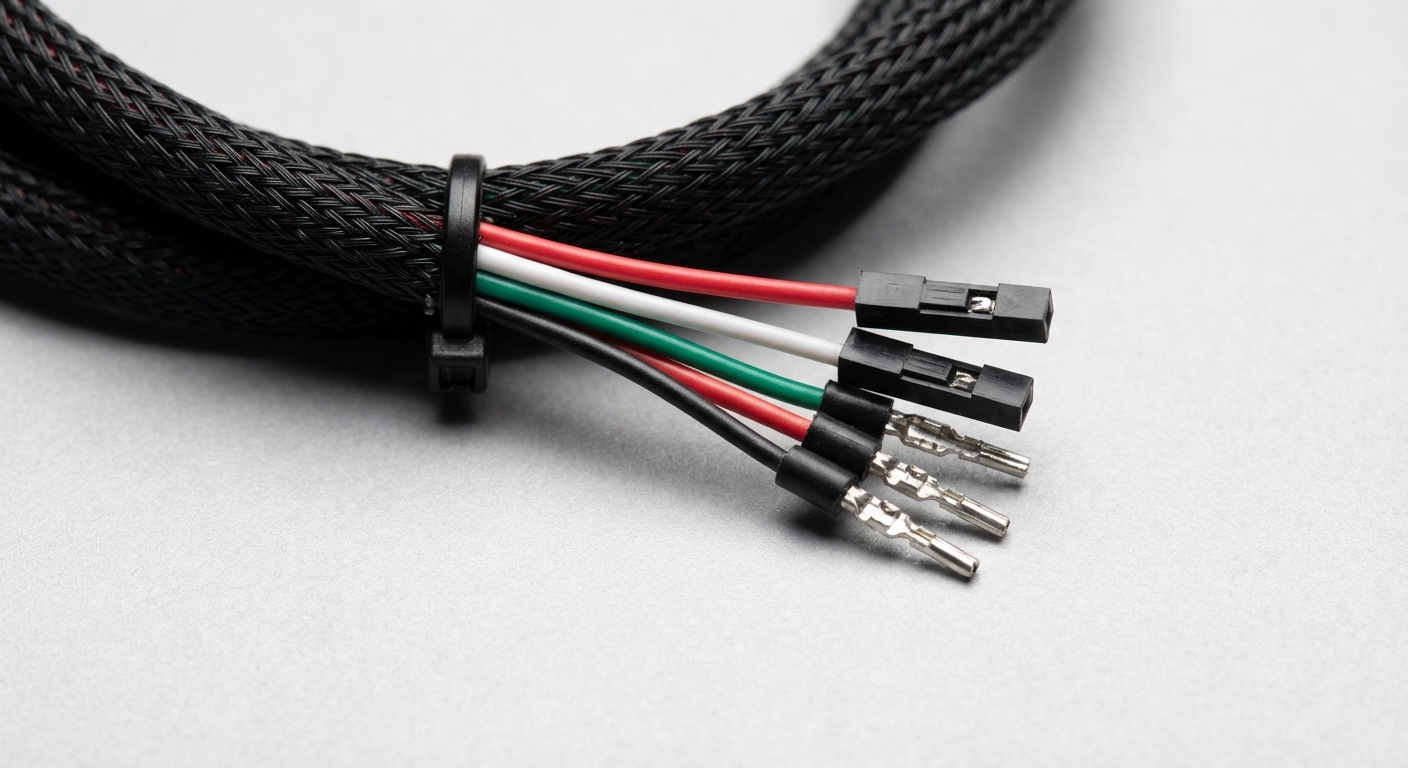
- Align the colored wires according to the table provided above. Red should connect to the +5V pin, while Black connects to Ground.
- Connect the Data+ and Data- wires carefully, ensuring that Green is connected to Data+ and White to Data-.
- Once connected, check for any loose connections or misalignment before powering on the device.
Troubleshooting Common Issues
Even the most careful installations can occasionally result in issues. Here are some common problems and their solutions:
- Device Not Recognized: Check whether the USB header is properly connected to the motherboard and verify the wire color connections.
- Power Issues: Ensure that the red wire is securely connected to the +5V pin; an improper connection can prevent power from reaching the device.
- Intermittent Connections: Look for frayed or damaged wires that may cause poor connectivity; consider replacing the cable if needed.
Conclusion
Understanding internal USB 2.0 header wire color codes is essential for anyone working with electronic devices, particularly for those engaged in computer building or repair. Recognizing the significance of the wire colors can illuminate potential pitfalls and guide users towards successful installations and troubleshooting. As technology advances with newer USB standards, staying informed about the specifications and their nuances will further empower users in their dependency on these critical connectivity tools.
For further reading, consider exploring Wikipedia’s comprehensive article on USB. Additionally, for detailed manufacturer insights, check Intel’s support resources.
Rotating USB