Understanding GPU Power Indicator Light Color Codes
As technology continues to advance, graphics processing units (GPUs) have become central to the performance of modern computers, especially for gamers and creative professionals. However, with great power comes great responsibility—specifically, the need to monitor power status effectively. This article addresses the critical question of what the various GPU power indicator light colors mean. Understanding these light codes is essential for diagnosing potential issues with your graphics card and ensuring that it performs optimally. Many users misinterpret these lights or overlook their significance, leading to unnecessary troubleshooting or hardware concerns. In this article, readers will learn about the meanings behind the different indicator light colors on their GPUs, troubleshooting steps associated with each, and tips on how to use this information for better performance.
How GPU Power Indicators Work
GPU power indicator lights are visual cues designed to inform users about the status of the graphics card’s power connections. Depending on the GPU model, these LEDs may vary, but they typically indicate whether power is being received and if the GPU is functioning correctly. Understanding how these indicators function can help users recognize issues quickly and respond effectively.
Common LED Colors and Their Meanings
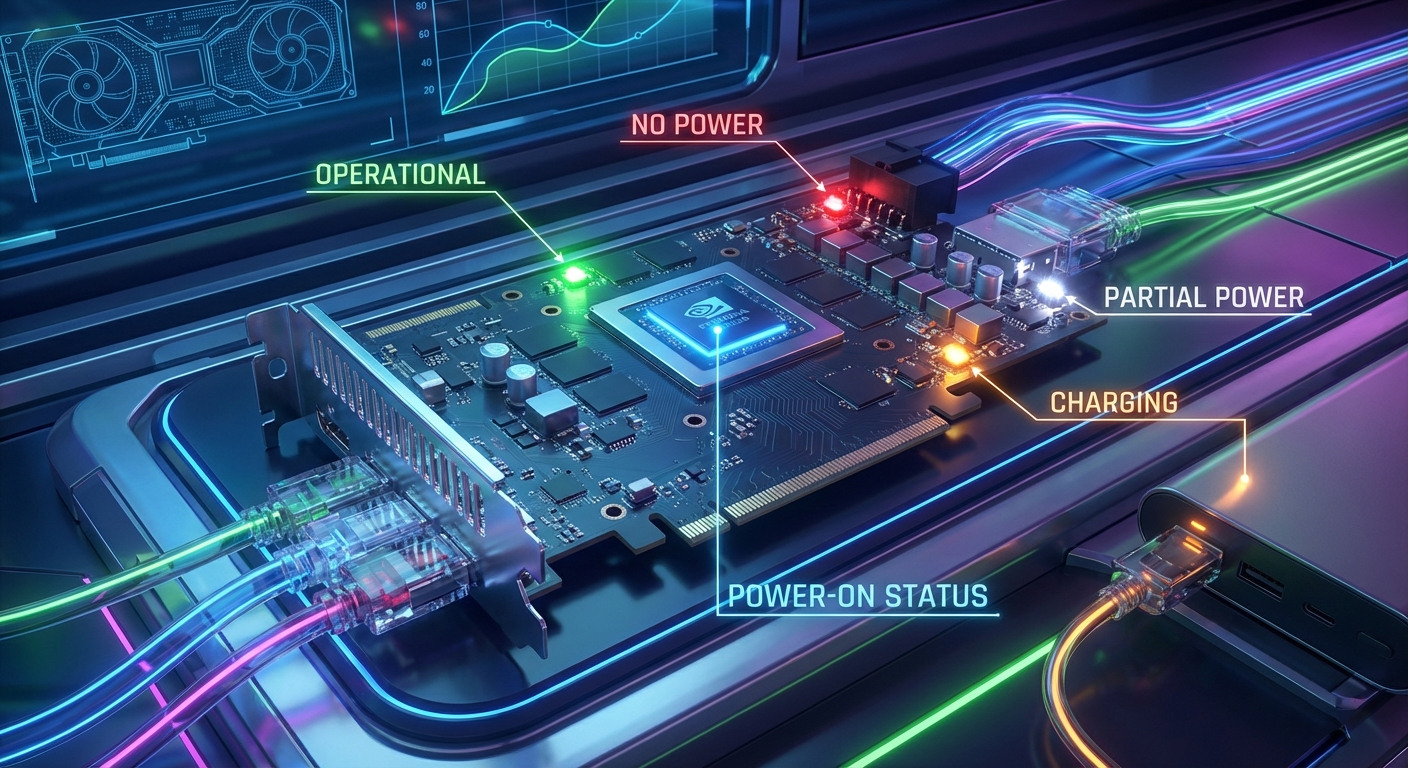
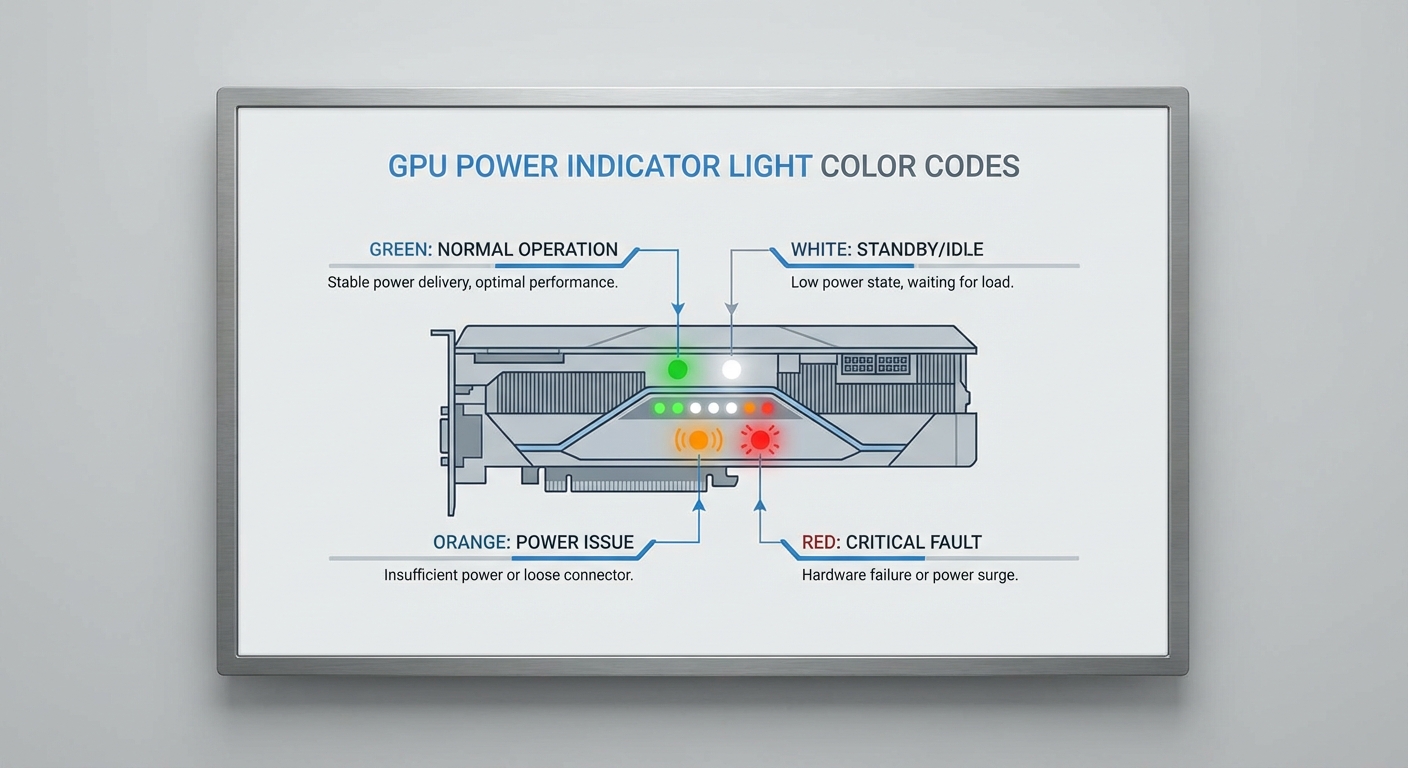
- Green or Blue: Indicates that the GPU is receiving power and functioning correctly.
- Red: Suggests that the GPU is not sensing power in the plug, or it may indicate that the graphics card itself believes it is not receiving power. For example, one red LED means no power in the plug, while three red LEDs may suggest the card is in BIOS flash mode.
- White: Often indicates power is detected, although it can sometimes signal improper or partial power connections when only two out of a six-pin connector are used.
- Tangerine or Orange: Generally correlates with charging status indicators in other components, but it is less common in GPU LEDs.
Diagnostic Steps for Troubleshooting GPU Lights
If your GPU lights are indicating a problem, follow these steps for diagnostics:
- Check all power connections to the GPU. Ensure that the cables are fully seated in both the GPU and the power supply unit.
- Examine the power supply itself. Ensure that it is functioning correctly and can handle the wattage requirements of your GPU.
- Inspect the GPU for physical damage. If possible, test the card in another system to see if the issue persists.
- Consult the motherboard manual for additional troubleshooting recommendations regarding GPU LEDs.
- If the GPU is still unresponsive, consider resetting the BIOS settings or checking for firmware updates.
Common Misconceptions about GPU Indicator Lights
There are several prevalent misconceptions about GPU indicator lights that can lead to confusion:
You may also like


- All Red Lights Indicate Failure: While a red light can mean no power is being received, it does not always mean that the GPU is irreparably damaged.
- Color Codes Are Universal: Different manufacturers have adopted their unique conventions for indicator light colors. Users should refer to specific documentation for accurate interpretations.
- LED Behavior Is Always Consistent: The behavior of the LEDs can vary during different operational modes, such as during BIOS updates, and should be considered accordingly.
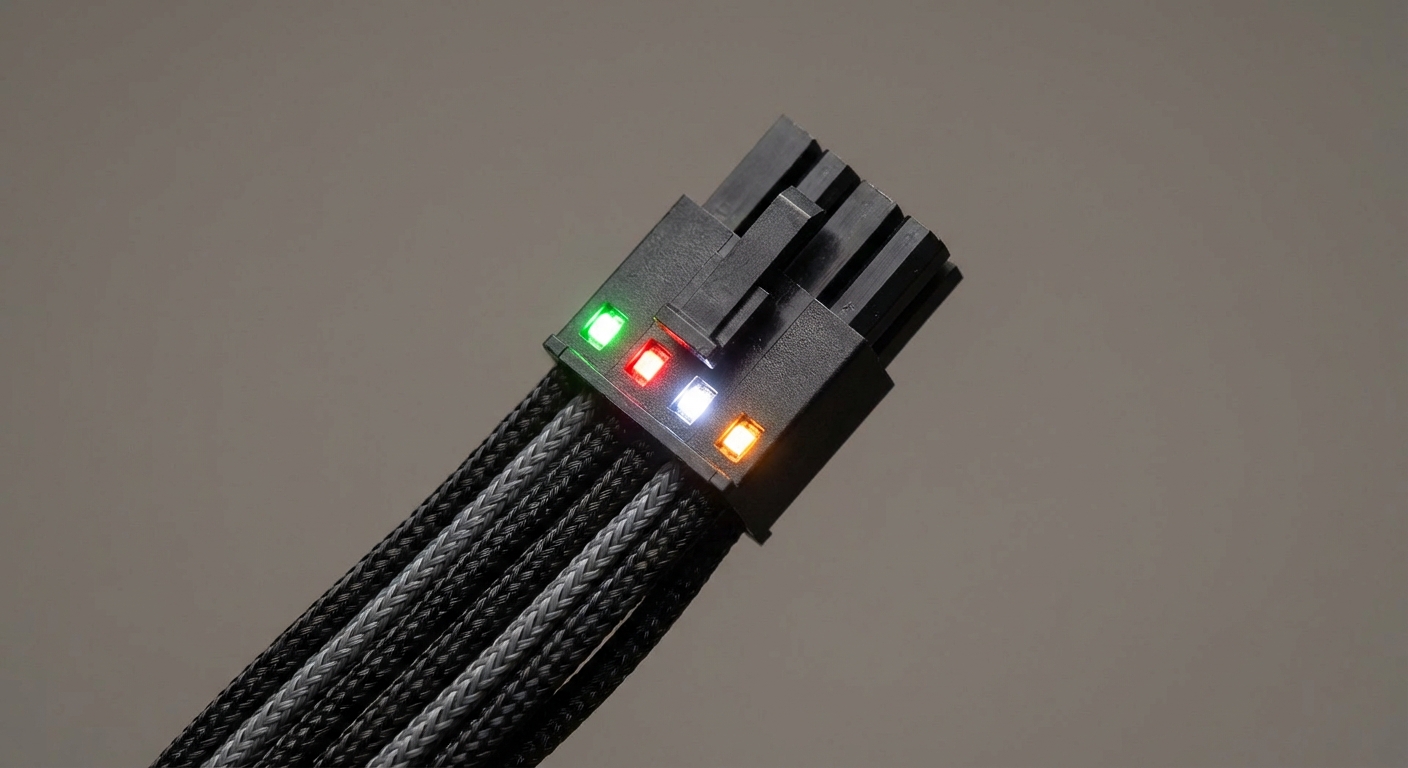
Power Connector Specific Color Codes
Different GPU power connectors may feature individual LED indicators for their specific pins. For instance:
- Color codes generally follow a pattern where red indicates a 12V issue, green is often linked to 5V, and orange/amber signals a potential 3.3V problem.
Understanding Specific Color Codes
Manufacturers often specify these codes in their documentation. For example, GIGABYTE devices might use blue for power-on status while a tangerine hue can indicate charging. Users can refer to their card’s manual for precise specifications.
Best Practices for Monitoring GPU Performance
To optimize and maintain ideal GPU performance, consider employing the following practices:
- Regularly check LED indicators to catch issues early.
- Keep an eye on your power supply’s efficiency and capacity, particularly during heavy loading scenarios.
- Ensure that your system’s cooling is adequate to prevent thermal throttling, which can affect performance and indicator responses.
Frequently Asked Questions
Q: What does a red light on my GPU mean?
A: A red light usually indicates that the GPU is not receiving power at the plug, or it may signify other connection issues.
Q: How many lights should I expect on my GPU?
A: The number of lights can vary by model; typically, you might observe one or three lights that signal various power statuses.
Q: What should I do if my GPU light stays red?
A: Ensure all connections are secure, check the power supply, and test the GPU in another system if possible.
Q: Can I trust the indicator colors across different GPU brands?
A: No, different manufacturers may maintain distinct guidelines for LED colors, so always refer to the specific documentation for your model.
Q: What does BIOS flash mode mean when indicated by red lights?
A: It means that the graphics card is preparing for a BIOS update, which is typically initiated by the manufacturer.
Conclusion
In summary, understanding GPU power indicator light color codes is paramount for efficient troubleshooting and maintaining performance. These lights serve as the first line of defense against potential issues. By familiarizing yourself with their meanings and observing best practices, you can ensure that your GPU operates at its peak. For further reading on related topics, consider exploring power supply unit specifications.
Rotating USB