Introduction
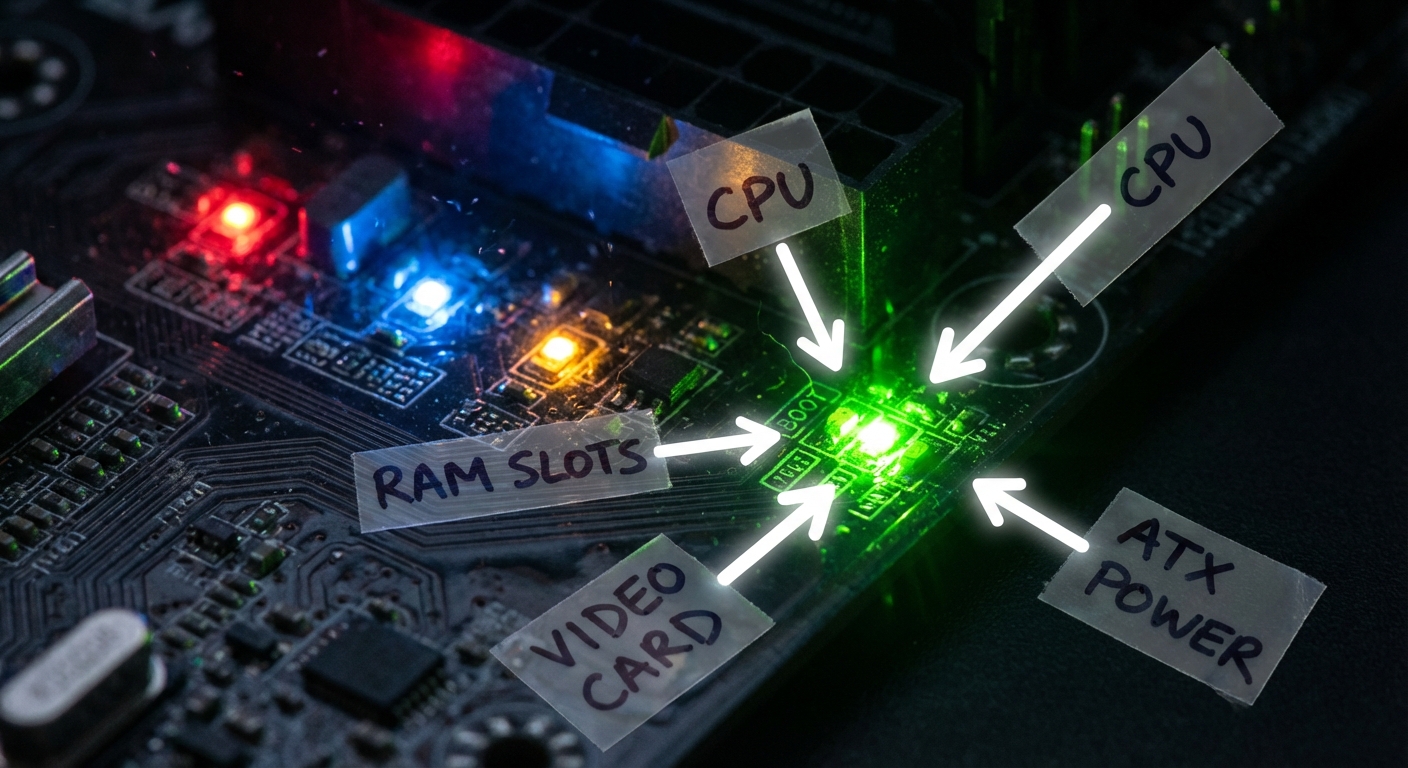
Understanding the color codes on your motherboard can be a critical aspect of troubleshooting a new or existing PC setup. If you’re noticing a consistent green light signaling at boot, you may find yourself questioning its meaning and implications. This article addresses the specific issue of motherboard color codes, particularly focusing on the significance of a green boot light. Misinterpretation of these signals can lead to unnecessary confusion and troubleshooting efforts. Many users believe a steady green light suggests the system is fully operational; however, the reality can be more nuanced. Therefore, this guide will provide a deep dive into what a green motherboard light signifies, common problems associated with it, and step-by-step troubleshooting tips to help you diagnose and resolve these boot issues.
Understanding Motherboard Color Codes
Motherboards utilize LED indicators to provide users with critical information during the boot process. These lights can signal the system’s operational state or highlight issues that require attention. Here’s what you need to know:
Basics of LED Indicators
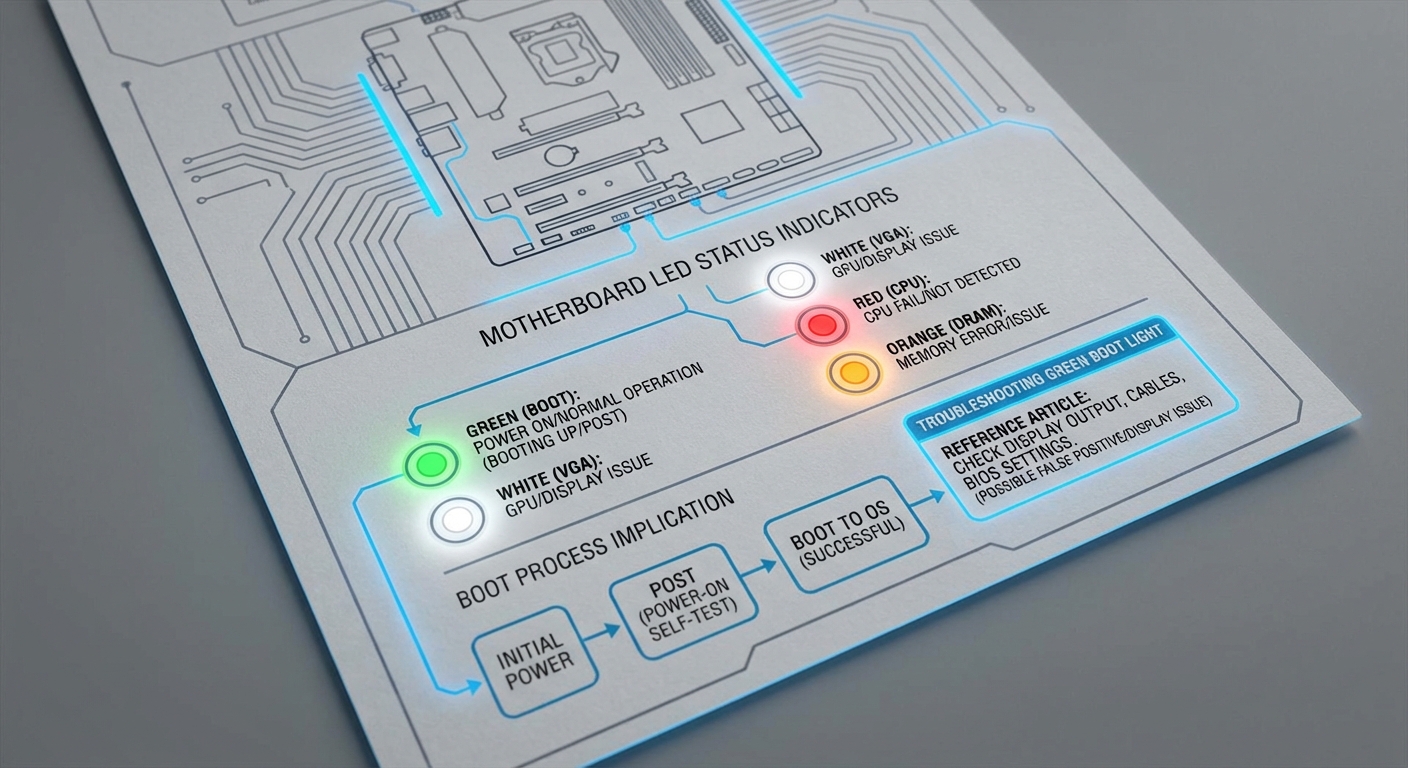
LED indicators usually provide a simple color-coded identification system for ease of understanding. The most common colors observed are green, white, orange, and red:
- Green: Typically indicates the board is receiving power. However, if the green light is flashing or accompanied by other colors, it points to underlying hardware issues.
- White: Often associated with the graphical interface. Continuous white lights can indicate that the system is trying to initiate video components.
- Red: Generally signifies critical errors or hardware failures.
- Orange: This may represent standby or boot progress stages.
Common Issues Associated with the Green Boot Light
A steady green light does not always guarantee a successful boot. Below are some issues commonly linked to a green boot light:
You may also like

1. Video Card Problems
If you see a green boot light and there is no display, one of the first things to check is whether your video card is properly seated and functioning:
- Ensure that the card is securely connected to both the motherboard and power supply.
- Double-check your video output connections. Use the port on the graphics card rather than the motherboard’s integrated video output.
2. RAM Issues
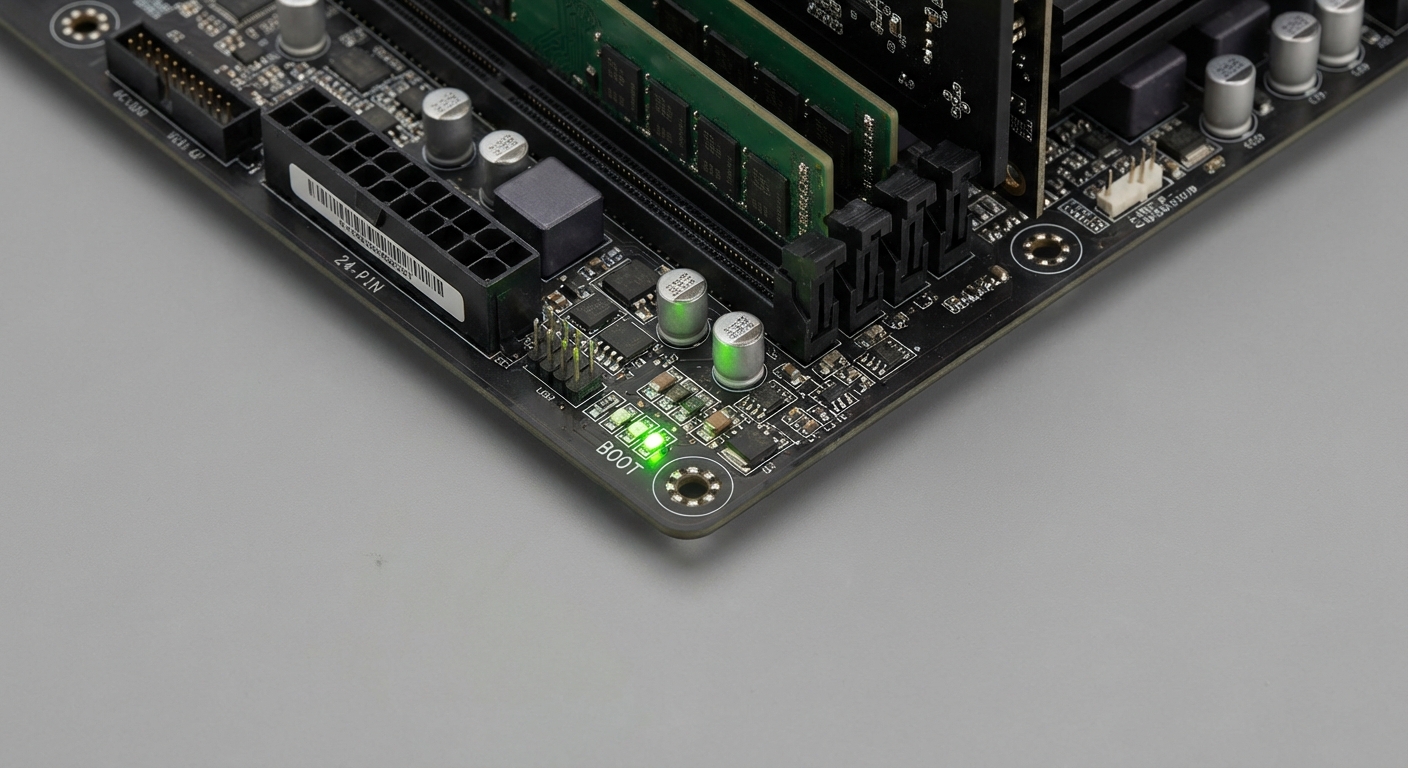
Faulty or incorrectly installed RAM can lead to a green boot light without further progress:
- Verify that the RAM sticks are properly seated in their slots.
- Consult your motherboard’s manual for the correct RAM configuration.
3. Power Supply Problems
Even if the motherboard shows a green light, it may not be receiving the proper power:
- Check all power connections from the power supply to the motherboard and components.
- Consider testing your power supply with a multimeter or swapping it out with a known good unit.
Troubleshooting Steps for a Green Boot Light
Here’s a concise troubleshooting guide to help resolve issues associated with a green boot light:
- Start by powering down your system and disconnecting the power supply.
- Open your case and inspect all connections, particularly those related to the GPU and RAM.
- Ensure that your graphics card is installed in the correct PCIe slot. If possible, test with another GPU.
- Run a memory test. If your motherboard supports it, use diagnostic software or remove RAM sticks to identify faulty ones.
- Check the power supply connections. Make sure both the main power and auxiliary CPU power cables are connected securely.
- Inspect for any physical damage on the motherboard that might indicate a short circuit or component failure.
- If possible, reset your BIOS by removing the battery for a few minutes or by using the CMOS jumper.
- Reassemble and test the system step by step, booting after each change to isolate the issue.
Real-World Examples and User Experiences
Users have frequently discussed their struggles with green boot lights across various forums. For instance, with certain models like the Asus B550-E Gaming and the MSI MPG Edge WiFi, many users reported facing similar issues with concurrent white and green lights during boot attempts. In these instances, clearing the CMOS or reseating the RAM often helped alleviate the problem and successfully boot the system. Furthermore, specific component configurations were highlighted as creating conflicts that manifested through these indicator lights.
Frequently Asked Questions
Q1: What does a blinking green light on the motherboard mean?
A1: A blinking green LED generally indicates that power is being supplied to the motherboard, but there may be hardware-related issues.
Q2: Can the presence of a green boot light mean the system is fully operational?
A2: Not necessarily. While a steady green light can indicate power, issues like RAM or video card failure can prevent booting despite this indication.
Q3: How can I troubleshoot a motherboard that shows a green light and no display?
A3: Start by ensuring all components are securely connected and functioning. Test the RAM and graphics card, and check power connections.
Q4: Is there a safe way to clear the CMOS if the motherboard shows a green light?
A4: Yes, you can clear the CMOS by removing the motherboard battery for a few minutes or using the CMOS jumper if available on your motherboard.
Q5: Should I be worried if the green light is accompanied by other colored lights?
A5: Yes, additional colored lights typically indicate specific hardware failures or issues and should be further investigated based on their color and patterns.
Conclusion
In summary, understanding the color codes on your motherboard, specifically the implications of a steady or blinking green light, is vital in diagnosing boot issues. Many potential problems can be resolved with careful troubleshooting steps and the right knowledge. If you’re experiencing related issues, be sure to explore additional resources or manufacturer support for further assistance. For more information regarding PC hardware, check out the Motherboard Wikipedia page or look for detailed guides on forums specific to your hardware model.
Rotating USB