Understanding Audio Jack Color Codes for PC Speakers and Microphones
Audio ports make it easy to connect speakers, microphones, and other audio devices to a PC, but for many users, understanding the color coding of these jacks can be confusing. This article addresses a common problem: identifying which audio jack corresponds to which device. Clear comprehension of these color codes is essential not only for connectivity but also for achieving optimal sound quality in your setup. Many users often misconstrue the purpose of different audio jacks based solely on their colors without realizing that each serves a distinct function. In this article, you will learn about the standardized color codes for audio jacks on PCs, the specific functions they represent, and how to distinguish them for efficient audio connections.
Audio Jack Basics
Most modern PCs are equipped with multiple audio jacks on the back or front panels. These ports allow you to connect headphones, external speakers, and microphones with ease. Understanding the function of these jacks is key to effective audio management.
Common Audio Jack Functions
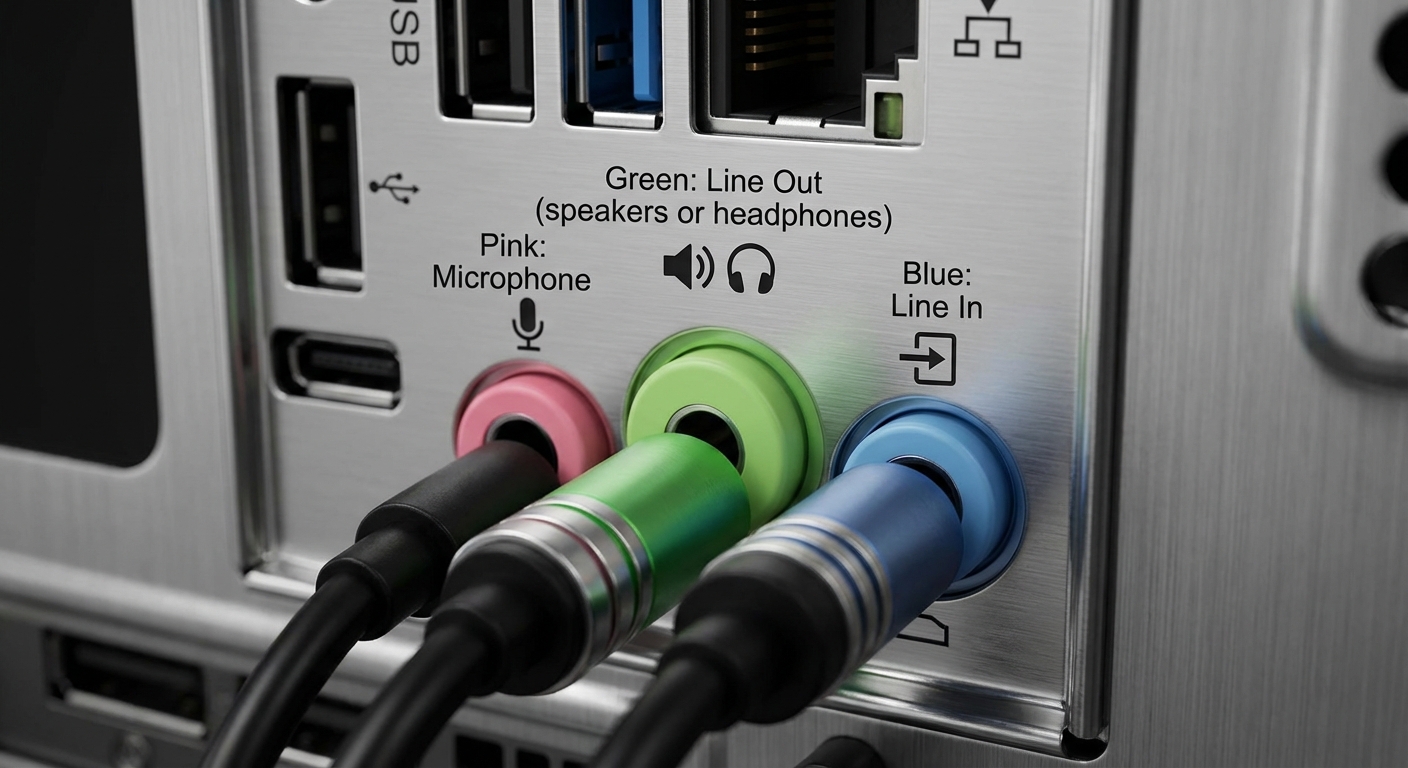
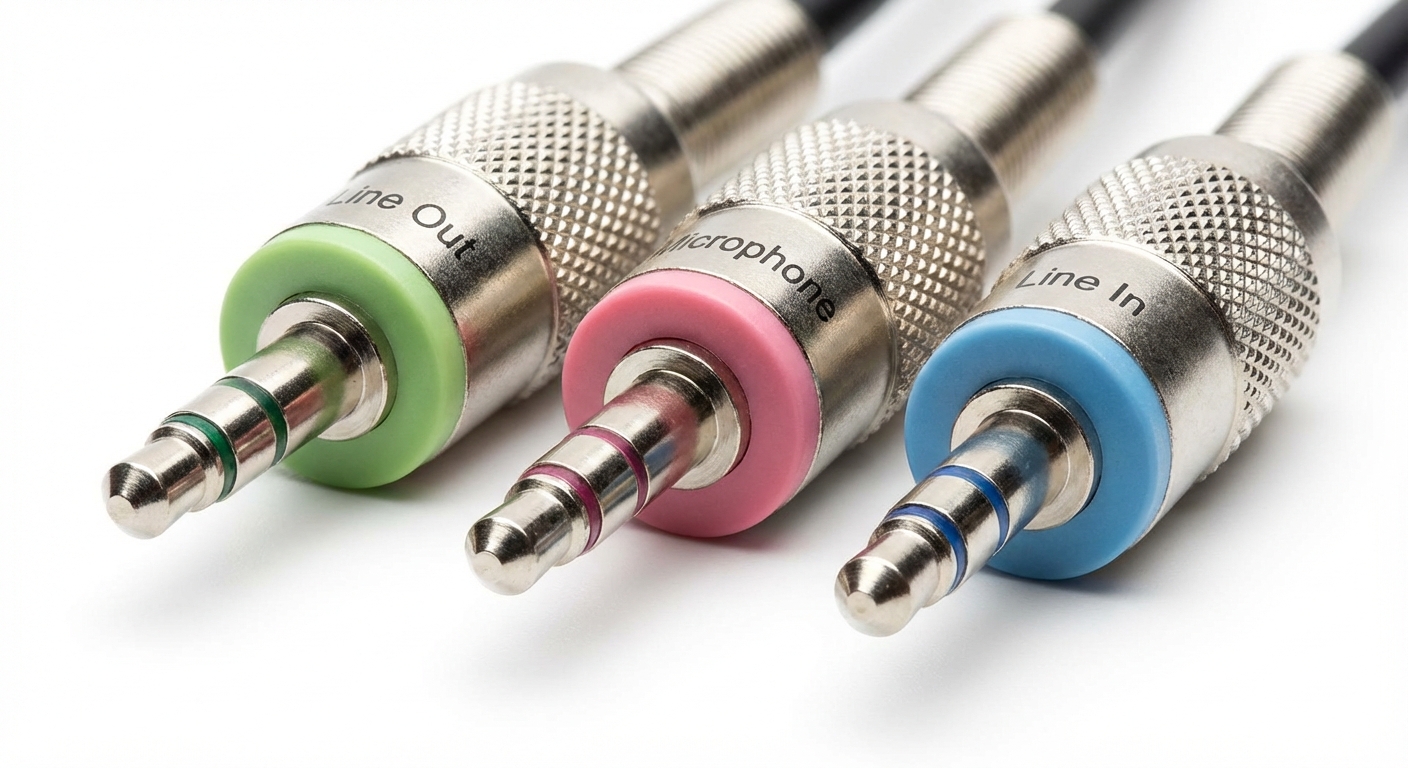
- Green Jack: This is the line-out jack, typically used for connecting speakers or headphones. It is often colored lime green and is the most self-explanatory of the ports.
- Pink Jack: This jack is designated for analog microphones and is usually a light pink in color. It can accommodate both mono and stereo microphones.
- Blue Jack: Often light blue, this jack is used for line-in purposes, allowing you to connect external audio sources.
Detailed Color Coding and Functions
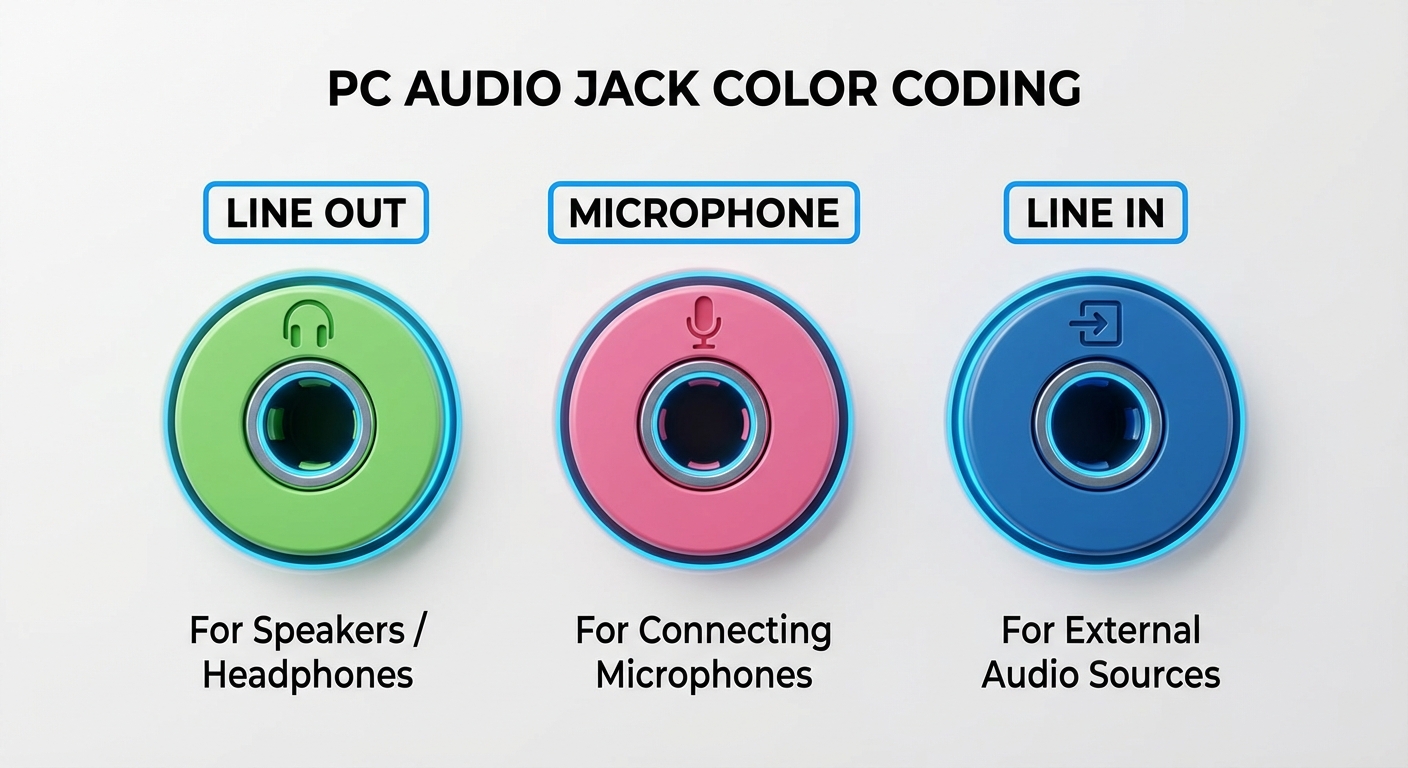
The standardization of audio jacks is crucial for a seamless user experience. Below is a detailed breakdown of the audio jack color codes:
| Color | Function | Description |
|---|---|---|
| Green | Line Out | Used for connecting speakers or headphones. The output for sound transmission. |
| Pink | Microphone | Designed for connecting analog microphones, either mono or stereo. |
| Blue | Line In | Used for connecting external audio sources, allowing for sound input to the computer. |
How to Identify Audio Jacks
Identifying audio jacks can sometimes be tricky, especially if you’re color blind. Most PCs will have symbols next to the jacks for easier identification. Here’s how you can ensure you’re connecting devices to the right ports:
You may also like


Diagnostic Steps to Identify the Correct Jack
- Look for the color coding: Check the colors of your audio jacks against the standard codes described above.
- Observe any labeling or icons: Many audio jacks will have small symbols (like a microphone or speaker) next to them.
- Test connections: If you’re unsure, test connecting the device to see if it works correctly with sound output or input.
Common Misconceptions
One prevalent misconception is that all audio jacks are interchangeable. This is false and can lead to poor audio performance. For instance, connecting a microphone to the green line-out jack will not work as intended. The distinct functions of each jack make it important to connect them correctly to ensure they operate as designed.
FAQs
Q1: What does the green audio jack do?
A1: The green audio jack is generally used for line-out connections, primarily linking speakers or headphones to the computer.
Q2: Can I use the blue jack for a microphone?
A2: No, the blue jack is meant for line-in, which is used to receive audio from external sources, not for microphones.
Q3: What is the purpose of the pink audio jack?
A3: The pink audio jack is specifically meant for connecting analog microphones to a computer.
Q4: Are the audio jacks color-coded universally?
A4: While the color coding is standardized in many systems, always check your specific computer model’s manual or labels for accurate identification.
Q5: What if I can’t see the colors properly?
A5: Look for symbols next to the jacks, which can help you identify their functions regardless of color perception.
Conclusion
In summary, knowing the audio jack color codes for your PC can significantly enhance your audio experience by ensuring proper device connectivity. The green, pink, and blue jacks serve distinct functions that are vital for achieving optimal sound quality. For further exploration, consider researching audio signal processing and its relation to device connectivity.
Rotating USB