Understanding GPU Power Cable Adapter Safety Color Codes
In today’s ever-evolving landscape of computer graphics, ensuring safe and efficient power delivery to graphics processing units (GPUs) is paramount. The introduction of the 12VHPWR connector with PCIe 5.0 has raised questions regarding safety protocols associated with GPU power cabling. This article addresses a critical concern: how color codes on GPU power cable adapters ensure proper connection and prevent potential damage. Many users may not realize the importance of these color codes, leading to misunderstandings about proper installation procedures. By the end of this article, you will have a comprehensive understanding of the 12VHPWR connector pinout, the role of safety color coding, and effective strategies to avoid common pitfalls related to improper connections.
How the 12VHPWR Connector Works
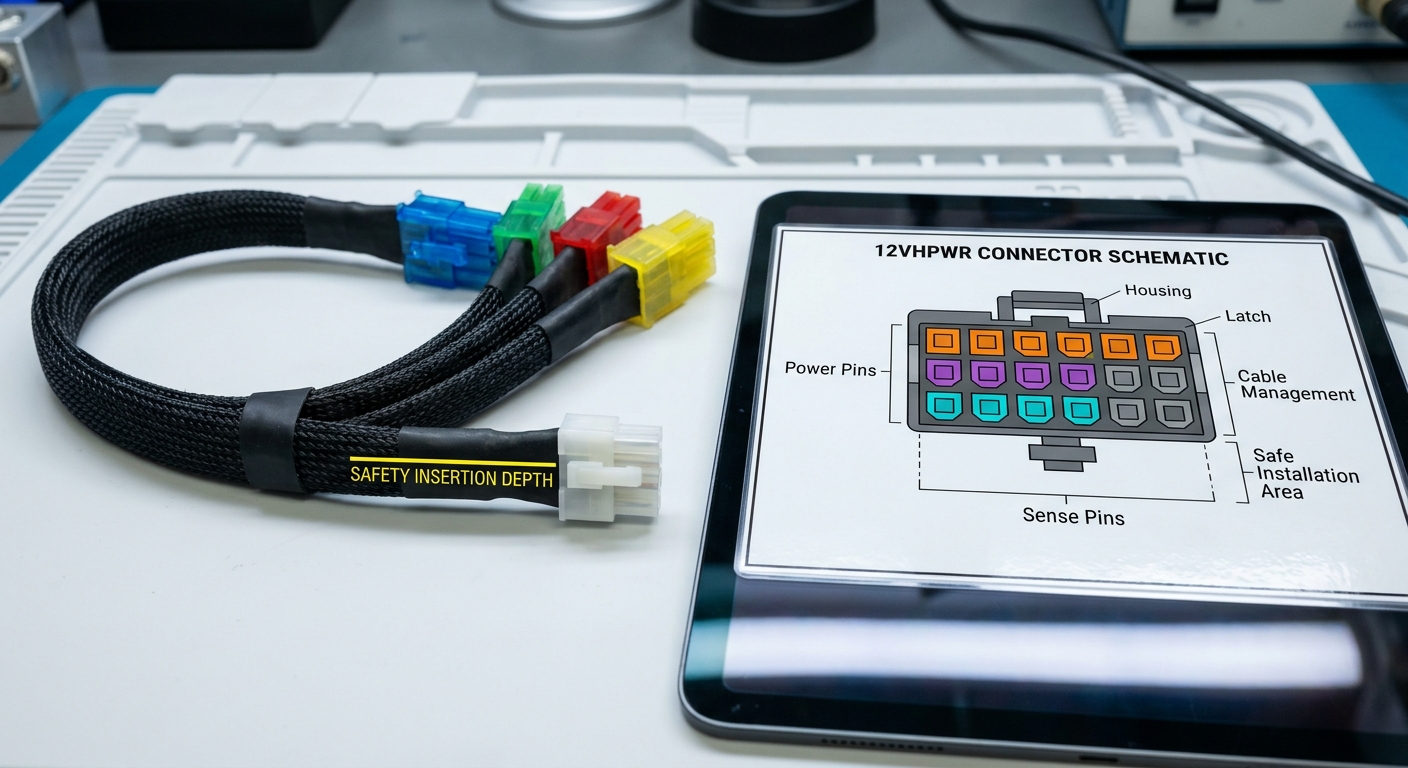
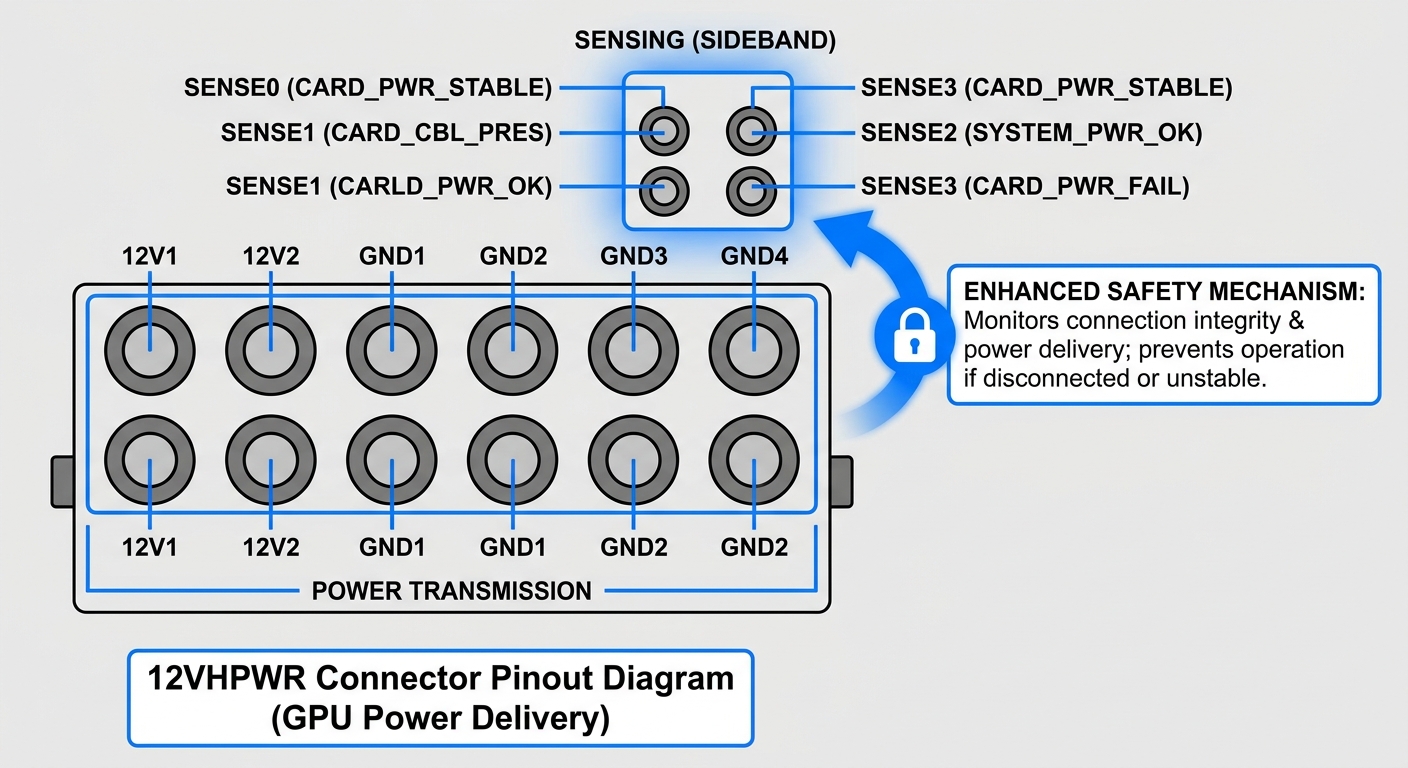
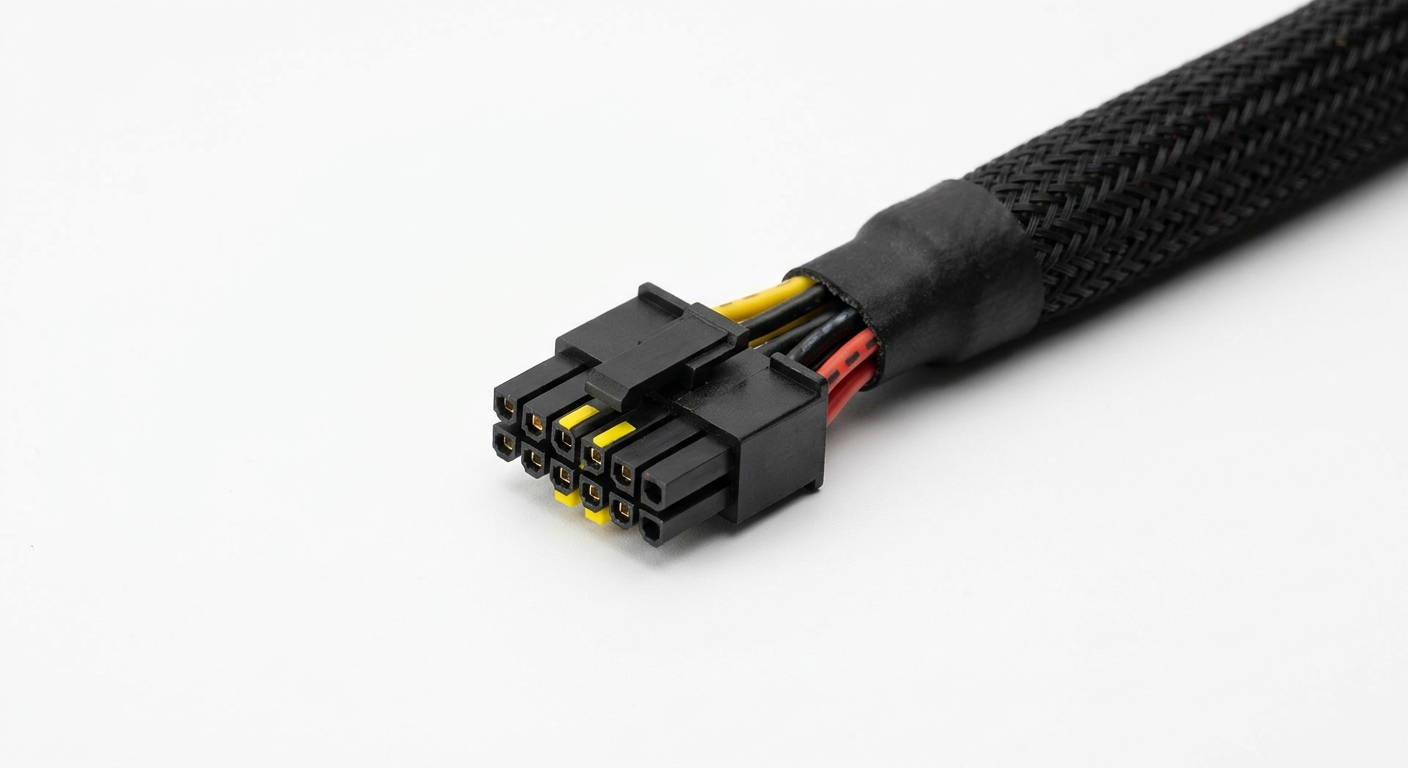
The 12VHPWR connector is designed to deliver a significant amount of power to modern GPUs, featuring a total of 16 pins: 12 dedicated to power transmission and 4 for sensing. This setup is crucial for facilitating high power ratings that contemporary graphics cards require, particularly for demanding applications such as gaming and professional 3D rendering.
One of the standout features of the 12VHPWR connector is its enhanced safety mechanism. The connector incorporates colored pins to indicate appropriate seating, which helps minimize the risks associated with improper connections. The sense pins are engineered to only make contact once the power pins are securely seated, a significant improvement over older implementations where such safeguards were absent.
The Importance of Color Coding
Color coding in power cable adapters serves as a visual guide that helps users ensure proper connections are made. For example, MSI has implemented a color-coded system for its RTX 50 Series graphics cards, with safety yellow marking on the female side of the 12V-2×6 power connectors. This design offers a straightforward method to visually confirm that the connector is inserted correctly into the GPU power socket.
You may also like



- Yellow Indicator: The bright yellow color indicates the insertion depth for safety, ensuring that users know how far to push the connector.
- Obscured Marking: Once the connector is fully placed in the power socket, the yellow marking becomes obscured, giving an additional reassurance that the connection is secure.
This attention to detail not only enhances safety but also aids in preventing potential hardware malfunctions that could arise from loosely connected power cables.
Checking for Proper Connections
To prevent issues stemming from improperly seated connectors, follow these steps to check for proper connections:
- Examine the power adapter and GPU for any visible damage or debris that could interfere with connection.
- Observe color codes on the cable and ensure they align with the specifications indicated in the GPU manual.
- Gently insert the connector and verify that the yellow mark on the cable is no longer visible, indicating a flush fit.
- Power on the system and check if the GPU is recognized and functioning correctly. If issues arise, double-check connections.
Troubleshooting Common Connection Issues
If you experience problems with your GPU not powering up or if it’s displaying errors, here are some diagnostic steps you can take:
- Ensure all power connections to the motherboard and GPU are secure.
- Inspect the cable for any signs of wear, corrosion, or damage that could affect conductivity.
- Check if the PSU (Power Supply Unit) is capable of supplying the required wattage for the GPU.
- Confirm that the GPU is properly seated in the PCIe slot and secured with screws.
Addressing these issues promptly can save you from encountering more severe hardware problems down the line.
Safety Tips for Using GPU Power Adapters
To maximize safety and performance when using GPU power adapters, consider the following tips:
- Use high-quality cables and connectors from reputable manufacturers to guarantee reliability.
- Always follow industry standards and specifications for cable types and configurations.
- Regularly check connections, especially after moving or modifying components within your system.
- Consider the environmental factors in which your GPU operates, such as temperature and humidity, which could influence power delivery.
FAQs
Q: What does the yellow color on the GPU power connector indicate?
A: The yellow color serves as a visual indicator for proper insertion depth into the GPU power socket, ensuring a secure connection.
Q: How can I tell if my GPU power connectors are properly seated?
A: Verify that the specific color codes match the specifications and that any visible indicator markings are obscured after insertion.
Q: What should I do if my GPU does not power on after connecting?
A: Check all connections, ensure adequate power supply, and inspect for any physical damage to the cables or GPU.
Q: Why do the sense pins exist on the 12VHPWR connector?
A: Sense pins are designed to ensure that power pins are correctly seated before power flow is initiated, enhancing safety during operations.
Q: Are all GPU power cables interchangeable?
A: No, it is crucial to use the appropriate cables that match your GPU’s specifications for safety and performance reasons.
Conclusion
Understanding GPU power cable adapter safety color codes is essential for ensuring a secure and stable power connection, ultimately protecting your expensive hardware. The advancements in connectors, such as the 12VHPWR, showcase the importance of safety features like color coding. As the technology landscape continues to evolve, keeping up with standards and practices will enable optimal performance and safety for all users.
For more information on power supply units and compatibility, consider checking Wikipedia or visiting your manufacturer’s support page for additional guidelines.
Rotating USB